
What to do when getting the Westinghouse TV’s “No signal” message? Check below!
The modern Westinghouse TVs are usually equipped with Android, Roku, or a proprietary system.
Any of those make the device easy to manage and to use any external device you’d like.
But you could run into a “no signal” message when connecting your favorite gaming console.
For a “no signal” error, promptly check input settings and physical components. Issues may arise from power saving mode, cache, HDMI-CEC, network settings, or outdated firmware.
Below, we will discuss all the steps you must take to get rid of the problem!
Westinghouse TV No Signal – Check 8 Solutions!
Solution #1: Adjust The Input Settings
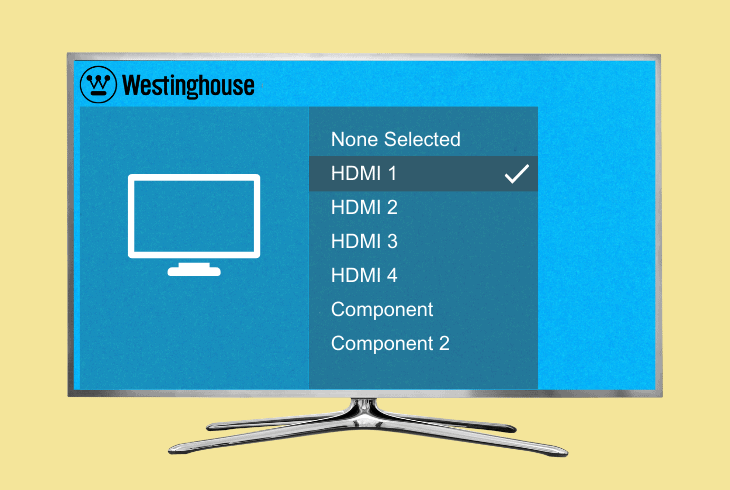
Have you got the Westinghouse TV’s “No signal detected” message? That is common when you connect an external device, but the input settings are wrong.
Although new TVs have plenty of smart features, the input configuration must still be manual.
So ensure you do the following:
- Press “Menu” on your remote.
- Navigate to “Settings” using the arrow keys.
- Select “Input” or “Input Source.”
- Choose the desired input source.
- Confirm your selection.
Afterward, return to the TV’s menu and see if the “no signal” message has vanished.
It totally should. If it hasn’t, you must proceed to solution #2 below.
Solution #2: Check The Physical Components

Okay, you have already adjusted the digital settings, but still, the Westinghouse TV says “no signal.”
In that case, it is time to verify all the physical components. The issue can lie somewhere in the cable or the port (of the TV or the external device).
Start with the following:
- Disconnect the cable that is not recognized by the TV.
- Check the TV’s port and see if there is dust, dirt, or other type of debris inside or around it.
- Grab an anti-static brush and clean it carefully but thoroughly.
Check The Cable
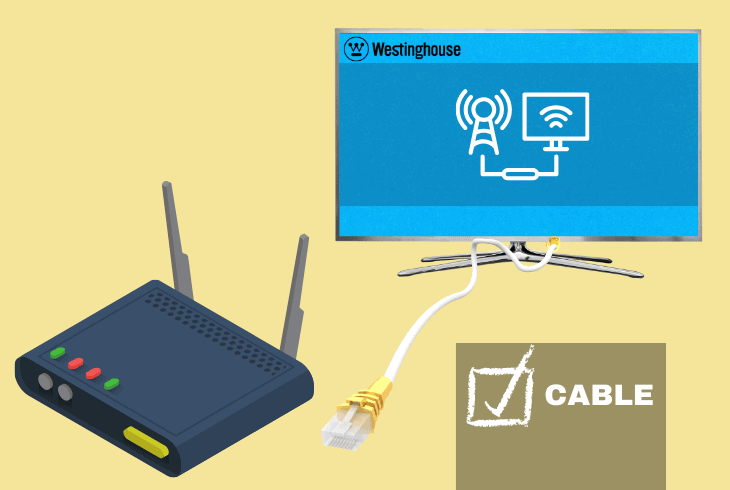
Once you have done the above, it is time to look at the cable and the external device. Nowadays, most devices use HDMI.
If that is the case, your TV probably has two HDMI inputs, so just switch the HDMI at use and see if that makes a difference.
If it doesn’t:
- Grab a different cable and test it.
- Test a different external device that uses the same type of connection.
- Test your external device on a different TV or monitor if available.
The important takeaway from the above is determining which component is at fault. If it is the cable, then it is replaceable.
However, the issue might lie in your TV’s port, which you must examine for damaged pins or metallic borders (depending on the port).
Solution #3: Turn The Power Saving Mode Off
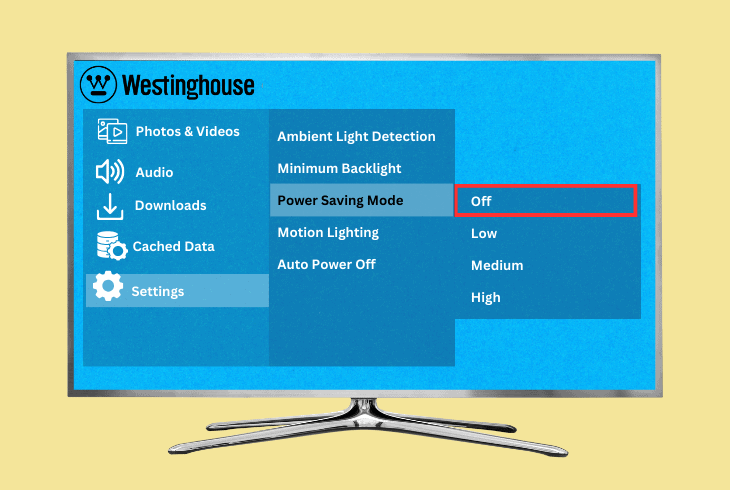
Modern Westinghouse smart TV models incorporate a power-saving mode to cater to users with less demanding usage.
Nevertheless, this mode may lead to unintended consequences if the TV excessively restricts power consumption, potentially impacting performance.
That can lead to the TV not recognizing some devices that would require much power to work.
Check And Turn The Mode Off
Let’s explore how to locate and disable the Power Saving Mode:
- Open the TV’s Settings.
- Look for the power/energy options.
- Find “Energy saving.”
- If it is on, toggle it off.
Note: The Power Saving Mode is just one potential cause. If the problem persists, explore the alternative solutions below.
Solution #4: Clear The TV’s Cache
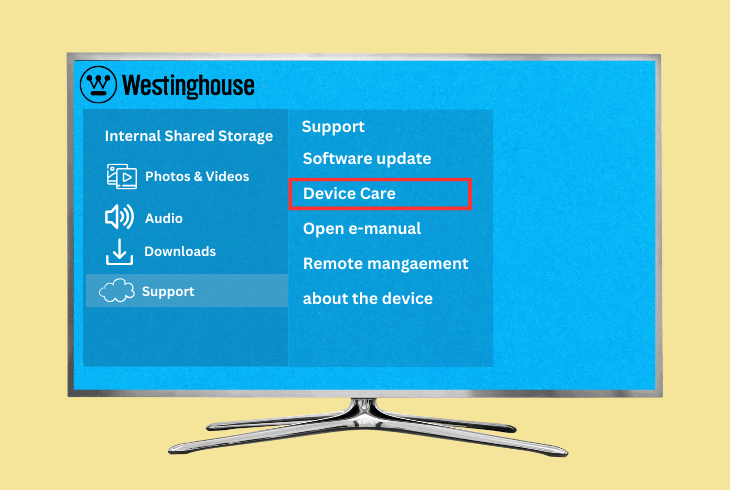
In certain cases, Westinghouse TV issues stem from a congested cache.
To clarify, the cache stores data to enhance navigation within previously opened apps, but it can become overly full or corrupted.
In those situations, the best is to clear the TV cache and allow it to build new data to solve any necessary requests.
- Press the “Home” button on the remote controller five times.
- Press the “Up” button.
- Press the “Rewind” button twice.
- Press the “Fast Forward” button twice.
- Wait for the TV to restart.
After completing these steps, the TV’s cache will be reset, resolving any associated issues.
Clear Some Data

Moreover, the TV might face problems when you have too many apps or extra data.
Do you download from apps or external sources?
There are two things you should do:
- Access the app hub on your TV.
- Locate apps you don’t use anymore.
- Uninstall them.
Next, check if your TV has a file folder.
- Locate the file folder.
- Select all the unnecessary files stored.
- Delete them.
- Restart your TV.
After that, connect any external inputs again and see how the TV behaves.
Note: Check your TV's storage menu; most TVs have 8GB of storage. Maintain at least 1GB unused to preserve the device's processing capacity.
Solution #5: Verify The HDMI-CEC
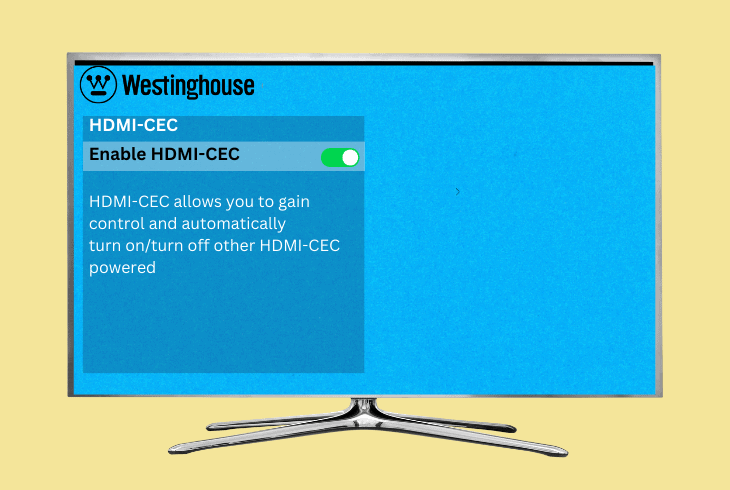
You’ve probably enabled HDMI-CEC for streamlined control when using an HDMI device connected to your TV.
Nevertheless, HDMI-CEC can encounter issues, resulting in a “no signal” message when connecting to an external device.
To address this glitch, follow these steps:
- Press the “Menu” button.
- Go to “Settings.”
- Locate “System.”
- Find “Control Other Devices.”
- Find the HDMI-CEC and turn it off or adjust its options.
If you turn the HDMI-CEC off, check if the TV keeps turning off.
Note: The HDMI-CEC issue can be related to the HDMI port having an issue. You can try switching between two different HDMI ports.
Solution #5: Check The Network Settings
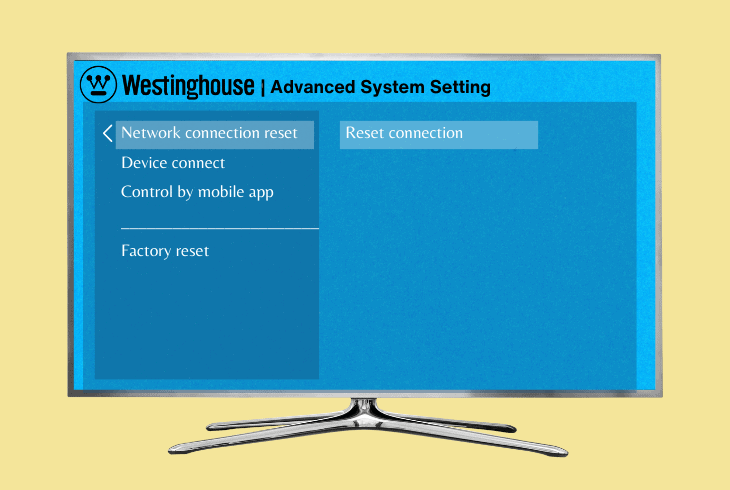
Although the “No signal” issue happens more frequently with external devices, it can also appear when you want to connect your TV to internet-depending services.
There are some possibilities to consider: your TV is offline because it can’t connect to the router or is supposedly connected, but the connection has issues.
Do the following for both cases:
- Open the TV’s settings.
- Go to “General.”
- Select “Network.”
- Locate the “Reset Network” button.
- Confirm by clicking on “Yes.”
- Turn the TV off once the process finishes.
- Turn the TV back on after a while.
Once the TV goes back on, navigate to the network settings and set the TV up again.
It should connect to your Wi-Fi router and have a strong connection to provide the necessary data.
Alert: TVs use much data for streaming services, so ensure you connect to a 5GHz network. That is even more necessary if you use a service like Xbox Cloud Gaming.
Solution #7: Update The Software
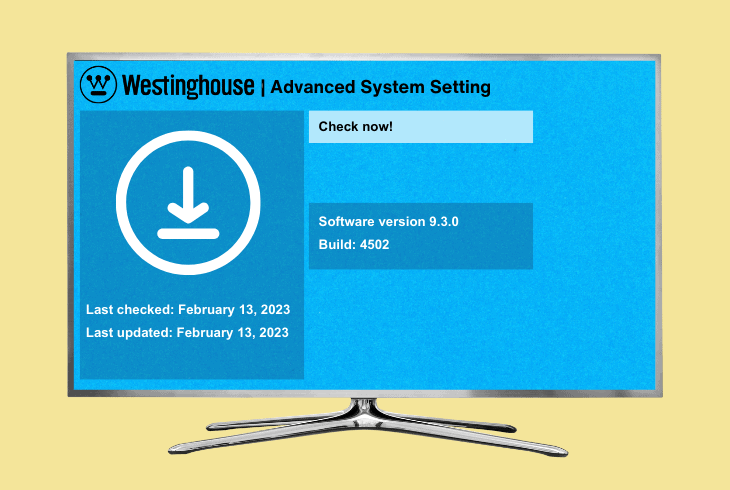
Have you missed a recent firmware update? That can explain frequent TV glitches.
Firmware updates are crucial to maintaining app and system functionality.
Here’s how to update your Westinghouse TV system:
- Press the “Menu” button.
- Navigate to the “Settings.”
- Locate the “System” menu.
- Choose “System Update” among the options.
- Select “Check Now.”
The TV will scan Westinghouse servers for a new firmware update.
If found, it will prompt you to confirm the installation, after which you’ll need to wait until it completes.
Note: You must check for updates on your TV (and other devices) whenever a glitch happens for seemingly no reason.
Solution #8: Reset The TV
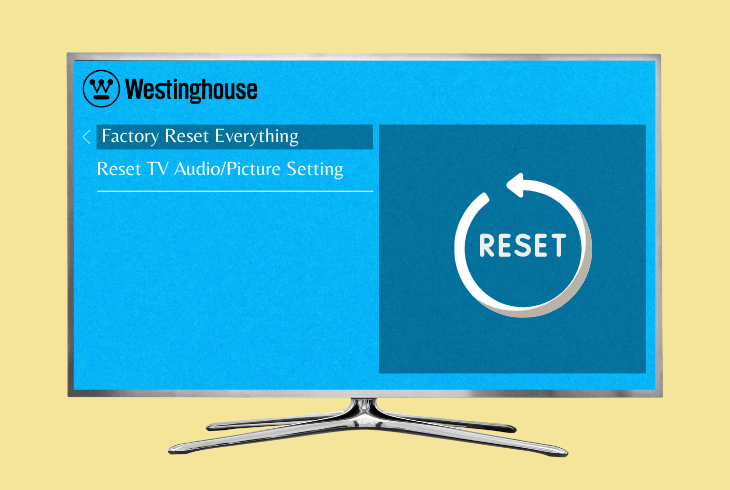
A deep firmware issue can also be a problem that prevents you from enjoying your external devices (gaming consoles, connected computers, Blu-ray players, etc.).
In that case, updating won’t be enough because the update won’t rewrite the corrupted files/codes.
So, it is time to try a hard reset on your Westinghouse TV.
Here is the system process:
- Press the remote’s “Menu” button.
- Go to the TV’s “Settings.”
- Choose “General.”
- Choose “Restore default.”
- Confirm the option.
Use The Physical Button
Many Westinghouse TVs also present a physical reset button, which can be used if your TV is freezing whenever you try to access an external input.
Here is how to make use of it:
- Locate the button.
- Hold it using a ballpen.
- Release when you see the Westinghouse logo on the screen.
Note: Resetting will wipe out your personal data, apps, accounts, files downloaded, and so on. You will need to set everything up from scratch!
Quick Recap
Westinghouse TV’s “No signal” message lets you know that a problem has happened when trying to link up to whatever device you have connected.
Other times, it is also a network issue. In every situation, you have plenty of settings to adjust and determine which is causing the annoying mistake.
Tired of not understanding the errors on your gadgets? Our blog has plenty of info for you!

- SimpliSafe Doorbell Not Flashing White? (Quick Fix Guide) - April 30, 2024
- SimpliSafe Keypad Out Of Range? (Proven Ways to Fix) - April 30, 2024
- Kasa Plug Change WiFi – (5 Easy-to-Follow Steps!) - April 30, 2024