

Wyze camera making noise can be concerning as you could suspect that there is a hardware defect with your device.
However, in many instances, it’s related to incorrect settings or configuration instead. If this happens to your camera, don’t worry; we have some fixes.
To fix your Wyze camera making a static or buzzing noise, start by power cycling it and checking its sound recording settings. Next, update the app and check for interference.
Now that you know a couple of the fixes we will be trying out, let’s examine the underlying causes of what can make your Wyze camera emit noise.
Why Does My Wyze Camera Keep Making Noises?

You can experience that your Wyze camera is making different types of noises, such as mechanical clicking sounds, or hear static or low-frequency buzzing instead.
Most of these noises are produced by varying factors.
Here are some of the top causes for Wyze camera making noises:
Now that you have a clearer understanding of what makes a Wyze camera emit unpleasant noise let’s try out some fixes.
How to Fix Wyze Camera Making Noise
Tip: It's not recommended to install your Wyze camera in a place where it's exposed to direct sunlight.
Solution #1: Power Cycle Your Wyze Cam

Wyze camera making clicking noise can be caused if your camera is stuck in a reboot cycle.
This means that your camera can’t stop restarting itself, making a clicking sound every cycle.
To prevent this issue, you can try to power cycle it to clear any runtime errors or glitches.
Here are the steps on how to reset your Wyze camera:
- Unplug your Wyze Camera from the power source.
- Wait for 30-40 seconds to allow the device to discharge completely.
- Reconnect the camera to the power source or battery (wherever you have set it up).
- Wait for the device to reinitialize – this can take a few minutes.
- Check if the sound has been restored in live view and recordings.
- If the issue persists, repeat the process once more.
- Test the camera again to confirm if it’s still making a clicking noise.
Note: For enhanced security, you can enable the Smoke and CO alarm recording notification setting on your Wyze app.
Solution #2: Check and Disable Sound on Live View

If your Wyze camera records unwanted noises on playback, the issue may be within the live view settings.
This can cause your Wyze to pick up unwanted sounds that can further take storage on your SD card.
Here is a universal method to check for incorrect Live View configurations on your Wyze:
- Open the Wyze app on your mobile device (or wherever you have installed it).
- Locate the sound icon on the bottom panel of the home screen.
- Disable the sound icon to hear audio from live view.
- If you opt to have it enabled, adjust the volume on your mobile device as necessary.
- Test the sound quality in a quiet environment.
- Repeat the process if the issue is not resolved.
If you can still hear some static in the recordings, it could be because the microphone threshold is set too low.
Note: If your Wyze camera is not being detected in the app, try power cycling to see if it appears.
Solution #3: Check and Enable Record Sound on Wyze Cam

Sometimes, your Wyze camera can record unwanted sounds or emit a buzzing sound if there is an error with its event recording mode.
This can mostly get cleared when you disable and then enable the event recording function again.
Here are the steps on how to check your Wyze camera for event recording issues:
- Open the Wyze app and log in to your camera.
- Access the Settings by tapping the gear icon.
- Find and select ‘Event Recording‘ in the settings.
- Turn ON ‘Record Sound,’ wait a few minutes, and toggle it off and on again.
- Record a test video to check if the sound is being captured.
- Test in a quiet setting to ensure microphone functionality.
Note: It's not suggested to install your Wyze camera next to sidewalks or other loud areas to prevent false alerts.
Solution #4: Check the Status of the Network

In some instances, a poor network connection can cause your Wyze to emit a low-pitched sound.
This is because your camera is constantly trying to pair to a network and fails to do so. The solution to this is to ensure your network signal is sufficient oftentimes.
Here are the steps for checking your Wyze camera network for issues:
- Connect another device to your network to check connectivity.
- Ensure that the device has internet access.
- If your device can’t pair, get in touch with your internet service provider for more help.
- Check the signal strength at the location of the Wyze Cam.
- Move the router closer if the signal strength is low, or have signal extenders installed in between.
- Perform a speed test to check network performance.
- Ensure both upload and download speeds are sufficient.
After these steps, reposition the camera or router as needed to improve connectivity – have your router in a more central position, with as few walls between it and your Wyze as possible.
Note: You can maximize your SD Card storage by setting the quality to 360p or 720p.
Solution #5: Update Wyze Cam and App
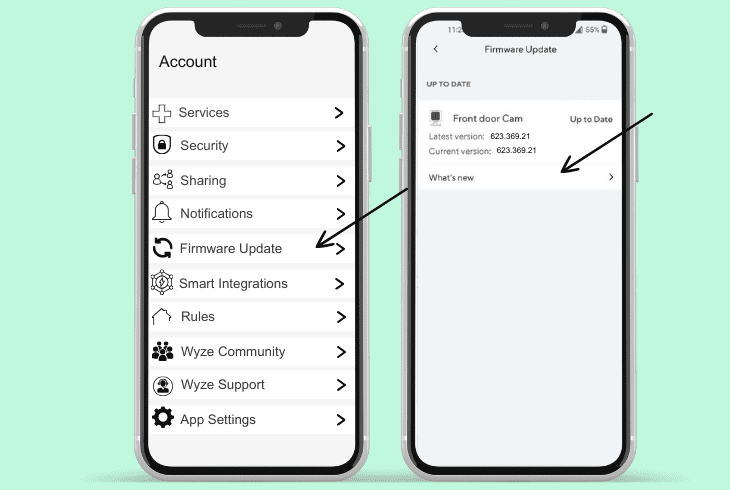
Having your Wyze camera run on outdated software can cause it to emit or capture unwanted noises.
If this is the underlying cause, then the best way to address it is to have the latest firmware update installed on both your Wyze and the app itself.
Here are some general ways to update both your Wyze app and the camera’s software:
- Connect your Wyze Cam to the Wyze app – ensure it’s correctly showing there as a paired device first.
- Go to ‘Account,’ then open Firmware Update.
- Select ‘Update‘ to start the firmware update process.
- If the update option is not available, your firmware is current.
- For manual updates, download firmware from Wyze’s website.
- Follow on-screen instructions for the manual update process.
Set up your smartphone or tablet to regularly check for new firmware releases to ensure you don’t miss out when a new Wyze app version becomes available.
Note: You can customize and set custom motion detection zones to ensure critical areas are monitored.
Solution #6: Check for Interference Issues

Wyze cameras making static noise are most frequently caused by interference from outside sources such as powerful appliances, electronics, or radio/ signal transmitters.
To prevent outside interference, you have to check for possible sources and address them one by one.
- Move other devices used for monitoring away from the Wyze Cam.
- Check if audio quality improves when moving appliances away from the camera.
- If audio improves near the router, connectivity may be the issue.
- Eliminate potential sources of interference that can be caused by other devices using the same MAC address.
- Don’t place the Wyze camera underneath or next to antennas or HVAC systems.
Placing your Wyze in outside environments can also trigger this due to wind or other phenomena getting picked up on its mic.
Note: If your Wyze sound and recording are being triggered unintentionally, try lowering the detection sensitivity.
Solution #7: Factory Reset Your Wyze Cam

If you have tried all of our fixes above, yet your Wyze camera still makes noises, the issue is likely due to a software fault.
A clever workaround for many such issues is to hard reset your Wyze device.
Here is how to factory reset your Wyze camera the right way:
- Remove any microSD card from your Wyze camera.
- Press and hold the setup button for at least 10 seconds.
- Wait for the LED indicator to turn blinking yellow (or red for v3 devices).
- Allow up to 5 minutes for the reset process to complete.
- Set up the device again after the reset.
- Check if the sound issue is resolved post-reset.
A factory reset will remove any previously saved data on your Wyze camera, and you will have to manually add it to your app again after the procedure.
Have your credentials written down somewhere to prevent lockouts.
Note: Ensure your camera is not in night mode during the day and vice versa to prevent errors.
Quick Recap
To fix your Wyze camera making noise, start by checking for other device interference, check the power delivery, and reset it.
Next, ensure your Wyze camera is running the newest software.

- SimpliSafe Doorbell Not Flashing White? (Quick Fix Guide) - April 30, 2024
- SimpliSafe Keypad Out Of Range? (Proven Ways to Fix) - April 30, 2024
- Kasa Plug Change WiFi – (5 Easy-to-Follow Steps!) - April 30, 2024