
Bush TV no signal when everything is in order? Well, there are very few possibilities for this!
When Bush TV is showing “No Signal,” then the selected input source is empty, or the show or channel you’ve selected is offline.
So, in this guide, we’ll walk you through the best solutions in easy steps to help you resolve your problem in a matter of minutes…
When the Bush TV says “No Signal,” this means that your TV is not receiving signals from the aerial or an external connected device. In such a case, start with unplugging your entire setup for 5 minutes and ensure that the correct Bush TV source is selected.
Let’s move further to unwrap more information!
What Causes No Signal on Bush TV?
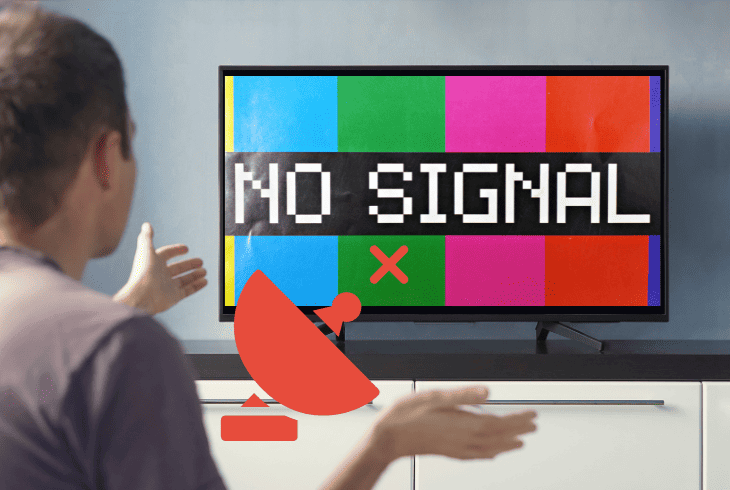
If your Bush TV is saying “No Signal” message, the fundamental reason can be a loose source cable connection or an incorrectly selected input source.
It is crucial to identify whether the “no signal” issue is specifically related to an HDMI-connected device or appears due to the service!
Sometimes, the problem is a no connection or a faulty source device, which is connected to the TV, and expectedly, the feed should appear.
In contrast, if you see “No Signal” on service channels or on-demand content, perhaps you’re facing issues with the service or the internet.
Here’s everything responsible for the “No Signal” message on Bush TV:
These are the most common reasons for “No Signal” on your Bush TV.
To resolve the issue as soon as possible, we’re going to use the exclusion method and address each and every cause!
Let’s jump right in!
Bush TV No Signal Fixed in 7 Easy Solutions!
1. Power Cycle the Setup!

The first and quick step that you need to do is to run the power circulation on your Bush TV and source device. Don’t worry, this approach does not delete anything from your Smart TV.
Instead, this method provides a kind of soft reset to your devices and refreshes all services.
Here’s how to power cycle your Bush TV setup in easy steps:
- Turn off both the Bush TV and the source device.
- Unplug your both devices from the power outlet.
- Also, disconnect all connections from your TV.
- While everything is unplugged, wait for 5 minutes.
- After that, reconnect everything back to their places.
In case this step doesn’t work, move on to the next step!
2. Check the Source Input

Another possibility for the “No Signal” on your Bush TV can be the incorrect TV source, even if your source connection is securely attached.
To make this more clear, let’s assume that your aerial cable is plugged into the correct port on the Bush TV, but you’ve selected “HDMI-2” on your device instead of picking “Digital” or “DTV”.
When the wrong source is selected, the Bush TV will show “No Signal,” regardless, so open the Source Menu on your TV and switch to the correct input.
If you’re unfamiliar with how to switch inputs, follow these simple steps for Bush TV:
- First, press the “Home” button on the remote.
- OR press the “Source” button on the remote.
- Cycle through the Source Menu on the screen.
- Choose the correct input source from the list.
If you still receive a “No Signal” message after choosing the correct input source on your TV, cycle through all inputs to see whether one of them will show anything.
If you have HDMI or other devices connected and powered on, you should see their feed on your Bush TV screen.
3. Verify the Bush TV Wiring!
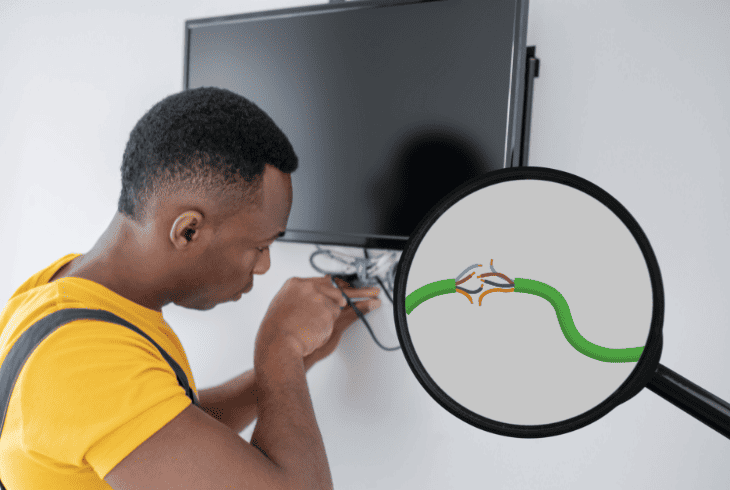
The next and most crucial step is to check the cable connection between your Bush TV and the source device.
This is fundamental because a loose or damaged cable connection can often be the culprit behind a “No Signal” problem, even when everything in the setup appears intact.
So, take your time and closely inspect your HDMI, Aerial, Coaxial, or other cable connections on your Bush TV and source device. This may suggest where the “No Signal” fault comes from!
To verify the wiring connections on your Bush TV, follow these steps:
- Unplug your Bush TV and source device.
- Disconnect the HDMI or Aerial connection.
- Inspect the entire cable length for damage.
- Look closely into the ports on your devices.
- Blow into the connectors to clear dust away.
Once ready, firmly plug the lead back into the connector on your TV port and source unit. Also, make sure you have selected the correct input source on your Bush smart TV to avoid issues!
Note: Don’t forget to verify the service cable ports on the wall socket!
4. Switch to a Different Ports
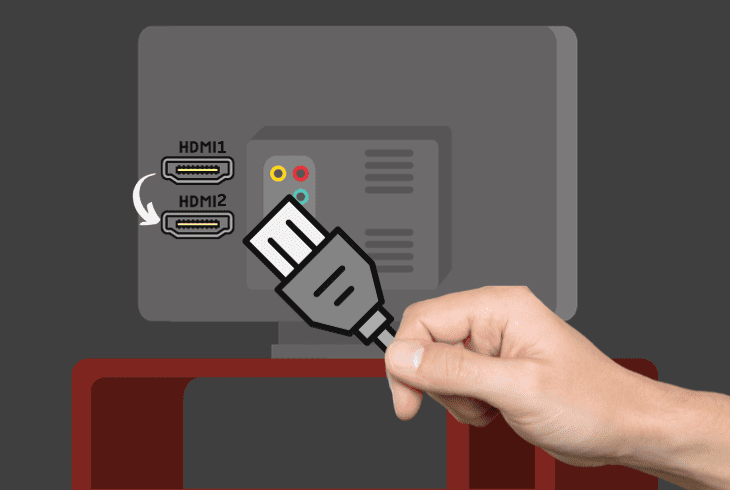
If you are experiencing a “No Signal” problem over an HDMI connection with your Bush TV, switching to a different HDMI port is ideal.
In case you don’t know, almost every smart TV has more than one HDMI input port, so when the current port is worn out, you may use another!
Warning: Make sure to unplug your device every time before troubleshooting!
Simply get access to the back panel of your Bush TV, connect the HDMI cable to a different HDMI input port, and note down the name of that port.
The HDMI you’ve selected could be HDMI-1, HDMI-2, or HDMI-3, so remember where you’ve plugged the cable.
Reminder: Press the “Sources” or “Menu” button on your Bush TV remote to switch to the correct input source.
5. Replace the Video Cable!

If your Bush TV saying no signal even after trying the different ports, then a faulty video cable can be the culprit.
So, try using a different video cable such as HDMI, Coaxial, Aerial, or any other video cable with your Bush TV to check whether the “No Signal” issue is wiring-related.
When using an HDMI connection, it’s easy to justify whether the cable works by simply taking another cable from a working setup or vice versa.
If your HDMI cable is faulty and is not working correctly, you may need to purchase a new HDMI cable to include in the setup of your Bush TV.
Tip: If you’re using an HDMI cable, try switching the cable’s sides!
6. Auto Scan for Channels!
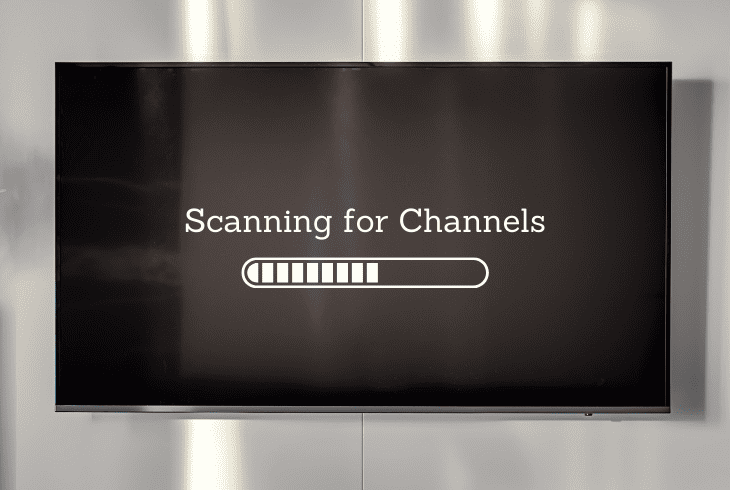
If you’re using an antenna and receiving a “No Signal” message over an Aerial cable, your TV may have lost the channel signals entirely.
This usually happens due to signal interference or any changes in broadcasting frequencies, so you may need to re-tune your Bush TV cleanly!
You simply need to perform an Auto Scan from the channel settings on your TV to restore and tune the available channels in your location.
How to Auto Scan Channels on the Bush TV?
- Press the “Menu” button on the remote.
- Scroll right and choose the “Channel.”
- Scroll down and go to the “Auto Scan.”
- Ensure “Turning Mode” is set to “Digital.”
- Scroll down and press on “Auto Tuning.”
Your device will automatically scan for the available channels and restore them.
Remember that this process may take some time, depending on the signal quality, so be patient and avoid using the remote control.
Note: The “No Signal” message should no longer be there when the channels are re-tuned!
7. Factory Reset the Bush TV

If you have tried every step in the guide but are still struggling with the “No Signal” message, it’s time for the factory reset.
Implement this step as a last resort because it will return the Bush TV to its default settings and permanently erase all settings, configurations, and saved data.
Follow these steps to reset your Bush TV easily:
- Tap the “Menu” button on the remote.
- Then, go to the right of the menu tab.
- Find “Install and Retune” and tap OK.
- Enter the “First-time installation” tab.
- Press on the “Yes” button to confirm.
- Tap the OK button on your TV remote.
When the reset on your Bush TV reset is done, set up your device and verify the video cable connection and input source on your device.
If the “No Signal” issue persists on your Bush TV, you need to contact Bush Support for professional help. Good Luck!
Quick Recap:
Hence, we learned that Bush TV no signal probably indicates a loose or faulty video cable.
So, you must ensure the cable connection is secure, and the correct TV input source is selected, as well as perform a factory restoration to solve this permanently!
Follow us for more Bush TV content and troubleshooting!

- SimpliSafe Doorbell Not Flashing White? (Quick Fix Guide) - April 30, 2024
- SimpliSafe Keypad Out Of Range? (Proven Ways to Fix) - April 30, 2024
- Kasa Plug Change WiFi – (5 Easy-to-Follow Steps!) - April 30, 2024