

The “Philips Roku TV won’t turn on no red light” issue can be challenging to fix, as it’s not immediately evident why your TV is not turning on.
If you face this exact scenario, don’t worry; we have some fixes for you to try out in this comprehensive guide.
To fix your Philips Roku TV that is not turning or has no red light, start by checking the power source and cables for issues. Next, power cycle your TV and perform a factory reset.
Now that you know a few of the possible fixes, let’s go into more depth about what caused this Philips TV issue in the first place.
Why Won’t My Philips Roku TV Turn On?

Suppose you notice that your Philips Roku TV is not turning on, either from the remote or from the power button; it is likely due to a power source issue.
In rare cases, your unit might have encountered a software glitch or issues with its power adapter.
Here are the most common causes for your Philips TV not turning on and no red light:
Now that you know the most frequent causes of the Philips TV not turning on and no red light blinking, let’s jump straight into some possible solutions.
How to Fix Philips Roku TV Won’t Turn On No Red Light
Tip: Don't attempt to use third-party charging or power cables with your Philips TV.
Solution #1: Check for Source and Power Issues

Philips Roku TV red light flashing can indicate that your TV has a power-related issue or the source mode has run into an issue.
To ensure this doesn’t affect your Philips device, you have to manually verify that the power delivery is properly working.
Here are some steps to ensure your Philips TV is in working order:
- Press the power button and wait for your TV to turn on.
- If your Philips TV is not powering on, press the Standby button on the remote.
- Unplug the TV from the wall outlet and disconnect all devices connected to it.
- Leave them disconnected for at least 60 seconds before reconnecting.
- Press the Source button on the remote to check if the TV is set to a different source.
- Check all wiring connections for any damages or loose ports.
- Unplug all devices from the power strip except for your Roku TV for stable power.
If you notice creasing or excessive twists on the power cable or adapter, the entire cable must be replaced.
Note: Try plugging your TV into different wall outlets directly to see if the issue is with the outlet.
Solution #2: Use the Remote and Power Button
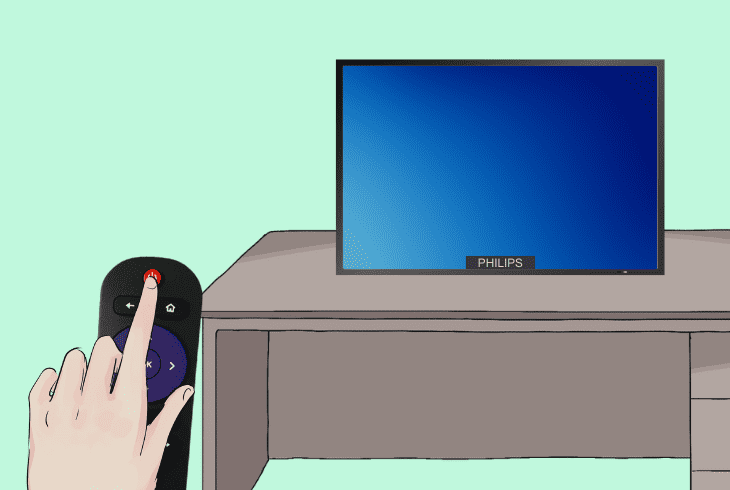
Philips Roku TV blinking red light can sometimes have a clever workaround, where you attempt to bypass the TV without starting by using a different method to power it on.
Here are the steps on how to try the remote and power button fix for your Philips:
- Try turning the power on using both the remote and the power button on the TV.
- If the TV turns on only by using its power button, the issue may be with the remote.
- Change the batteries in the remote to see if this resolves the issue.
- Move within 3 feet of the TV, and ensure the remote is pointed toward the signal sensor.
- Unplug all multimedia devices from the TV for 10 seconds, and then try again.
- Rule out a power issue by plugging a different device, such as a light, to confirm your power socket is working.
Based on your environment, check for bright light interference, such as fluorescent light, overhead light, or sunlight, which can interfere with the remote signal.
Tip: Bypass any surge protectors or power strips and connect the TV directly to a wall outlet.
Solution #3: HDMI Disconnect Method
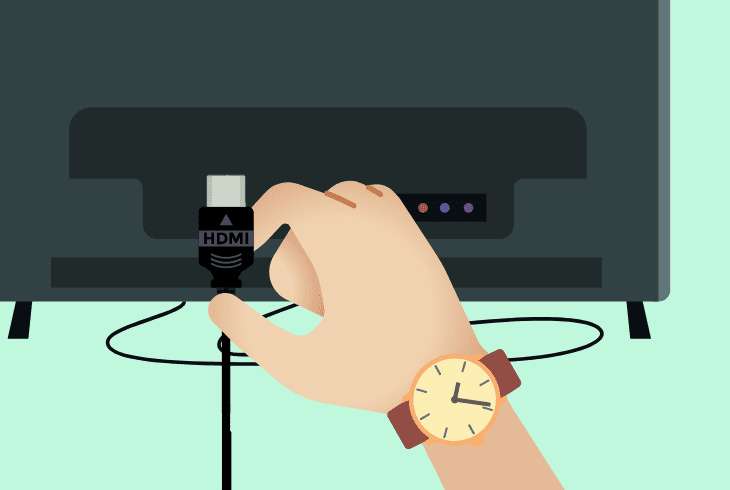
Sometimes, your Philips Roku device won’t properly power on or appears to be powered off because it defaults the signal incorrectly to an HDMI output.
Sometimes, this output doesn’t have a single, and thus, you will just see a black screen.
Here is how to perform the HDMI discontent fix for your Roku TV:
- Ensure your Philips Roku TV and all connected devices are turned off.
- Disconnect all HDMI devices from the TV.
- Remove the TV’s power cord from the outlet.
- Leave everything unplugged for about 10 minutes.
- Reconnect the TV to the power source.
- Attempt to power on the Philips TV.
- One by one, reconnect your HDMI devices to the TV.
After each connected cable, check to see if your TV is switching its display input. If the issue persists, move on with the next solutions.
Note: Replace your remote control batteries to rule out the TV not starting because of a weak remote signal.
Solution #4: Update TV Firmware

If your TV is powered on, but there is a black screen, except for the menu being visible, it might be caused by an incompatible firmware version.
To prevent this issue from happening to your device, you can try to update the firmware manually from an external flash drive.
Here is how to update your Roku TV firmware to the latest available version:
- Ensure you have a stable internet connection.
- First, navigate to your Phillips settings panel, then go to “Updates” or “About” to check for pending updates.
- Get a PC or laptop and go to Philips’s official website to find your specific TV model.
- Download the update onto a USB drive that has sufficient space.
- Plug the USB drive into the Roku TV.
- Follow the on-screen instructions to start the update process.
- You have to manually activate the update from the settings panel.
- Wait for the update to install and restart the TV.
Note: If your flash drive doesn't get detected, you can try using a different USB port or plugging a USB to USB-C adapter.
Solution #5: Factory Reset Your Philips TV

If you have checked your cables and confirmed the power output is sufficient and working, your Philips could be having a software-related issue.
Such errors occur with normal use and can many times be cleared when performing a hard reset on your TV.
Here are the general steps to factory reset your Philips TV device:
- Find the reset button on your Philips TV – usually on the back side, next to other ports.
- Have your TV powered on and Insert a thin object into the reset button.
- Press and hold the reset button for about 20 seconds.
- The TV should restart during this process.
- After the TV restarts, release the reset button.
- Go through the initial setup process once the TV turns on.
When the reset is done, allow the TV to initialize its factory settings – you might be prompted to set some settings or configurations again.
Note: A factory reset will delete any settings or stored data on your TV, like movies or music.
Solution #6: Inspect Internal Components
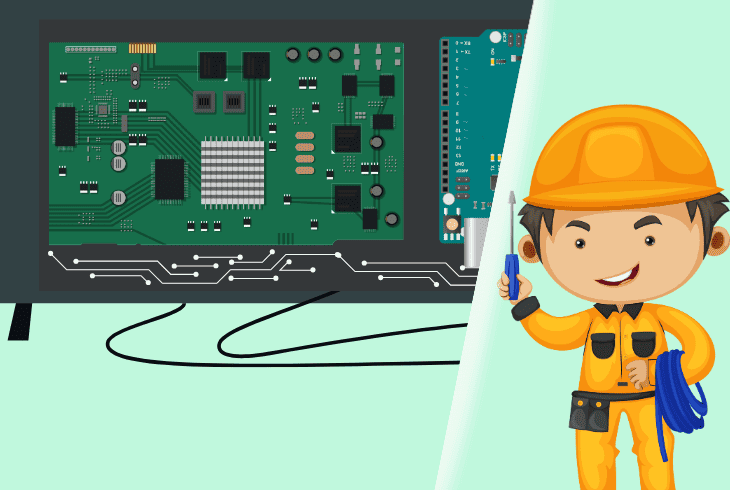
At this point, you have tried all of the standard troubleshooting steps that require the least invasive actions.
Sometimes, your Philips device malfunctions because of a damaged hardware component.
Here is how to check your Philips Roku TV circuit board for issues or damage:
- Make sure your Roku TV is unplugged.
- Never handle electronic components when the device still has a power source.
- Carefully open the back panel of the TV – it’s usually held in place by screws.
- Look for any swollen or leaking capacitors.
- A blown capacitor usually changes its color and experiences deformation.
- Ensure the power board has no visible damage – look for warping.
- Check all internal cables and connections and reseat any that are displaced.
- Reassemble the TV after inspection.
When you are ready for the inspection, reconnect your TV to power and attempt to turn it on.
Note: Always check if opening your TV for inspection will void its warranty; if your TV is still covered, it's best to send it for repair.
Quick Recap
To fix the Philips Roku TV won’t turn and with no red light; start by verifying the remote control is working and check the power source.
Next, remove all external devices and hard reset your TV.

- SimpliSafe Doorbell Not Flashing White? (Quick Fix Guide) - April 30, 2024
- SimpliSafe Keypad Out Of Range? (Proven Ways to Fix) - April 30, 2024
- Kasa Plug Change WiFi – (5 Easy-to-Follow Steps!) - April 30, 2024