

SimpliSafe keypad offline status appeared suddenly? Not to worry. This is easy to solve!
The SimpliSafe keypad goes offline due to multiple reasons, including issues with your home Wi-Fi, troubled Wi-Fi coverage, or issues with the keypad’s master code.
This guide will help you dig deeper and uncover possible causes and solutions for the offline SimpliSafe keypad.
If the SimpliSafe is offline, first switch to the 2.4GHz Wi-Fi, alter the master code, and test using your mobile’s hotspot. If the issue persists, replace the unit’s battery and perform a factory restoration process.
Let’s learn more!
Why is Keypad Offline SimpliSafe?
The connection status of your SimpliSafe keypad can alter if the home Wi-Fi router goes offline, loses reception, or the keypad can no longer find a secure connection path.
To understand what could impact SimpliSafe’s ability to connect, you should check all causes found in the list below.

Here’s what could result in the “Offline” status of the SimpliSafe keypad:
Can SimpliSafe Work Without Wi-Fi?
When it comes to advanced home security and coverage, you would want the keypad to be connected to your network to notify you of all threats.
However, SimpliSafe does not need Wi-Fi for basic security, such as locking or unlocking your door upon input.
The conclusion is that if you want SimpliSafe to guard your home more effectively, you should connect the keypad to your home’s Wi-Fi and get the app.
SimpliSafe Keypad Offline – Instant Solutions
Tip: Follow the solutions in consecutive order.
1. Reconnect SimpliSafe to Wi-Fi
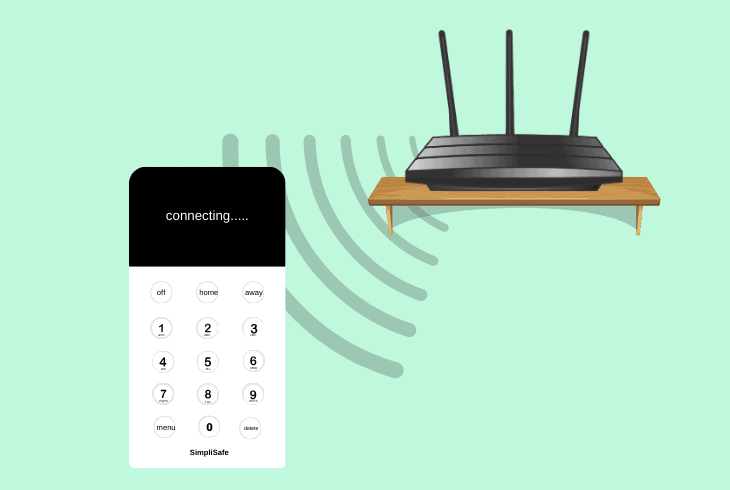
The first step is to attempt and reconnect the SimpliSafe keypad to your home Wi-Fi network in case there is a fluctuation or temporal loss of the router’s reception.
To successfully pair it with your network, you must undergo a specific pairing procedure through your keypad’s settings.
Here’s how to complete the WPS procedure of SimpliSafe in easy steps:
- Press the “Menu” button on the SimpliSafe keypad.
- Next, enter the master PIN to unlock the SimpliSafe.
- Tap “Settings” and then press on the “Wi-Fi” option.
- Wait until all available Wi-Fi networks are scanned.
- Next, select your home Wi-Fi network from the list.
- Type the password for the Wi-Fi and tap “Connect.”
You must meet the distance and reception requirements to connect the keypad to a local network router or gateway unit.
Verify that the keypad is within the coverage range of your network’s transmission unit to ensure a stable, uninterrupted, and persisting connection.
2. Connect the Keypad to the 2.4 Wi-Fi
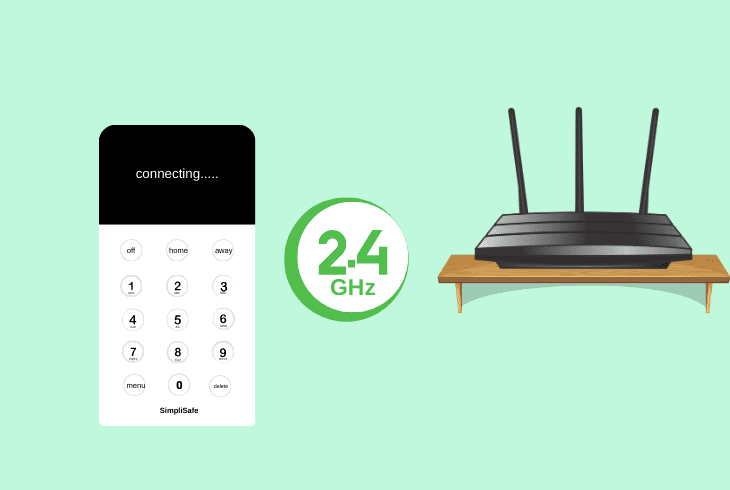
SimpliSafe does not work with 5GHz networks, so you will be prompted to use the keypad with the 2.4GHz thread of your network device.
So, selecting the preferred thread for the SimpliSafe keypad only applies to users who are using a dual-band router with multiple online threads.
Hence, access the “Wi-Fi” menu in the keypad settings and select the SSID of your router’s 2.4GHz thread to establish a connection successfully.
If you have not adjusted the default SSID and password values of your router’s networks, they can be found on a sticker on your router.
Note: Typically, the 2.4 GHz Wi-Fi contains “2” or “2.4” in its SSID.
3. Soft-Reset the SimpliSafe Keypad

You can address non-lasting issues with the keypad, including Wi-Fi or reception troubles by discharging the hardware, achieved by removing the batteries.
You can easily access the battery compartment of the keypad simply by uninstalling the unit from the mounting bracket.
Here’s how to flush the SimpliSafe keypad’s power supply:
- Slide the keypad upwards to unmount it from the bracket.
- Expose the batteries on the back panel of the security unit.
- Wait for up to 5 minutes until the keypad’s power goes out.
- Install the batteries back into the compartment of the unit.
- Finally, close the battery compartment and test the keypad.
SimpliSafe uses 4 standard AA batteries, and you must verify that you are inserting the units correctly.
While at it, verify that the polarity springs (contacts) are not missing, bent, or defective.
Note: Inspect the battery compartment of the SimpliSafe keypad for dust or obstructions!
4. Test SimpliSafe On Mobile Hotspot
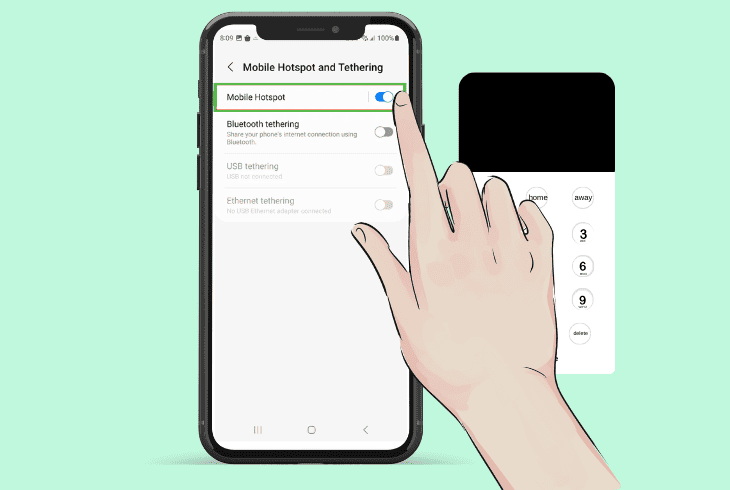
You should determine whether the keypad’s status will change back to “Online” after pairing the keypad with your mobile device’s hotspot.
All smartphones nowadays can allow other smart devices nearby to wirelessly connect, as long as you have a mobile plan and remaining Mbps.
How to Use Mobile Hotspot on Android?
- Open the “Settings” app on your Android device.
- Access the “Mobile Data” tab and press “Hotspot.”
- Check your name/password of the hotspot Wi-Fi.
How to Use Mobile Hotspot on Apple’s iOS?
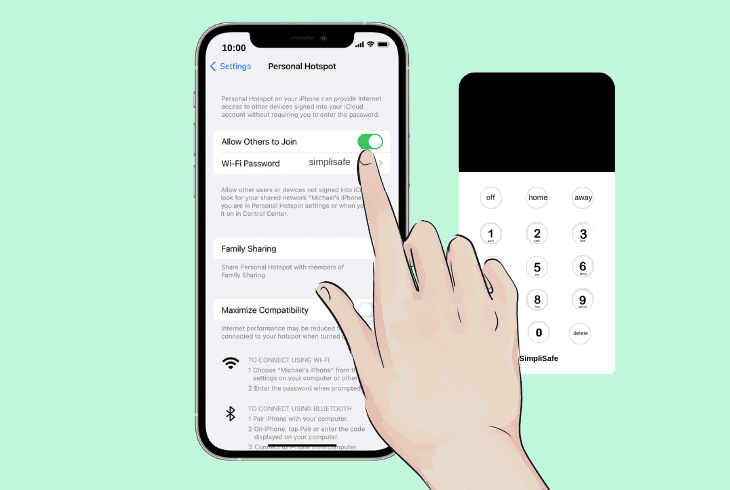
- Open the “Settings” app on the iPhone or iPad.
- Tap “Personal Hotspot” below “Mobile Service.”
- Tap the activation slider and check the password.
After identifying the credentials used for connecting your mobile’s hotspot, access the SimpliSafe Wi-Fi settings and pair the keypad, following the steps earlier in the guide.
Tip: Keep the mobile device close to the keypad during the setup!
5. Restore the Keypad’s Master PIN
Addressing issues with SimpliSafe keypads is also possible by restoring the master’s PIN and setting a new four-digit value for the code.
You can customize, adjust, and specify all digits of your keypad’s master code through the “PINs” menu within the user interface of the SimpliSafe.
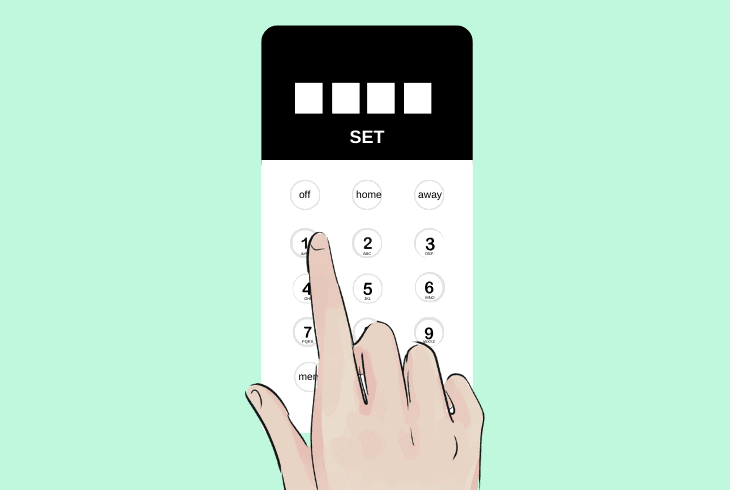
Here’s how to set a new value for the master PIN of the SimpliSafe keypad:
- Press the “Menu” button on the SimpliSafe keypad.
- Enter the current master PIN to unlock the device.
- Next, scroll up to “PINs” and select “Add User PIN.”
- Type the new custom PIN value with 4 total digits.
- Select “Set” to save the new master user PIN value.
- Return to “PINs” and select the older PIN value.
- Press on “Remove this PIN” to uninstall the old code.
One of SimpliSafe’s user-friendly features is that you can still access and adjust the security settings of the keypad, even if the unit is offline.
This allows you to manage all existing user PINs, and as soon as the keypad is reconnected to the network, all changes will take effect.
Tip: You can have multiple user PINs for easy access to all family members or friends!
6. Restore the Router to Defaults
If your SimpliSafe keypad won’t connect to the Wi-Fi and remains constantly “offline,” perhaps the issue comes from your router/modem.
However, before doing anything, we recommend testing with other Wi-Fi devices, and if they can’t connect as well, restart the router and try again.
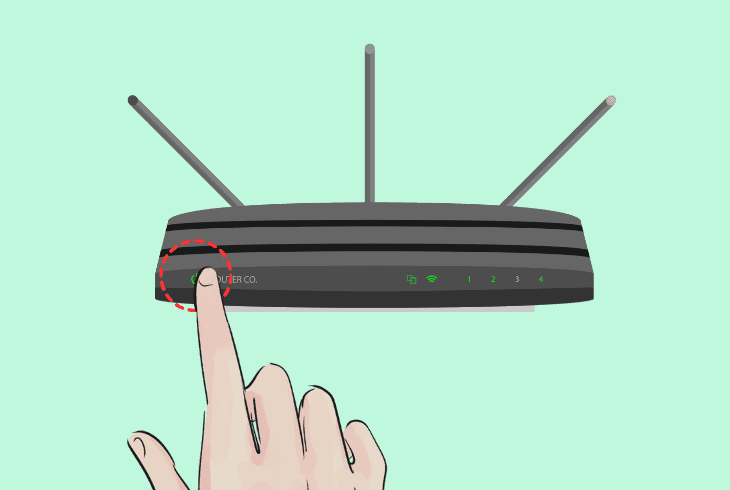
If the Wi-Fi is inaccessible, the fault is not coming from your keypad. Instead, the issue is with the Wi-Fi router or modem.
The best way to solve such issues is via a complete factory reset.
Here’s how to perform a factory reset on most network routers:
- Verify that the router is plugged in and powered on.
- Locate the “Reset” button on the router’s rear panel.
- Hold the button for 5-10 seconds to start the reset.
- Release the button once the router’s LED flashes.
- Complete the setup procedure via the router’s GUI.
When your router is reset and configured, try to connect your smartphone to the Wi-Fi first, and if everything is okay, try to connect your keypad.
If your issue continues, you may need to reach out for additional assistance to SimpliSafe Customer Support.
Quick Recap:
If the SimpliSafe keypad is offline, connect the unit to the Wi-Fi correctly, test the keypad on your mobile’s hotspot, and generate a new master PIN.
If the issue persists, troubleshoot the network device by restarting and factory resetting.
Follow us for more!

- SimpliSafe Doorbell Not Flashing White? (Quick Fix Guide) - April 30, 2024
- SimpliSafe Keypad Out Of Range? (Proven Ways to Fix) - April 30, 2024
- Kasa Plug Change WiFi – (5 Easy-to-Follow Steps!) - April 30, 2024