

A SimpliSafe entry sensor false alarm can be worrisome because you can’t immediately know what caused it.
If your entry sensor is giving false alarms, don’t worry; this guide will give you some actionable steps to fix it.
To fix your entry sensor’s false alarms, start by resetting it and then checking its batteries for issues. Afterward, check the alignment and address interference issues.
After you have the general outline of the fixes, we will first examine what triggers false alarms.
Why Does My SimpliSafe Entry Sensor Get False Alarms

Whenever your entry sensor has false alarms triggered, it’s usually because of issues with the device setup or with your base station.
In less frequent scenarios, it could be due to software glitches and hardware damage.
Since you now know what causes false alarms for your SimpliSafe, we can proceed with the actual fixes.
How To Fix SimpliSafe Entry Sensor False Alarm?
Tip: Clean the surface where you plan to install your sensor to prevent it from misaligning.
Solution 1: Resetting the Sensor

Whenever your SimpliSafe false alarm entry sensor gets triggered, it’s possibly because of an internal error with its software.
A potential fix to this issue is to have your entry sensor reset, which will let it run on its default settings.
Here are the steps for properly power cycling the entry sensor to fix a false alarm issue:
- Unplug the SimpliSafe base station from any power before proceeding.
- Use a screwdriver to remove the battery cover.
- Afterward, take out the battery for about 15 seconds.
- Reinsert the battery and replace the cover.
- Press the reset button on the sensor for at least 10 seconds until you hear a beep.
- If the sensor is still unresponsive, move it closer to the base station.
- Reconnect the base station to power.
After you are done resetting the entry sensor, try it out in the “Test” mode to confirm if it’s working properly now.
Note: The sensor and magnet strip should be within 2 inches of each other when closed.
Solution 2: Check Battery and Sensor Placement
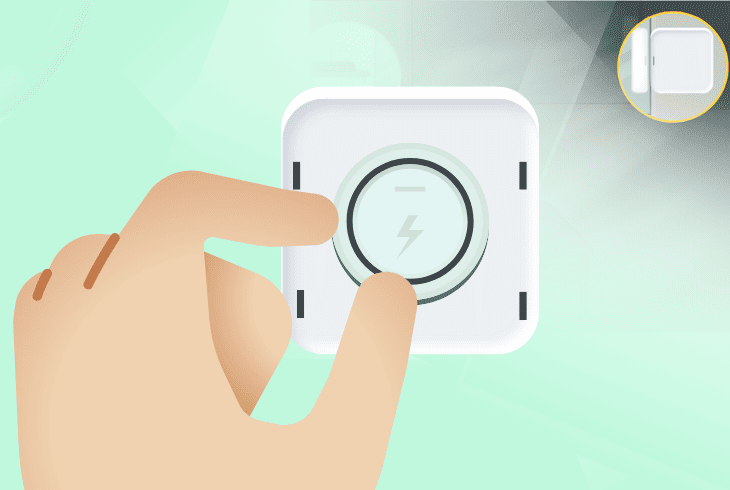
If you reset your sensor but it doesn’t have any LED blinking when you try to pair it, its battery is likely depleted.
This can cause the sensor to malfunction, thus triggering false alarm notifications.
Here are the best ways to ensure your entry sensor is properly powered on:
- Ensure the sensor’s battery is properly installed and not low or dead.
- If necessary, replace the battery with a fresh one, ensuring correct alignment.
- Verify the sensor’s placement on the designated door or window.
- Check for obstructions or misalignments with the corresponding magnet.
- Test the sensor by opening and closing the door or window.
- Observe if the SimpliSafe app or control panel registers the sensor’s activity.
- If no activity is registered, consider resetting the sensor again.
If you are installing the sensor on metal surfaces, place a piece of cardboard in between to avoid interference.
Note: The batteries used are usually of the CR-2032 Lithium 3V type and last around five years.
Solution 3: Testing Sensor Range

If your sensor is placed too far away from your SimpliSafe base, then it could experience communication errors and cause false alarms.
To prevent this, you must ensure optimal range and signal strength for your SimpliSafe components.
Here are some ways to ensure and test your base station and entry sensor range:
- Enter your master PIN on the keypad and select “Test Mode.”
- Test the sensor by opening the door or window with the sensor.
- Listen to the Base Station’s announcement of the sensor test.
- If the base station doesn’t detect the sensor, move it closer and retest.
- Check for any signal interference and remove potential sources.
- Test the sensor’s functionality by pressing its test button.
Note: Customize your sensors with different alarm states like “Off” or “Away” from the system.
Solution 4: Update the Base Station

An entry sensor that is connected to a base station with not up-to-date firmware can cause multiple issues, including false alarms.
To prevent this, you can ensure any new updates are being completed on time.
Here are the general guidelines for updating your SimpliSafe station:
- Bring the smart keypad near the base station to check for updates.
- Select the “Install Menu” on the keypad.
- Choose “Install update” to update the base station.
- Check and ensure a strong connection between sensors and the security system.
- Use the SimpliSafe app to review the connection status of each sensor.
- Update the app itself through your smartphone or tablet app settings panel.
After these software updates, you can log in, add the entry sensor to your device list, and test your sensor for issues.
Note: You can silence any alarms by pressing the “Off” button on your remote.
Solution 5: Resetting the Base Station

If you installed the latest updates for your SimpliSafe system but still get false alarms, it’s likely because of an issue with the base station.
A great universal method to troubleshoot software glitches is to reset your base station.
Here are the steps to power cycle your base station to fix temporary errors:
- Unplug your base station from its power source.
- Remove the battery cover with a screwdriver and take out the battery.
- Wait for 12-15 seconds before reinserting the battery.
- Replace the battery cover and make sure the battery is placed snugly.
- Plug the base station back in and wait for a new connection.
- Arm the system to test if it works properly.
- Check if the system exits test mode properly.
When your base station has been reset, you have to check your SimpliSafe app and see if it correctly displays all of your alarm system components.
Note: There is no right side up for your sensor, enabling you flexibility when installing it.
Solution 6: Avoid Common Installation Mistakes

The most overlooked cause of false alarms from your entry sensor is that it was not installed correctly.
These installation issues can range from simple misalignment to improper mounting or distance between the magnet and sensor.
Here are the top mistakes to avoid when installing your entry sensor:
- Ensure the distance between your sensor and the magnetized strip has a small gap.
- Avoid installing sensors near heat sources, air conditioners, or other strong appliances.
- Ensure the base station is centrally located in your home so all devices can reach it.
- Regularly test and maintain all sensors at least once a month.
- Add an automatic door closer to ensure the entry sensor doesn’t get triggered.
- Don’t leave your windows open when exiting your home to prevent false activation.
- Be mindful of pets that can trigger the sensors and increase the detection threshold.
Always place your sensor on the frame of your door or window and the small magnetized strip on the window or door itself.
Note: Your entry sensors have small grooves to help you align them.
Solution 7: Check For Base Station Error Messages
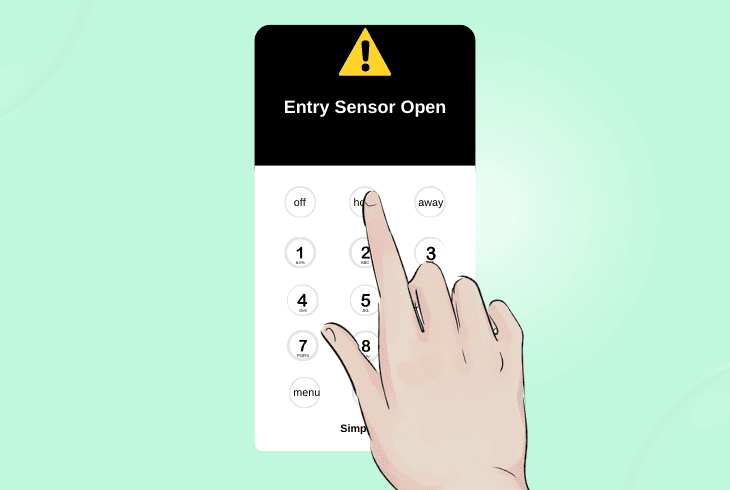
Sometimes, your alarm system will display a warning symbol on the keypad to indicate an issue with your setup.
To prevent false alarm activations, you have to first check and resolve any errors.
Here is a way to troubleshoot the most common keypad warning messages:
- Locate your SimpliSafe keypad device and check its menu for warning indicators.
- If you spot “Entry Sensor Open,” check if all your doors and windows are closed.
- For a “Keypad Out of Range” warning, ensure your base station is close to the router.
- If you recently had a power surge, check for a “Power Outage” indicator and reset it.
- If you see “No Link to Dispatcher,” check your SimpliSafe account subscription status.
- Restart your base station after addressing these issues to see if they persist.
If issues persist, consider checking for any error messages on the keypad and base station or contacting SimpliSafe customer support for more help.
Note: Your SimpliSafe alarm system can be configured to contact a live monitoring center.
Quick Recap
To address a SimpliSafe entry sensor false alarm, ensure that all doors and windows are closed when you exit your home.
Next, check for signal interferences and verify the installation.
