
Do you have a Crave not working on Firestick problem? We got your back!
Crave offers a wide range of content accessible on multiple devices, including Amazon Firestick.
However, occasional issues like buffering, crashing, freezing, or not loading arise due to outdated or corrupted data.
To get Crave to work on your Firestick, you need to ensure that you’re running the latest version. It helps to clear the app cache and temporary files on your Firestick so it loads the app fresh.
Fantastic, let’s delve into the deeper details.
Crave Not Working on Firestick – 6 Proven Solutions That Work

Several factors contribute to your Crave service needing to be fixed.
Identifying them is essential for prompt resolution and an uninterrupted streaming experience.
Here are some of them:
- Incompatible Firestick device or software version
- Slow, unstable, or congested network
- App bugs and glitches
- Expired, cancelled, or inactive Crave subscription
In this article, we’ll show you how to fix the Crave not working on the Firestick issue. Below are step-by-step solutions to ensure a seamless streaming experience.
Before You Start
Complete these four basic troubleshooting steps before proceeding to the solutions below.
You could be dealing with a minor problem that doesn’t require advanced solutions.
Here’s what you should do first:
- Restart your Firestick
- Check your internet connection
- Update the Crave app
- Uninstall and reinstall the app
If none of these steps work, move on to the listed solutions.
1. Confirm Your Device Compatibility
One of the possible reasons Crave is not working on your Firestick is that your device needs to be compatible with the app.
Crave requires a minimum of Fire OS 5.0 or higher to run smoothly.
Should your Firestick operate on an older version of Fire OS, you will experience issues with Crave.
To confirm your device compatibility, check the model and software version of your Firestick.
Here’s how to do it:
- On your Firestick remote, press the Home button.
- Go to Settings.
- Select My Fire TV.
- Click on About.
- Check the Model Name and Software Version of your device.
The first generations of Fire TV Stick and Fire TV Stick with Remote are no longer compatible with Crave.
These devices run on Fire OS 3.0 or lower, which does not support the streaming service.
You’ll need to upgrade to a newer Firestick model to access Crave.
Note: If your device model is compatible, but the software version is lower than 5.0, update your Firestick system software.
2. Power Cycle Your Network Hardware
A malfunctioning router or modem significantly affects the performance of the Crave app on the Firestick, leading to a slow, unstable, or interrupted internet connection.
To fix this, power cycle your network hardware.
This helps resolve connection issues by refreshing the network and ensuring a stable environment for streaming on the Firestick.
Here’s how to do this:
- Turn off your Firestick and TV.
- Turn off and unplug your router and modem from the power outlet.
- Wait for at least 30 seconds.
- Plug in and turn on your router and modem.
- Wait for them to boot up completely.
- Turn on your Firestick and TV.
- Reconnect to your WiFi network.
- Launch the Crave app and see if it works.
Note: Check the indicator lights on your modem and router. Once they stabilize, it indicates that network hardware has successfully restarted.
3. Force Quit the Crave App on Your Firestick
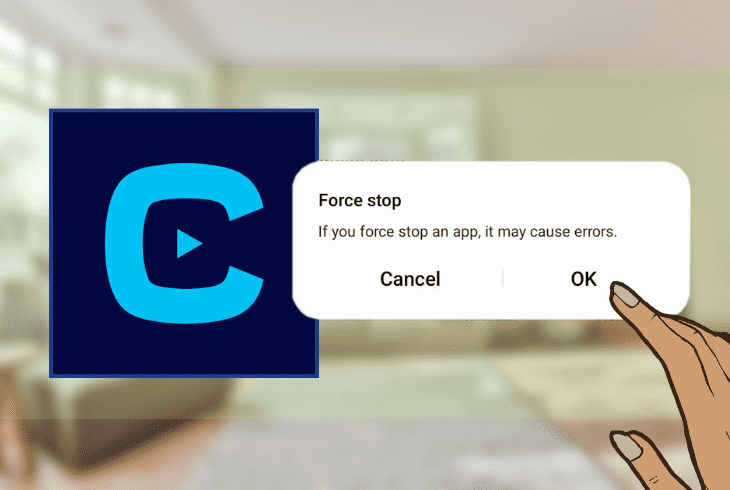
Sometimes, the Crave app doesn’t work on Firestick due to app glitches, memory issues, or system errors.
You’ll know this is the case when the app freezes, crashes, or is stuck in a loop.
To fix this, force quit the Crave app on your Firestick to close it completely and free up some memory space.
Here are the steps to do it:
- On your Firestick remote, click the Home button.
- Go to Settings.
- Tap on Applications.
- Select Manage Installed Applications.
- Choose Crave from the list of apps.
- Tap on Force Stop and confirm your choice.
- Go back to the Home screen and launch Crave again.
Note: Wait for a moment before launching the Crave app again. This brief pause allows any potential background processes to conclude.
4. Clear the Crave App Cache and Temporary Files
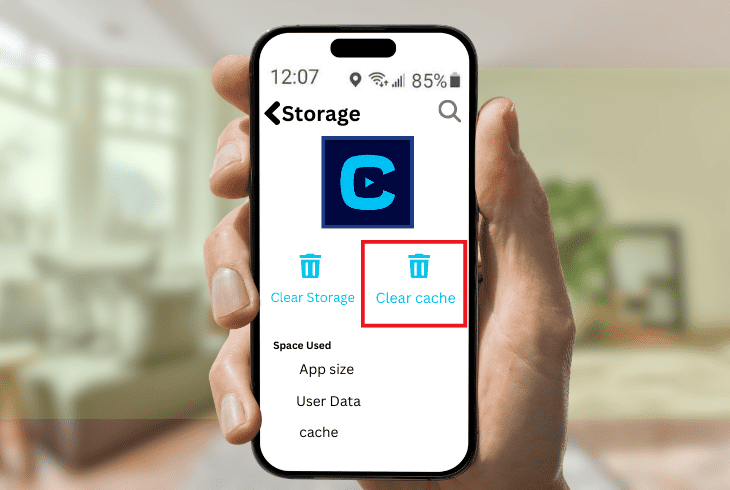
The best way to fix the Crave app not working on Firestick is to clear the app cache and temporary files.
The app cache and temporary files store data on your device to improve its performance and functionality.
However, over time, these data become corrupted, excessive, or outdated, causing the app to malfunction.
Clearing the Crave app cache and temporary files removes any unwanted or problematic data interfering with the app.
It also frees up some storage space on your device and makes the app run faster and smoother.
To do this, follow these steps:
- On your Firestick remote, click the Home button.
- Go to Settings.
- Tap on Applications.
- Select Manage Installed Applications.
- Choose Crave from the list of apps.
- Tap on Clear Cache and confirm.
- Tap on Clear Data and confirm.
- Go back to the Home screen and launch Crave again.
Note: After clearing the cache and temporary files, wait a moment before launching the Crave app again to allow the app to rebuild the necessary data.
5. Validate Your Subscription Through Your Provider
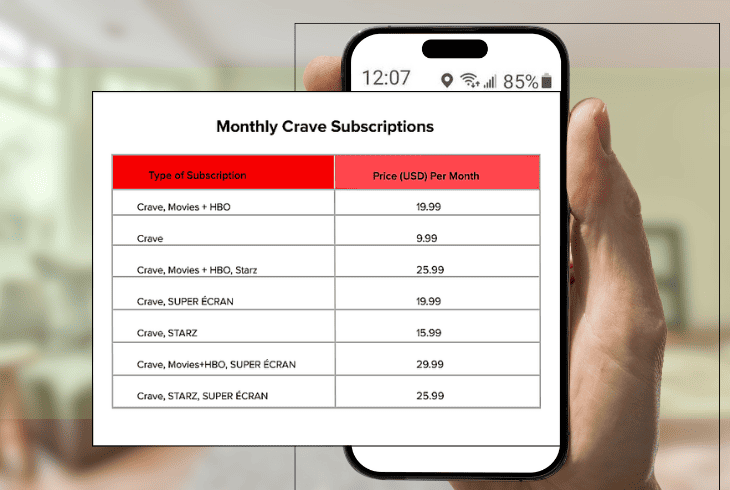
If you subscribe to Crave through a third-party service like your TV, internet or mobile provider, there’s a chance it won’t get validated.
In this case, you must activate your Crave account through your provider’s website or app.
Doing so will link your account to your provider’s and allow you to access the content you pay for.
To validate your subscription, follow the instructions specified by your provider.
You will find the list of supported providers and their activation steps on the Crave website, but here are some general steps to start with:
- Launch the Crave app on your Firestick.
- Click on Sign In and select your provider from the list of options.
- Make a note of the activation code shown on your screen.
- Go to your provider’s website or app and log in to your account.
- Enter the activation code, then follow the prompts to activate your Crave account.
- Go back to your Firestick and refresh the Crave app.
Tip: If you encounter issues, consider clearing and re-entering any saved login credentials to ensure accuracy.
Contact your subscription provider’s customer support for assistance if the issue persists.
They will guide you on subscription validation and troubleshoot any potential issues.
6. Update Your Firestick System Software
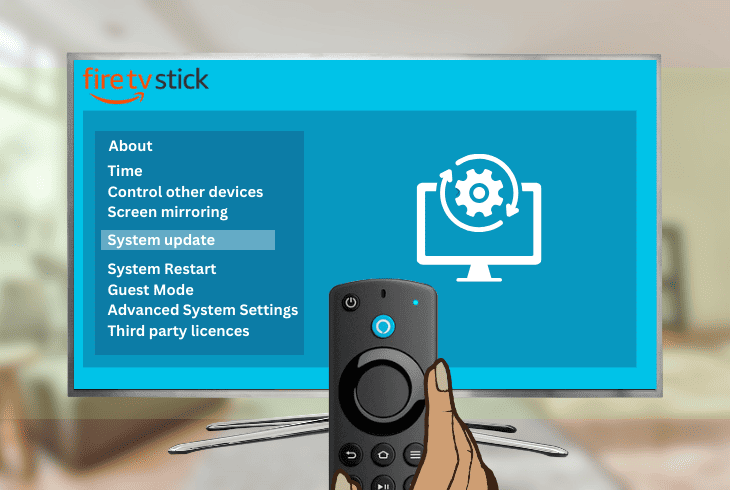
If none of the above solutions work, update your Firestick system software.
The system software runs your device and allows you to use various apps and features.
However, it becomes buggy, corrupted, or outdated over time. This causes compatibility issues and performance problems with apps like Crave.
Updating the system software of your Firestick not only installs the latest features but offers bug fixes and improvements to enhance your device’s functionality and security.
Plus, it ensures your device is compatible with the newest version of Crave and other apps.
Here are the steps to do this:
- On your Firestick remote, click the Home button.
- Go to Settings.
- Select My Fire TV.
- Click on About.
- Choose Check for Updates and wait for your device to scan for updates.
- Select Install Update if an update is available
- Wait for your Firestick to download and install the update.
- If there’s no update, select Restart and wait for your device to reboot.
- Launch the Crave app and see if it works.
If the issue persists, we recommend you seek Crave and Amazon Firestick support assistance for a more comprehensive resolution tailored to your situation.
Quick Recap
While Crave offers diverse content on various devices, including Amazon Firestick, many users often need help with issues like buffering or freezing, commonly caused by outdated or corrupted data.
Clear your device’s app cache and temporary files to address the Crave not working on the Firestick issue. If the problem persists, update your Firestick’s system software.

- SimpliSafe Doorbell Not Flashing White? (Quick Fix Guide) - April 30, 2024
- SimpliSafe Keypad Out Of Range? (Proven Ways to Fix) - April 30, 2024
- Kasa Plug Change WiFi – (5 Easy-to-Follow Steps!) - April 30, 2024