

Whenever my Shark robot vacuum won’t turn on, it can be cause for alarm as you might think that your vacuum has some type of permanent damage.
In most cases, however, the cause and fix to a nonstarting robot are relatively straightforward, so don’t worry; we have you covered.
To fix any Shark robot vacuum not turning on, start by checking its power levels and the status of the charging dock. Next, perform a software reset and maintain its dustbin.
Before we begin, let’s first see what causes your robot to malfunction.
Why Won’t My Shark Robot Vacuum Turn On?

You might experience that your Shark robot is not turning on, or it powers down and has blinking lights and then turns off.
Whichever the case, the cause is most likely a lack of maintenance or obstructions.
In rarer scenarios, it could be due to battery or software issues.
Here are some of the more common reasons why your cleaning robot won’t turn on:
How to Fix My Shark Robot Vacuum Won’t Turn On
Tip: For optimal performance of your Shark, ensure that automatic updates are toggled on.
Solution #1: Perform a Basic Power Check

The answer to why won’t my Shark robot vacuum turn on, could be that it’s not receiving sufficient power through its charging dock.
To remedy this possibility, you have to manually perform a power check for the dock and the robot itself.
Here is how to easily check your Shark device power delivery for issues:
- Ensure the power source works by plugging another device into the same outlet.
- Examine the power cord of the Shark dock for any signs of twisting or fraying.
- Place the Shark vacuum on its charging dock to charge.
- Wait for the charging indicator to show.
- Clean the contacts on both the vacuum and the charging dock.
- To ensure a proper connection, use a cloth dipped in isopropyl alcohol for cleaning.
- Hold the power button on your vacuum for 10 seconds to reset it.
Note: If your shark robot has a blinking red light, check the battery for issues.
Solution #2: Check Your Robot Filter And Perform Bin Maintenance

A common cause of Shark robots not powering up or not working is because their dust collection bin is full or the filter is congested.
Turning off in this situation is a countermeasure for safety, so the hardware components don’t get damaged during use before cleaning.
Here are the best ways to check and clean your Shark vacuum bin and filter:
- Remove and empty the dustbin of your Shark Vacuum.
- Take out the filters and gently clean them.
- Use a combination of dry brushes and then wash the filter to get finer particles out.
- Inspect the suction path of the vacuum for any blockages or debris.
- Ensure all parts are securely fitted back into the Shark vacuum after cleaning them.
- Let the vacuum cool down if it is used extensively and seems overheated.
- Perform a reset on your robot vacuum by holding the power button for 10 seconds.
When you are done with the steps, try turning the robot vacuum after the reset.
Note: If your robot isn't showing on your cleaning app, check if your network is compatible.
Solution #3: Software Reset Your Vacuum Device

Sometimes, your Shark robot not powering on can be due to a software malfunction otherwise known as a runtime glitch.
These can happen primarily due to static electricity build-up or with regular use.
Here are the universal ways to reset the robot, regardless of its model:
- Unplug the Shark vacuum from any power source to begin a software reset.
- If possible, remove the battery from the Shark vacuum for a couple of minutes.
- Reconnect the Shark robot to the power source or place it on its charging station.
- Look for any lights or sounds that indicate the vacuum is receiving power.
- Hold the power button on your vacuum for a short period to perform a soft reset.
Note: Pay attention to whether any light patterns are blinking during startup.
Solution #4: Check the Shark robot Wheel and Brush

Some Shark robots have smart sensors that can detect abnormal friction or issues with the brush and wheels spinning.
This might cause your robot to stop working before the issue gets resolved.
Here is a brief overview of how to check your Shark robot wheel and brush for issues:
- Safely turn off and flip over your robot vacuum to access its underside.
- Remove all obstacles or hair tangled in the wheels of your vacuum.
- Check the main and side brushes of the Shark vacuum for entanglement or damage.
- Remove all materials that might be obstructing the movement of the brushes.
- Clean around the corners of the brush where it connects to the base.
- Hold the power button on the vacuum for a few seconds to reset the device.
- Try turning on your vacuum once you have reassembled it.
Note: If your power wheel can't move freely, detach it to better access it for maintenance.
Solution #5: Clean All Visible Sensors

In case your Shark sensors are obstructed, your device might malfunction and stop working or moving, as its detection motion issues.
This can easily be fixed by identifying the sensor location and cleaning them thoroughly.
Here is how to clean your Shark robot sensors:
- Locate the sensors on your Shark robot vacuum to begin cleaning them.
- Use a soft cloth to gently clean the sensors, being careful not to damage them.
- Be certain there are no obstacles near the sensors of the Shark vacuum.
- Inspect the sensors for any visible signs of damage.
- Reassemble any parts you may have removed during the cleaning process.
Afterward, try to turn on the robot vacuum after cleaning and resetting the sensors.
Note: If you can't spot where the sensors are, you can check the owner manual that your vacuuming robot came with from the factory.
Solution #6: Checking for Software Updates

If your cleaning device has lights glowing, but it’s not moving or appearing like it won’t turn on, you can try updating its firmware through the Shark app.
This can fix potential issues that cause the robot not to power on.
Here are some guidelines for keeping your Shark Device updated:
- Ensure the Shark robot vacuum is paired to a 2.4GHz WiFi network.
- Open the Shark app on your smartphone to check for updates.
- Tap on the Shark robot to access its settings and details.
- Look for any available firmware or software updates for your vacuum.
- Follow the on-screen instructions to update your robot vacuum’s software.
- Try powering up the Shark robot after updating its software.
After the software update, it’s best to place the Shark robot again on its charging dock and set it off to clean on a schedule.
If the Shark is still not powering on, proceed with the next step in our guide.
Note: Many Shark vacuum models don't support 5Ghz WiFi network bands - use 2.4GHz instead.
Solution #7: Hard Reset The Shark Robot Device
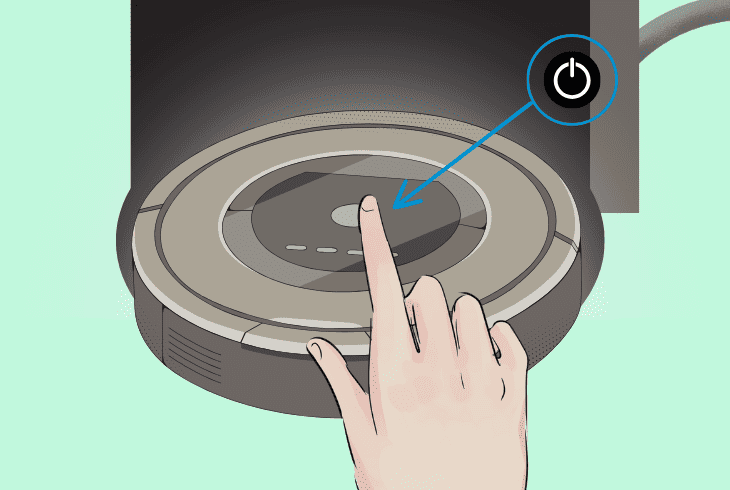
If all previous steps have failed, you can attempt to hard reset the robot device.
This helps clear software problems, preventing it from powering up and other troublesome settings.
Here are the general steps on how to factory reset your Shark robot:
- Ensure your Shark robot is turned off and disconnected from its charging dock.
- Press and hold the power button and count for at least 12-15 seconds.
- While holding the power button, place your Shark robot carefully back on its dock.
- Hold its power button for ten more seconds and release the button once it restarts.
- After the vacuum’s lights blink, you will know that the reset was successful.
- Try turning your Shark robot back on after the reset to see if it’s working now.
Note: On some cleaners, you can also press the reset button with a paperclip or similar object.
Quick Recap
To fix my Shark robot vacuum that won’t turn on, start by performing thorough maintenance on the brushes and emptying the bin.
Next, check for software updates and perform a hard reset.

- SimpliSafe Doorbell Not Flashing White? (Quick Fix Guide) - April 30, 2024
- SimpliSafe Keypad Out Of Range? (Proven Ways to Fix) - April 30, 2024
- Kasa Plug Change WiFi – (5 Easy-to-Follow Steps!) - April 30, 2024