
Why is Crave not working on my Smart TV is a question we frequently encounter. Let’s fix it!
If you get error messages, blank screens, and buffering issues.
The error often indicates a slow or unstable internet connection, app glitches, or device malfunction.
To get your Crave app and account to work on your Smart TV, ensure your Crave subscription is active and your device is supported. If these steps don’t work, sign out and sign in back of your account.
Excellent, let’s move on to the specifics.
Why Is Crave Not Working on My Smart TV

There are several possible causes of Carve not working on your Smart TV.
Here are the top three on our list:
- Your Crave subscription is expired or cancelled.
- Your smart TV model is incompatible with Crave.
- Your Crave app needs to be updated or corrected.
We’ve searched the web for the best solutions to tackle this problem, and here’s what we dug up.
Before You Start

Don’t dive into the fixes just yet. Perform these four basic troubleshooting steps first.
They could solve the issue without needing further action.
- Make sure your TV is connected to the internet
- Restart your Smart TV
- Close and reopen the Crave app
- Update the Crave app to its latest version
If the Crave issue persists, continue to the solutions below.
1. Verify Your Crave Subscription is Active

One of the most common reasons Crave is not working on your smart TV is that your subscription has expired or been cancelled. An active Crave account is required to access the service on your devices.
You need to renew or reactivate your subscription to continue watching your favourite movies and shows on the big screen.
Info: If your subscription is active, you should see a green checkmark and the word “Active.”
Otherwise, you will see a red cross and “Cancelled or Expired.”
Here are the steps to do this:
- Go to the Crave website on your computer or mobile device.
- Sign in with your email and password.
- Hit up the profile icon in the upper right corner.
- Select Account from the drop-down menu.
- Go to Subscription to see your current plan, billing date, and payment method.
- If your subscription is expired or cancelled, click the Renew or Reactivate button.
- Follow the instructions to complete the process.
Note: You should enter your payment details again and confirm your purchase.
Once your subscription is active, turn on your smart TV and launch the Crave app. If it’s still not working, proceed to the next solution.
2. Ensure Crave Still Supports Your Smart TV

Crave only supports certain models from Samsung, LG, and Sony.
If your device is not on the list of compatible devices, you won’t be able to download or use the Crave app.
So before subscribing or downloading the app, check the compatibility of your smart TV with Crave.
Here are the steps to do this:
- Go to the Crave website on your computer or mobile device.
- Click on Devices at the top menu bar to see a list of supported devices.
- Click the brand of your smart TV to see the compatible models.
- Check the minimum requirements for each brand.
- Compare the model and software version of your TV with the supported devices.
- If your TV does not support Crave, buy a new one or use a different device.
If your smart TV is on the list, but Crave is still not working, move on to the next solution.
3. Sign Out and Sign Back In to Reauthenticate Your Account
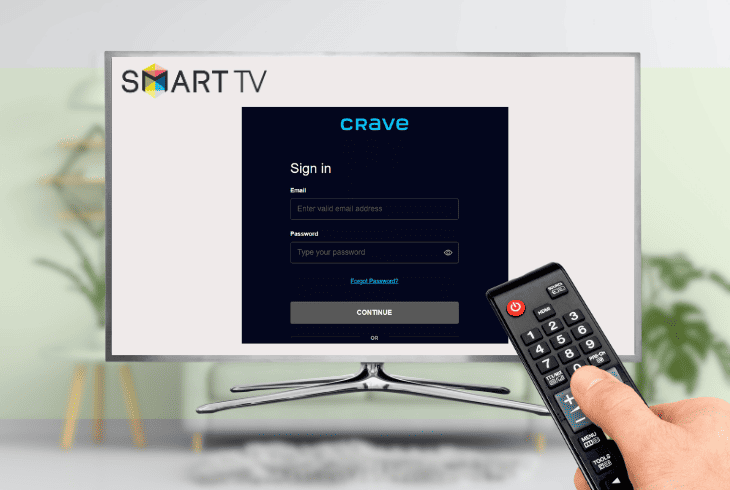
Another possible cause of Crave not working on smart TVs is it’s not authenticated properly.
If this is the case, you’ll likely see an error message saying “Authentication Failed” or “Invalid Credentials” when you launch Crave.
The error usually happens if your account has been logged out, hacked, or suspended.
To fix this, sign out and sign back in to reauthenticate your account.
Here are the steps to do this:
- Launch the Crave app on your smart TV.
- Press the menu button on your remote.
- Navigate to the Settings option.
- Select Sign Out, then Yes to confirm.
- You will see a code on the home screen and a message to activate your account.
- On your computer or mobile device, go to Crave’s activation page.
- Sign in with your email and password.
- Enter the code seen on your smart TV and click Activate.
You should see a message saying, “Your device is now activated.” Return to your smart TV to see the Crave app loading.
If the app doesn’t work, continue to the next solution.
4. Clear the Crave App Cache on Your Smart TV
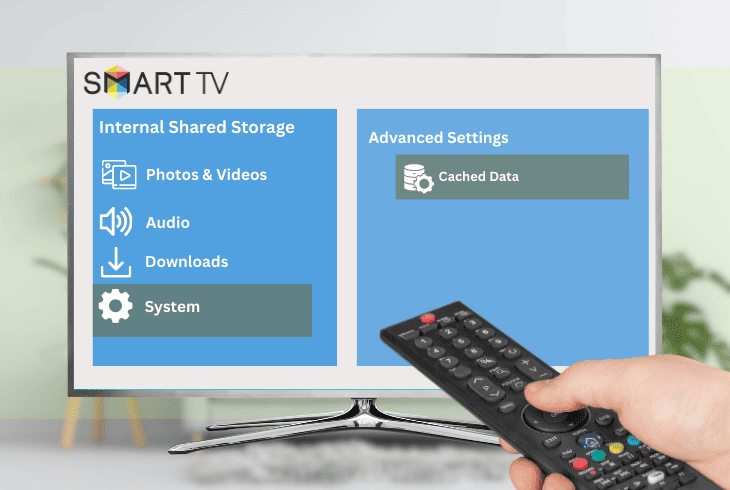
The cache is a temporary data storage that helps the app run faster and smoother.
However, sometimes, it becomes corrupted or outdated, causing Crave to malfunction.
If you experience freezing, crashing, or buffering, clear the cache to delete unwanted data and free up some space for the app.
To do this, follow these steps:
- Head over to the Settings menu on your smart TV.
- Choose Apps or Applications.
- Find and select the Crave app from the list of installed apps.
- Select Storage or Manage Storage.
- Select Clear Cache and confirm your action.
- Go back to the home screen and launch the Crave app.
Note: Do not select Clear Data, as this will delete all data on the Crave app, including your login information and preferences.
5. Disable Your VPN Before Launching the Crave App

VPNs are great for privacy and accessing geo-restricted content, but Crave doesn’t always work with them.
Sometimes, the app detects and blocks your VPN per the licensing agreement that limits Crave services to certain regions.
If you see an error message saying, “Crave is not available in your region” or “You seem to be using an unblocker or proxy,” close the app and disable your VPN before launching it again.
Here’s how to do this:
If you’re using a VPN app on your smart TV:
- Go to the Settings menu.
- Select Apps or Applications.
- Find and select your VPN app from the list of installed apps.
- Select Force Stop or Quit to close it.
- Alternative: Uninstall the app if you don’t need it anymore.
If you’re using a VPN on your router:
- Go to your router’s web interface.
- Log in with your username and password.
- Check the support pages of your router to find and turn off the VPN settings.
Once you have disabled your VPN, restart your smart TV and router to apply the changes. Then, launch the Crave app and see if the issue is gone.
6. Update Your TV’s Firmware

The firmware controls the functions and features of your smart TV.
It contains bug fixes, new features, and security patches to improve the performance of your device.
If you encounter issues with the Crave app, we recommend you update your TV’s firmware.
Here are the steps to do this:
- Head over to the Settings menu on your smart TV.
- Select Support or System Update.
- Select Software Update or Firmware Update.
- Select Download and Install or Update Now if there’s an available update.
- Follow the instructions to complete the process.
- If you don’t see any updates, select Check for Updates or Manual Update.
Alternative: Find the latest firmware on the manufacturer’s website. Download the file to a USB driver, then insert it into your smart TV to install the update manually.
Once the update is done, return to your device’s home screen and launch the Crave app.
You should notice an improvement in the app’s functionality and performance. If not, contact Crave Support or your smart TV’s for further assistance.
Quick Recap
When your Crave app starts acting up, you ask: Why is Crave not working on my smart TV? The common culprits are app glitches, a slow internet connection, or a faulty device.
To fix this, verify your Crave subscription and ensure it’s active. If this doesn’t work, sign out and log in to your account.

- SimpliSafe Doorbell Not Flashing White? (Quick Fix Guide) - April 30, 2024
- SimpliSafe Keypad Out Of Range? (Proven Ways to Fix) - April 30, 2024
- Kasa Plug Change WiFi – (5 Easy-to-Follow Steps!) - April 30, 2024