
Any TCL TV authentication problem can be troublesome to encounter, as you don’t immediately know if the issue is with the TV or with the network.
If you run into this exact scenario, don’t worry; this guide will help you out.
To fix TCL TV authentication problems, start by checking your WiFi and router settings and configuration.
Next, power cycle your TV, then check the time and date settings.
At this point, you should have a general overview of some of the fixes we will attempt, but let’s first examine what causes the issue with TCL TV.
Why Does My TCL TV Have an Authentication Problem?

If you have an authentication problem, it’s typically either due to the TV struggling to pair with the WiFi network due to some issue or due to a TCL software glitch.
Alternatively, you might experience a TV that won’t detect the connection or quickly drops it after pairing.
Here is a list of the more common causes of TCL TV authentication issues.
How to Fix TCL TV Authentication Problem?
Tip: Disable any VPNs you have on your network, as they can cause authentication issues.
Solution 1: Check Router Configuration

The first step to try out when dealing with a TCL TV Wi-Fi authentication problem is to verify if your router is properly configured and check for any connectivity issues.
If other devices struggle to pair with your router, it indicates an issue with your network and not with the TV itself.
Here are the general steps to troubleshoot a router to verify its configuration to pair with a TV:
- Open a web browser and enter your router’s IP address to access the router settings.
- Check your Wi-Fi settings, including security protocols and passwords.
- Set your broadcast frequency to 2.4GHz if it’s set to 5GHz to prevent issues.
- If available, update your router’s firmware to the latest version.
- Restart the router after making any changes to apply the settings.
- Access the TCL TV network settings and reconnect to your Wi-Fi network.
- Power off both the TCL TV and the router, wait 1 minute and then power them back on.
- In case the signal is too weak, it can also cause issues with authentication.
- Consider getting a WiFi signal repeater or moving the router closer to your TV.
After checking your WiFi connection, open a streaming app on your TCL TV to verify if the authentication problem is resolved.
Note: Check to see if your router has MAC address filtering enabled and turn it off.
Solution 2: Power Cycle TCL TV and Router

Authentication problem TCL TV can also occur due to a temporary software glitch caused by static electricity buildup.
This problem affects all electronics and can, at times, disrupt their functionality.
The fix to this is to power cycle both devices and leave them powered off for a while.
Here are the steps to power cycle your TCL TV and router:
- Turn off both your TCL TV and the Wi-Fi router.
- Disconnect the power cords from both the TCL TV and the router.
- Allow both devices to remain unplugged for at least 5 minutes.
- Plug in the power cords for your TCL TV and the router.
- Turn on the router and wait for it to fully boot up, then turn on the TCL TV.
- Access the TCL TV network settings and reconnect to your Wi-Fi network.
- Open any streaming app you have to verify if the authentication problem is resolved.
Note: Ensure there are no strong electronics, such as microwaves or cordless phones, next to your router.
Solution 3: Resetting TCL TV Network Settings

A clever workaround for authentication issues is to perform a network reset.
This can remove any incorrect settings that prevent your device from connecting to a network.
These steps can usually be done through the menu, and they might vary slightly based on your TV model.
Here is how to reset your TCL TV network settings from its interface:
- Using your TCL TV remote, press the “Menu” button.
- Scroll through the menu options to find “Network” or “Network Settings.”
- Select the option that allows you to reset network settings.
- Confirm the reset, and wait for the TV to complete the process.
- Afterward, navigate to the network settings and select your Wi-Fi network.
- Enter your password while being mindful of upper case and special characters.
- Power off the TCL TV, wait for a few seconds, and then power it back on.
When you reset the settings, go to a streaming app or online service on TCL TV to verify if the authentication problem is resolved.
Note: Try disconnecting some devices that are not currently in use from your WiFi network.
Solution 4: Update TCL TV Firmware
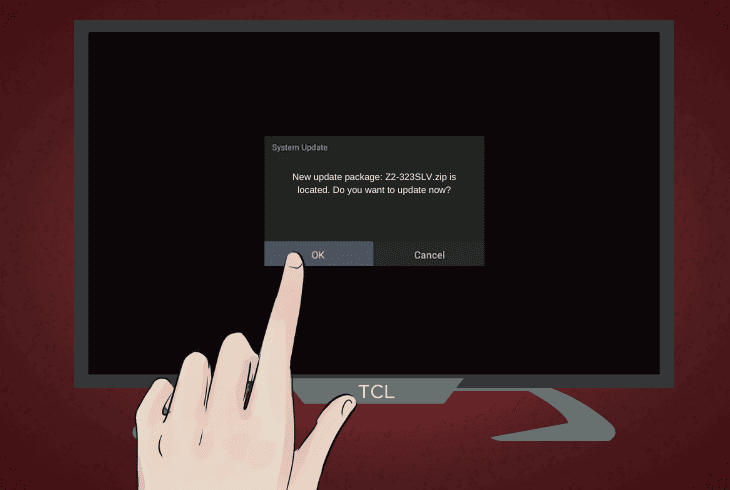
An outdated TCL TV firmware can be the source of multiple issues, including trouble for your TV when authenticating.
To ensure this doesn’t affect your device, you must manually check for updates.
- Press the “Settings” button on your TCL TV remote.
- Scroll down to find “System” or “System Update” in the settings menu.
- Select “Check for Updates” or a similar option to see if there’s a firmware update available.
- Follow the on-screen prompts to download and install the firmware.
- Allow the TV to complete the update process, then restart your TCL TV.
- Open any app that requires an active network connection to check if the issue persists.
Note that you can also install the updates even without a network by using a USB flash drive and then updating your TCL TV manually.
Note: Avoid signal congestion by pausing any downloads of large files when pairing your TV.
Solution 5: Adjust TCL TV Date and Time Settings

An often overlooked cause of authentication issues is when the data and time settings are incorrectly set.
This can cause the devices to have issues synchronizing, among other issues.
To prevent this from occurring, you have to manually check if the time and date are correctly set.
Here are the steps for checking your TCL TV date and time settings and setting them correctly:
- Press the “Menu” button on the TCL TV remote.
- Navigate to “Date and Time” in the menu.
- Set the correct date and time manually if needed.
- Save the changes and exit the menu.
- Turn off your TCL TV, wait for a few seconds, and then turn it back on.
- If available, enable automatic date and time updates in the settings.
Note: Ensure you are pairing your TV to the correct WiFi network to prevent issues.
Solution 6: Forget and Reconnect to Wi-Fi on TCL TV

If you have tried all of the above steps, but your TCL TV still won’t function as intended, you can try to manually forget and then re-add it to your WiFi.
This can bypass some software issues and ensure a fresh connection.
Here are the general ways to forget and then re-connect your TCL TV to your WiFi:
- Navigate to the “Network” or “Wi-Fi” settings on your TCL TV.
- Choose your Wi-Fi network and select the option to forget or disconnect.
- Reconnect to the Wi-Fi network by typing your password again.
- Save the changes and exit the network settings.
- Turn off your TCL TV, wait for a moment, and then turn it back on.
- Check for software updates again, as shown in the steps earlier, and install them.
Note: Ensure you are using the correct Time Zone when changing the TV time settings.
Solution 7: Factory Reset your TCL TV

As a final resort, you can reset your TCL TV to fix authentication issues.
This will revert settings as they came from the factory and can bypass many problems.
Here are the steps to factory reset your TCL TV:
- Press the “Settings” button on your TCL TV remote, find and select “System” or “Advanced”.
- Look for any option that says “Factory Reset” or uses a similar wording.
- Confirm the process with your remote “OK” button and wait for the setup to finish.
- Afterward, go through the initial device setup again and input your preferred settings.
- Access the network settings and manually pair your TCL TV to the WiFi network.
Note: A factory reset will erase any stored user data or settings you previously had saved.
Quick Recap
To fix the TCL TV authentication problem, start by ensuring your router settings, such as MAC filtering or other settings, are not preventing pairing.
Lastly, factory reset your TCL TV.

- SimpliSafe Doorbell Not Flashing White? (Quick Fix Guide) - April 30, 2024
- SimpliSafe Keypad Out Of Range? (Proven Ways to Fix) - April 30, 2024