

Enbrighten smart plug offline can be difficult to fix, as you can’t immediately know why your device isn’t working as intended.
If your smart plug won’t stay online, don’t worry; this guide has you covered with fixes.
To fix your Enbrighten smart plug going offline, start by checking if the pairing mode is active and check your network frequency type. Next, check for firmware updates.
Now let’s dive into the causes of this issue.
Why is My Enbrighten Smart Plug Offline?

Whenever your smart plug is offline, you won’t be able to remotely control your devices, and the cause of this is usually within your network.
In rarer cases, it can be due to incompatible devices or bad signal reception.
Here is a list of the most frequent causes of the Enbrighten smart plug being stuck offline:
Now that you know some of the more common underlying causes of the offline issue, let’s jump into the actual troubleshooting.
How to Fix Enbrighten Smart Plug Offline?
Tip: Ensure that the smart switch is always plugged into a grounded outlet.
Solution 1: Ensuring Rapid Blinking of the Indicator Light

Enbrighten smart plug device offline occurs most frequently because it is not properly set in pairing mode.
To fix this, you have to manually toggle the pairing button.
Depending on the type of smart plug model you have, the steps below might vary slightly.
Here is how to ensure your Enbrighten smart plug is set in pairing mode:
- Verify if your Enbrighten Smart Plug’s indicator light is blinking rapidly.
- Check that the plug is in pairing mode, as indicated by the rapid blinking.
- If the plug is not blinking rapidly, press and hold the Power/Programming button.
- Continue to hold until the light starts blinking rapidly.
- This action will reset the Smart Plug and put it in pairing mode.
- Reopen the Enbrighten app on your mobile device.
- Restart the setup process in the app from the beginning.
Your device can usually switch between the automatic and manual setup or configuration modes, so pay attention to the blinking pattern.
If you are unsure what the blinking colors or patterns mean, reference your owner manual.
Note: Your smart plug should have an indicator light that can indicate specific issues or states.
Solution 2: Activate Bluetooth on Your Phone
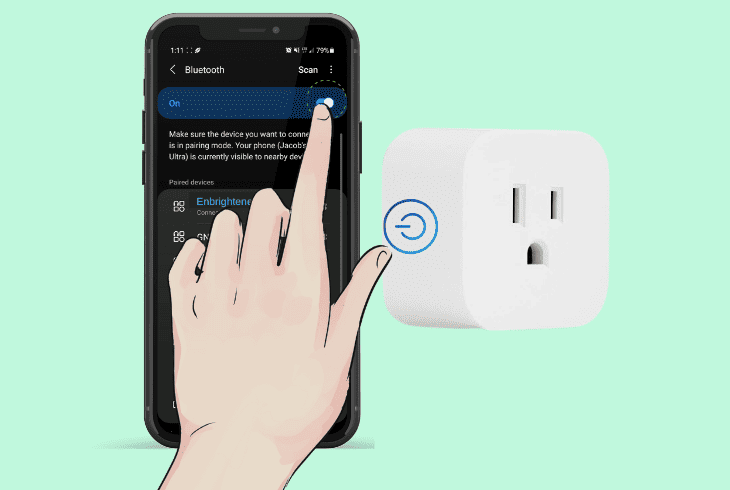
An often overlooked cause of your Enbrighten smart plug being offline is that your phone doesn’t have Bluetooth mode enabled.
Without this, you won’t be able to use the plug’s functionality fully.
Here are the steps to activate your Bluetooth to connect the Enbrighten smart plug:
- Turn on the Bluetooth on your mobile phone – usually from the settings menu.
- Confirm that the Enbrighten app has access to Bluetooth.
- If your app does not have permissions, allow it as an exception to connect.
- Try reconnecting the plug to Wi-Fi with Bluetooth enabled.
- For Android devices, enable your GPS location alongside Bluetooth.
- Check if the connection to Wi-Fi improves with these settings.
After pairing, configure your Enbrighten smart plug as needed and ensure both GPS and Bluetooth remain active during setup.
Note: It's not recommended to use your smart plug outdoors or in humid areas.
Solution 3: Set Your Wi-Fi Network to 2.4 GHz Band

Some Enbrighten smart plugs might not currently come equipped with a 5GHz signal receiver and will thus struggle to pair if your network type is incompatible.
To remedy this issue, you have to manually toggle your router to broadcast in 2.4GHz or dual band if possible.
Here are the steps to configure your WiFi router to broadcast to the 2.4GHz band.
- Check to which frequency range your router is currently using via a paired device.
- Check if your router is on dual-band mode (automatic switching between 2.4GHz and 5GHz).
- Access your router settings by typing your IP address in a web browser and logging in.
- Change the settings to use the 2.4GHz network band only.
- Refer to your router’s manual for instructions if you aren’t sure how to change this mode.
- Save the changes and restart your router.
- Attempt to reconnect the Enbrighten Smart Plug to your Wi-Fi.
When pairing your device, ensure that any VPN is disabled, as it can prevent your smart plug from getting a valid IP address.
Note: Avoid placing your smart plug near heat sources or strong household appliances.
Solution 4: Check the Wi-Fi Signal Strength
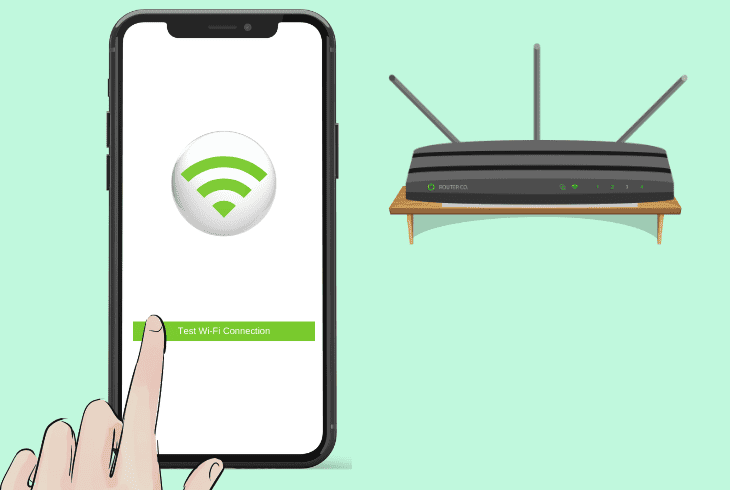
If your WiFi signal is not sufficiently strong or too inconsistent, it can cause your smart plug to have issues staying online.
This can occur even after your device is paired, so you must ensure a stable and consistent signal to use your smart plug.
Here is how to ensure your WiFi signal range is sufficient for your smart plug:
- Open the Enbrighten Smart app on your device where it is installed.
- Tap the ‘Test Wi-Fi Connection’ button or view your device signal indicator.
- Check the Wi-Fi signal strength displayed.
- If the signal is weak, move your router closer to the plug.
- Consider installing a WiFi repeater if the signal is too weak.
After you ensure a strong Wi-Fi connection is established, retry connecting the smart plug to Wi-Fi.
Remember that objects such as walls and other appliances can reduce the signal strength.
Note: It is not suggested to use the switch in congested or overloaded power strips.
Solution 5: Factory Reset Your Smart Plug

In case your smart plug is still stuck in the offline mode even after checking your WiFi signal, you can attempt to hard reset it.
This action will revert your smart plug to how it came configured when you first purchased it and clear many software glitches.
Here is how to factory reset your Enbrighten smart plug:
- Locate the power button on the side of the Enbrighten Smart Plug.
- Press and hold the power button for a few seconds.
- Wait until the LED indicator starts to blink rapidly.
- Release the button once the rapid blinking begins.
- This action will reset the plug to its factory settings.
When you are done with the reset, attempt to reconnect the plug to your Wi-Fi network.
Note: If you notice that your network signal is unavailable, check with your internet provider.
Solution 6: Remove And Re-add the Smart Plug

A clever workaround to your Enbrighten smart plug not working as intended is removing it from the app and then re-adding it again.
This can bypass some software errors within the app and could fix your offline issue.
Here is how to properly re-add the smart plug through your app:
- Unplug your Enbrighten Smart Plug from the power source.
- Wait for about 30 to 60 seconds.
- Plug the smart device back into the power source.
- Hold down the switch button on the plug.
- Wait until the LED light starts blinking.
- When the blinking has stopped, it puts your smart device in pairing mode.
- Open the Enbrighten app on your smartphone or tablet.
- Tap on your smart plug and then tap on remove.
After these steps, attempt to reconnect the smart plug back again to your Wi-Fi network.
Note: You can try this step multiple times if the first doesn't solve your issue.
Solution 7: Install the Latest Firmware Update

If your device still is not going online, your app may be running on outdated software.
This can not only cause compatibility issues but also prevent your smart plug from working.
Here are the steps to check and install the latest updates:
- Take your smartphone or tablet where your Enbrighten app is installed.
- Open the Google Play Store or the App Store.
- Download and install the latest Enbrighten app version.
- After the app has been successfully installed, re-enter your credentials into the app.
- Restart your smart plug, like in the previous steps, and try adding the plug again.
Note: Ensure your phone is connected to a WiFi network to preserve your mobile data.
Quick Recap
To fix the Enbrighten smart plug offline, start by checking your router network type and power cycle your router and smart plug.
Next, install the latest firmware update.

- SimpliSafe Doorbell Not Flashing White? (Quick Fix Guide) - April 30, 2024