
Got a Crave not working on Roku problem? We got your back! Crave offers a wide range of content, from original productions to HBO and Showtime hits.
However, Roku issues such as sign-in problems, app crashes, or poor video quality sometimes arise.
To get the Crave app working on Roku, you want to make sure your internet connection is stable. Do this by power cycling your router and other hardware, or remove the Crave channel from Roku and add it back.
Fantastic, let’s proceed to the solutions.
Crave Not Working on Roku – Must-Try Methods that Works
There are possible causes of Crave not working on Roku. Figuring out the cause of the problem is essential for selecting the most effective solution.
Some of the common triggers include:
In this article, we’ll unmask the culprit and provide you with a list of simple yet effective solutions.
But first, perform the following troubleshooting steps.
Before You Start
Before you proceed with the solutions provided, ensure you go through these five fundamental troubleshooting steps.
You might be facing a straightforward matter that doesn’t demand advanced solutions.
- Check the internet connection of your Roku
- Restart your Roku
- Update the Crave channel on your Roku
- Reinstall the Crave channel
- Check for Crave TV service outages
If there’s no improvement, proceed to the next suggested fix.
1. Power Cycle Your Router and Reconnect Roku to WiFi
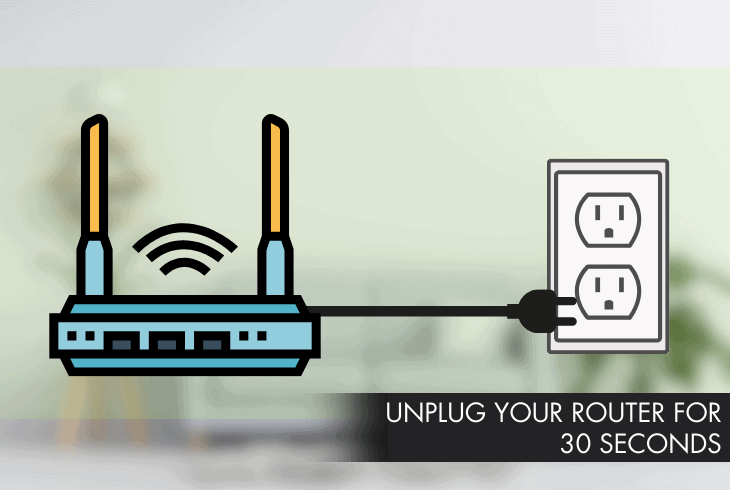
Sometimes, your router or modem gets overloaded or overheated, causing the internet speed and stability to drop.
If you are using a wireless connection, this will affect Crave’s streaming quality and performance.
In this case, the best way to fix the Crave on Roku not working issue is to power cycle your router and reconnect your Roku device to WiFi.
Unplugging your Roku device and router will refresh your network connection and clear any temporary glitches affecting Crave.
Here’s how to do it:
- Unplug your router and Roku device from the power outlet.
- Wait for about 30 seconds and plug your router back in.
- Wait for another 30 seconds, then plug your Roku device back in.
- Turn on your Roku device and go to Settings.
- Click on Network.
- Select Set Up Connection.
- Choose Wireless or Wired, depending on your connection type.
- Adhere to the prompts to connect to your WiFi network.
- Launch the Crave app and see if it works.
If this doesn’t solve the issue, proceed to the next solution.
2. Sign Out and Sign Back Into Your Crave Account
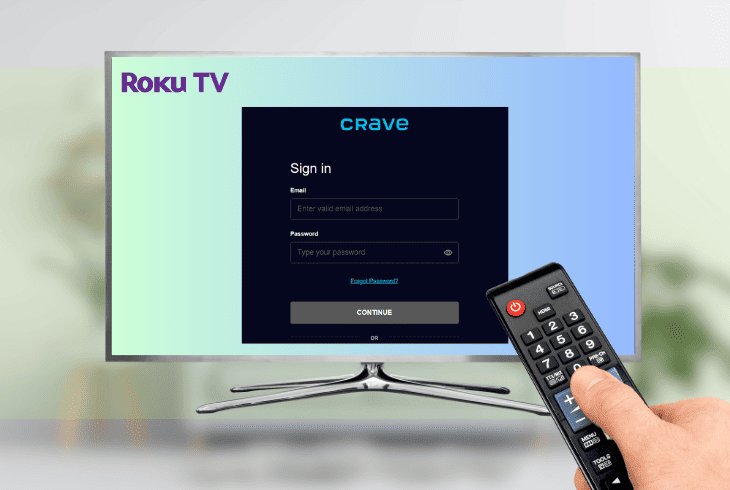
If you change your password, fail to pay your bill, or encounter a security breach, you will get logged out or locked out of your Crave account.
You won’t be able to sign in or access the content you want to watch.
To fix this, we recommend signing out and back into your account to ensure it is active and valid.
Here are the steps to do this:
- Launch the Crave app on your Roku.
- Press the left arrow button on the Roku remote to open the menu.
- Scroll down and select Settings.
- Select Sign Out and confirm.
- Exit the Crave app and restart your Roku device.
- Launch the app again and select Sign In.
- Type your email and password, or use the activation code to sign in on another device.
Note: Some of your personalized settings or preferences might reset. Double-check and adjust them to your liking after signing back in.
3. Remove the Crave Channel, Restart Your Device, and Add it Again
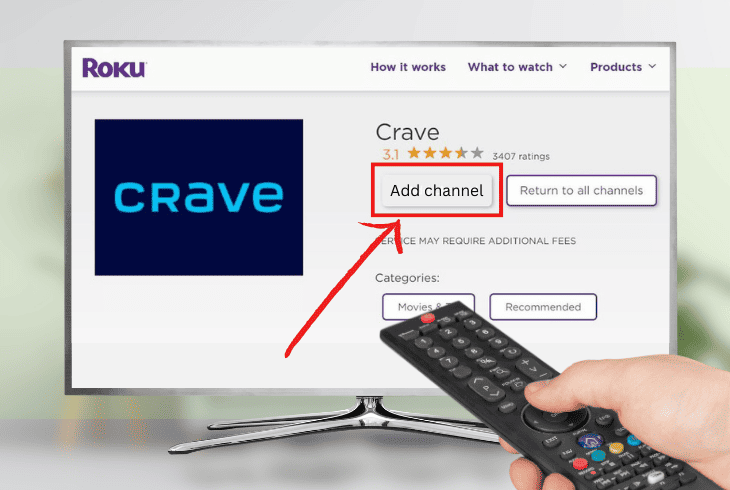
The Crave app or channel sometimes becomes damaged or infected by viruses or malware, affecting its performance and functionality.
This causes the app to crash, freeze, or display errors. To address this, remove the Crave channel, restart your device, and add it again.
Removing the Crave channel eliminates bad data.
Here are the steps to do this:
- Point out the channel tile on your home screen.
- Press the Star icon to open the Options menu.
- Choose the Remove Channel option and confirm.
Restarting your device clears any residual data.
To do this, follow these steps:
- Press home on your Roku remote.
- Click on Settings.
- Select System.
- Choose Restart.
Reinstall the Crave channel to download the latest and cleanest version of the app.
Here’s how:
- Navigate to your Roku’s Search option.
- Enter Crave on the search bar.
- Choose the channel using your remote.
- Select the Add Channel option.
Launch the Crave channel and sign in with your account. Then, stream with Crave again and see if it works.
4. Clear the Cache on Your Roku Device

Another solution to fix the Crave app not working on Roku is to clear the cache on your Roku device.
The cache holds data for faster access, and it sometimes gets full or corrupted, affecting the performance of the Crave app and channels.
Clearing it fixes glitches and frees up some storage space. There is no official way to clear the Roku device cache.
However, there’s a hidden menu accessible through a secret code on your remote that will allow you to clear the cache and restart your device.
Here’s how to do this:
- On the Roku TV remote controller, press the home button.
- Go to the Settings menu from the home screen.
- Press the Home button 5X.
- Press the Up button once.
- Press the Rewind button 2X.
- Press the Fast Forward button 2X.
- Wait for your Roku to reboot.
Note: After clearing the cache, you should reauthenticate some apps or channels. Have your login credentials handy to regain access to your Crave content smoothly.
5. Update Your Roku’s Software
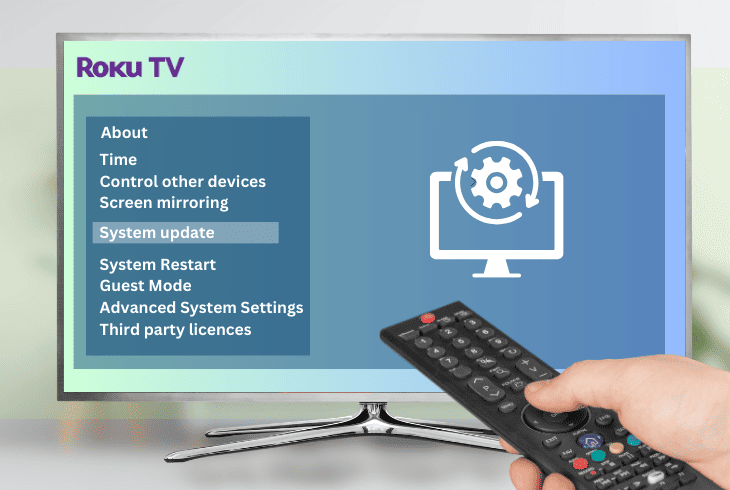
The software is the operating system that runs your Roku and its apps and channels.
Sometimes, it gets bugs and compatibility issues that cause problems with your device and account.
Updating Roku’s software fixes these issues and improves the functionality and security of your device.
Here are the steps to do this:
- On the Roku remote, press the Home button.
- Click on Settings.
- Select System.
- Choose System Update.
- Click on Check Now to manually check for updates.
- Click on Update Now if there’s a new version available.
- Wait for the download and installation to complete.
Your Roku will restart automatically after the update. Launch the Crave channel and see if it works.
Note: Roku devices usually update their software automatically, but manually checking for updates is possible.
6. Reset Your Roku to Factory Settings
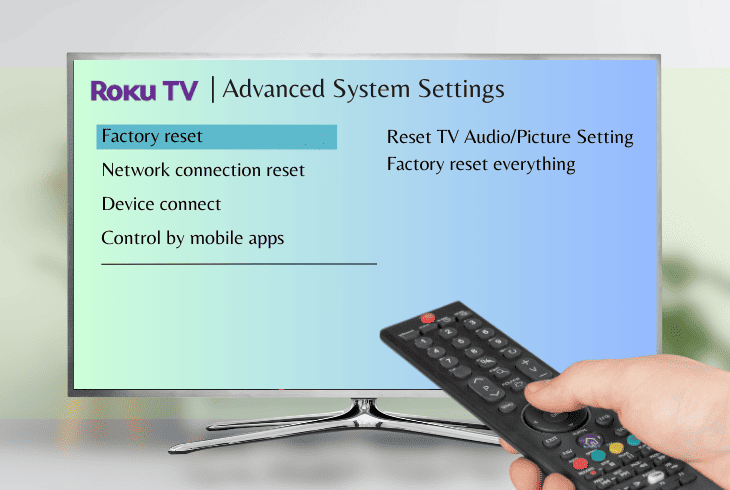
The last solution is to reset your Roku to factory settings. Doing this will restore your device to its original state as if it was new.
However, note that this will erase your data, settings, apps, and channels, but it will fix any deep-rooted issues affecting your device.
Here’s how to do it:
- Press the Home button on your Roku button.
- Click on Settings.
- Select System.
- Go to Advanced System Settings.
- Choose Factory Reset.
- Opt for Factory Reset Everything if you own a Roku TV.
- If not, follow the on-screen prompts to complete the reset process.
- Set up your Roku device and sign in to your accounts again.
- Add the Crave channel and see if it works.
If the problem persists, contact Roku and Crave’s customer support for assistance.
They will provide you with guidance or troubleshoot device-specific and account-related issues.
Quick Recap
Many users experience Crave not working on Roku issues like sign-in problems or app crashes.
The main culprit is often an unstable internet connection. Start by power cycling your router and reconnecting Roku to WiFi to fix this.

- SimpliSafe Doorbell Not Flashing White? (Quick Fix Guide) - April 30, 2024
- SimpliSafe Keypad Out Of Range? (Proven Ways to Fix) - April 30, 2024
- Kasa Plug Change WiFi – (5 Easy-to-Follow Steps!) - April 30, 2024