
Did you encounter a Westinghouse Roku TV black screen? Smart TVs have some incredible features, but none are useful if your TV screen won’t work.
Your TV showing a black screen can be due to many causes, either due to incorrect settings or faulty hardware.
Whenever your Westinghouse Roku TV has a black screen and won’t display an image, you should check if everything works with the cables. Next, verify that the remote is working and check if you are on the correct display input.
Let’s see the top reasons your TV has a blank screen!
What Causes Westinghouse Roku TV’s black screen?
If there are any issues with your streaming and multimedia home devices or with your Roku TV, you could get a black screen.
- A damaged HDMI cable or port on your TV
- Your TV ran into some software error
- The display brightness is set to very low
- Your TV is showing the wrong input
- The input sources or devices are incorrectly set
That’s a quick overview of the most common issues whenever your Westinghouse Roku TV screen is black or blank.
Now that you know the possible problems, we can start working toward a solution…
Let’s get right into fixing your TV’s black display issue!
How to Fix Westinghouse Roku TV Black Screen?
Tip: Follow the steps in our guide in order by not skipping to the end.
1. Check the HDMI Cables
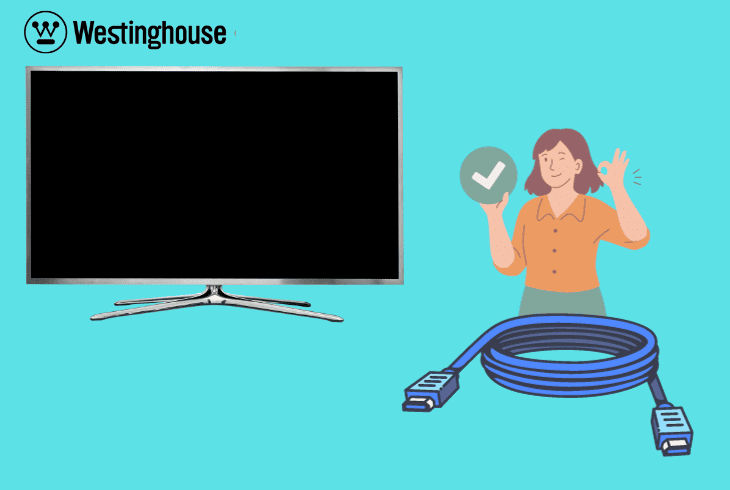
The first thing you should do is to verify if your cabling is properly connected and functional.
No troubleshooting will help if your output and input cables can’t send a signal. All you have to do is verify the cables you have are working.
Here are some tips on verifying your HDMI cables:
- Inspect all wires connected to your TV for damage or too much creasing.
- Manually check that all cables are snugly attached to your devices.
- If any HDMI cables are damaged or not working, replace them with new ones and see if the issue persists.
Note: Power cycle your Westinghouse Roku TV by turning it off, unplugging the power cord, waiting 3 minutes, and then plugging it back in.
2. Check Input Sources
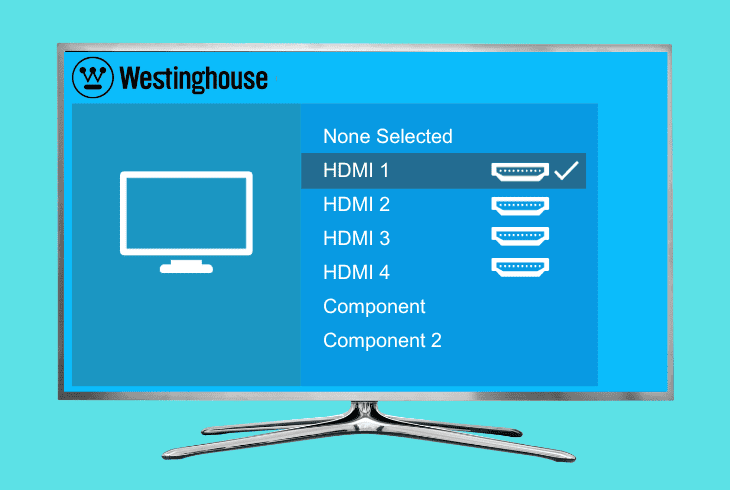
Depending on your exact Westinghouse Roku TV model and configuration, your TV usually supports digital as well as analog inputs.
If something is wrong with the input sources, or your TV isn’t configured to display the right one, you will see a black screen or one with static.
Here is how to change your Roku TV input source:
- Ensure your TV is powered on.
- Using the remote, press the ‘Input‘ or ‘Source‘ button.
- Toggle through the different sources to see if they display an image.
- Once you find your desired input, select and confirm it with your remote.
If you see an image from another source, the issue might be with the device connected to the TV.
Another tip is to check if your socket is overloaded. Sometimes, if you have too many plugged-in cables, your input devices might struggle to work.
Note: Your input won't show if your HDMI cable is damaged or the device connected to it isn't working.
3. Reset Your Roku Remote
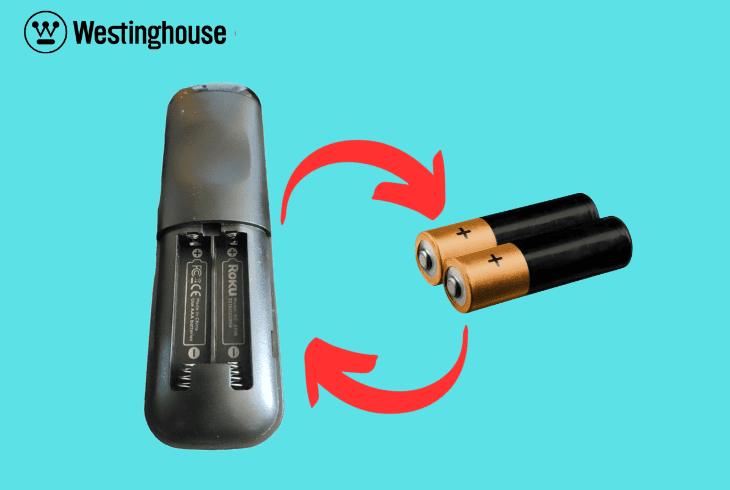
There is always a possibility that your Roku TV is working as intended, but instead, your remote isn’t working.
Even if your remote works, it could be paired to the wrong smart device or have weak batteries. All of these are possibilities you should check.
Here are some tips on ensuring your remote is properly working:
- Remove the batteries from the Roku remote.
- Press and hold any button on the remote for about 20 seconds.
- Reinsert the batteries facing in the correct way inside your Roku remote.
- Press any button to see if the TV responds.
If another device in your home responds to your remote instead of your Roku TV, unpair it and connect it to your Westinghouse Roku TV.
You can go further and replace your batteries with new ones and clean the remote sensor with a soft cloth.
Remember, there might be hardware damage if you hear loud rattling when shaking your remote.
Note: You can check if your remote works by pointing it toward your smartphone's camera. If you see a light when you press the remote buttons on your phone, the remote works.
4. Hard Reset the TV
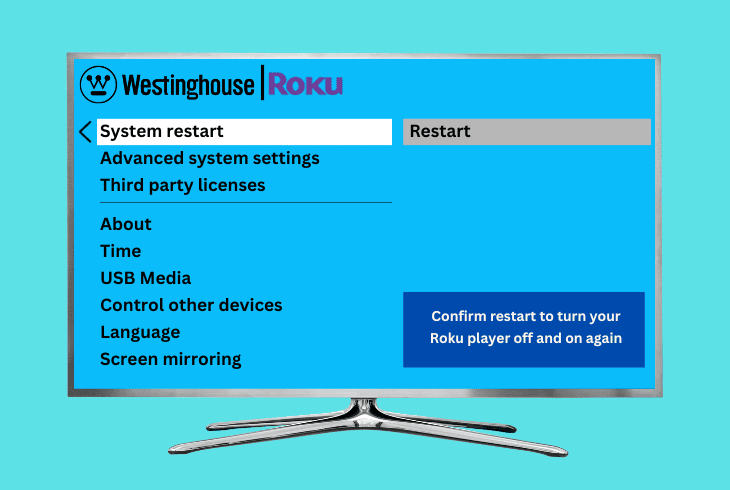
If your Westinghouse Roku TV screen goes black, hard resetting the TV can clear up many potential issues.
When any electronic smart device is constantly running, it could encounter software glitches or errors.
When you reset your TV, this clears many of these errors, which could cause a black screen.
Here are the steps on how to reset your Roku TV:
- Locate the ‘Reset‘ button on the back of the TV (sometimes labeled ‘Reset’ or a pinhole).
- Using a paperclip, press and hold the button for about 20 seconds.
- Wait for your Roku TV to restart, then check to see if the screen works.
Note: Performing this step might remove some of your configured settings. Ensure you have your credentials and configuration options somewhere safe.
4. Adjust the Brightness of Your Display
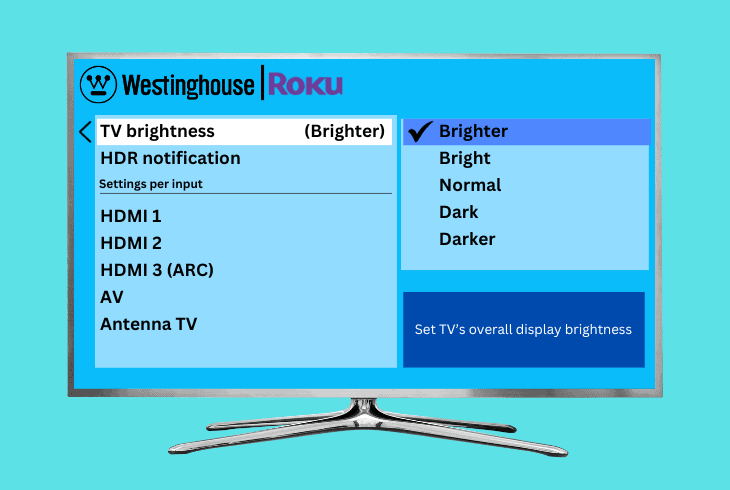
Sometimes, due to an accidental change or a software glitch, the brightness setting on your TV might have been set to the lowest level, making the screen appear black even when the TV is on.
Here is how to adjust the brightness levels on your Roku TV:
- Press the ‘Home‘ button on the remote.
- Navigate to ‘Settings‘.
- Go to ‘Display type.’
- Change the display type and see if the screen responds.
Note: Check other available display settings on your Roku TV, such as contrast or backlight. Low values on these settings might contribute to the screen's visibility issue.
5. Check for Available Software Updates

If your Westinghouse Roku TV runs on old firmware, this can cause various issues and errors.
Smart TVs usually update automatically, but sometimes they can’t. In these cases, you can attempt to update them manually.
Here is how to download any pending software updates for your Roku TV:
- Navigate to the ‘Home‘ menu using your remote.
- Find and open your TV ‘Settings‘ panel.
- Select ‘System‘ from the scroll-down menu.
- Choose ‘System Update‘ and then ‘Check Now.’
- If there’s an update available, let the TV update.
- Restart your TV and check if the issue persists.
Note: If you have issues connecting your smart TV to a WiFi network, you can download the update manually from the manufacturer's website instead. Afterward, you can install it via a USB stick.
6. Factory Reset Your Westinghouse Roku TV

When you factory reset your Roku smart TV, this will force your device to revert to the default settings.
This includes your display brightness levels.
After the settings return to their factory standard, your screen might start working correctly again.
Here are the proper steps to factory reset your Roku TV:
- Go to ‘Home‘ using your remote.
- Navigate to and open ‘Settings‘ from the menu.
- Go to ‘System‘ and then select ‘Advanced System Settings‘.
- Select ‘Factory Reset‘.
- Enter the code displayed on the screen to continue.
- Confirm the process and let your TV reset itself.
Note: Any apps you've installed previously and their associated data will be removed. You'll need to reinstall and re-login to these apps after the reset.
7. Check Your Westinghouse Roku TV Internet Connection
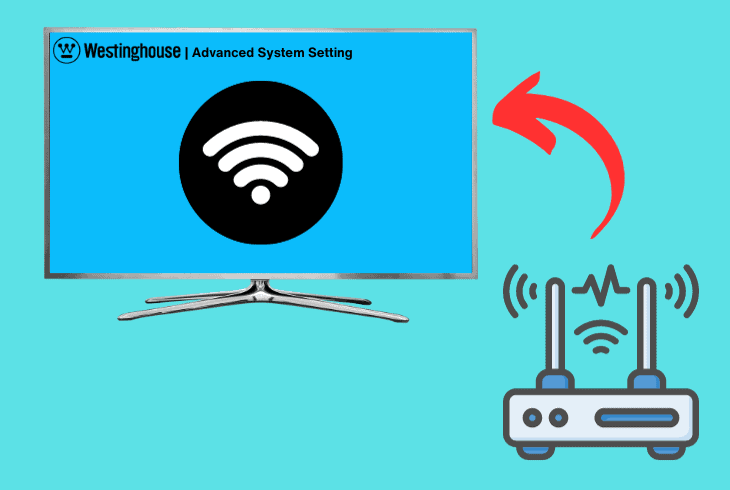
When it comes to streaming services, the problem of a black screen might often be due to a bad internet connection.
Even if your TV is broadcasting from the correct input, you might see a blank screen instead of the Roku menu if that input has no internet connection.
Here are some basic steps to check your TV WiFi network connection:
- Navigate to ‘Home‘ with the remote control.
- Go to ‘Settings‘ and then search and open ‘Network‘.
- Select ‘Check Connection‘ to ensure your TV is connected correctly to the internet.
- If your TV is disconnected from the internet, you might need to configure it manually.
Note: If your TV can't pair to your WiFi network, the issue might be with your WiFi modem. You can restart it by removing its power cable for 2 minutes and then powering it on again.
Need More Help?
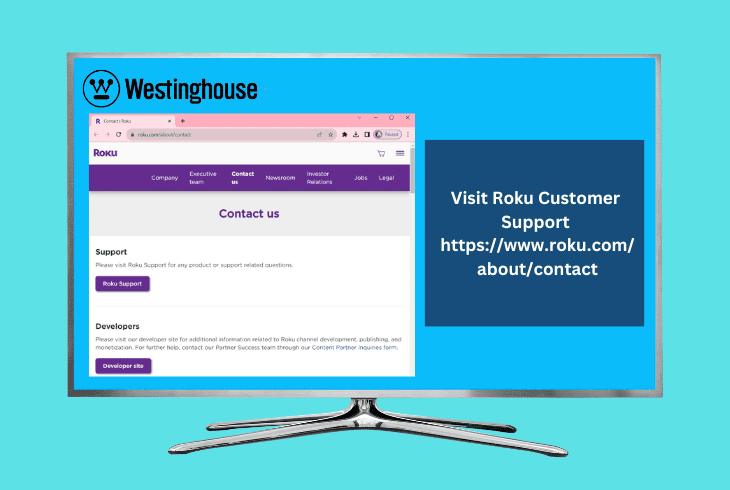
It might be a hardware issue if you have performed all the above-suggested solutions but still get a black screen on your Roku TV.
In this case, contacting Roku customer support is best.
Tell them about your TV’s symptoms, and mention which steps you tried so far; they will take it from there.
Quick Recap
If you face the problem of a Westinghouse