

SimpliSafe outdoor camera battery not charging can be challenging to fix, as it’s not immediately apparent if the issue is with the battery or charging setup.
If your camera is not charging properly, don’t worry; this guide will offer some help.
To fix your SimpliSafe outdoor camera battery not charging, start by resetting your device and using an alternate charging method. Next, check the USB cable and ports.
Now let’s first try to understand what causes SimpliSafe camera charging issues.
Why Isn’t My SimpliSafe Outdoor Camera Battery Not Charging?
You might experience that your SimpliSafe battery doesn’t charge at all or that it quickly depletes with just a few hours of use.
Both of these causes are typically within the charging setup and, in rare cases, are due to a faulty battery or damaged charging ports.
Here is a list of the top causes of a SimpliSafe outdoor camera battery not charging:
Now that you know some of the causes of your outdoor camera battery not charging properly, let’s try out some possible fixes.
How to Fix SimpliSafe Outdoor Camera Battery Not Charging?
Tip: Extreme cold or heat might degrade the battery life of your SimpliSafe outdoor camera.
Solution 1: Reset Your SimpliSafe Camera
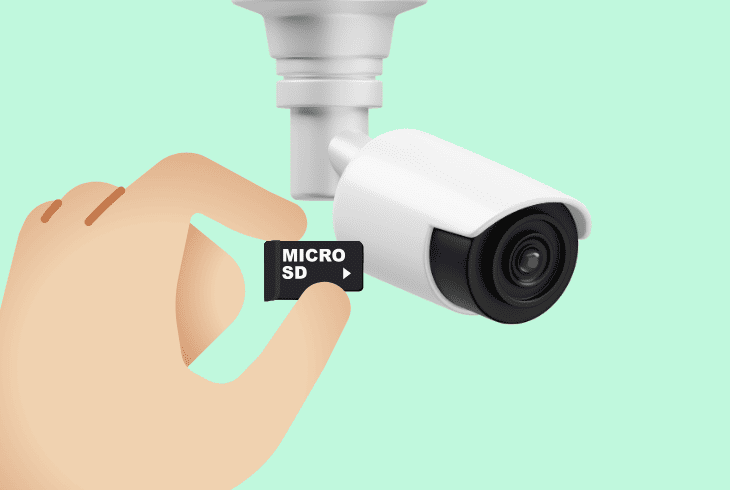
If you wonder how to charge Simplisafe outdoor camera battery that won’t work, the first step is to reset it.
This process will clear any accumulated static charge and can fix software-based issues that are causing your battery to stop charging.
Here is how to properly reset your SimpliSafe outdoor camera:
- Remove any SD cards inside your camera, if applicable.
- Identify the reset button on the back of your SimpliSafe outdoor camera.
- Firmly press and hold this button for about 16 seconds.
- Release the button to initiate the camera’s reboot process.
- Wait for the camera to restart, which may take a few minutes.
- Once restarted, set up the camera again in your SimpliSafe system.
- Test the camera to ensure it’s functioning correctly.
Please be aware that using the reset button will revert your camera settings to how they came from the factory and will erase other stored data on it.
Note: Ensure that both your SimpliSafe app and camera are using up-to-date firmware.
Solution 2: Check Your Solar Panel For Issues

If you are using a solar panel to charge your outdoor camera, then it’s worthwhile to check if it is generating enough power and properly storing it.
If it’s not properly set up, it won’t gather enough power to charge your battery to full.
Here is how to troubleshoot a solar panel used to charge your SimpliSafe device:
- For the solar panel, ensure it receives at least 3 hours of direct sunlight daily.
- Connect your charging cable to a 120V outlet, ensuring the power cable is secure.
- Regularly check the connection to ensure it’s intact.
- Position your solar panel in a way to maximize sunlight exposure.
- Ensure your solar panel is rated to sustain a full charging cycle for your SimpliSafe.
- Observe the camera’s battery status through the SimpliSafe app.
- If you don’t have or use a solar charging panel, move on to the next solution.
Always ensure that your solar panel and voltage controller firmware are updated for optimal performance.
Note: Don't use unverified aftermarket USB cables, as not all charging cables are made equally.
Solution 3: Avoid Common Charging Mistakes
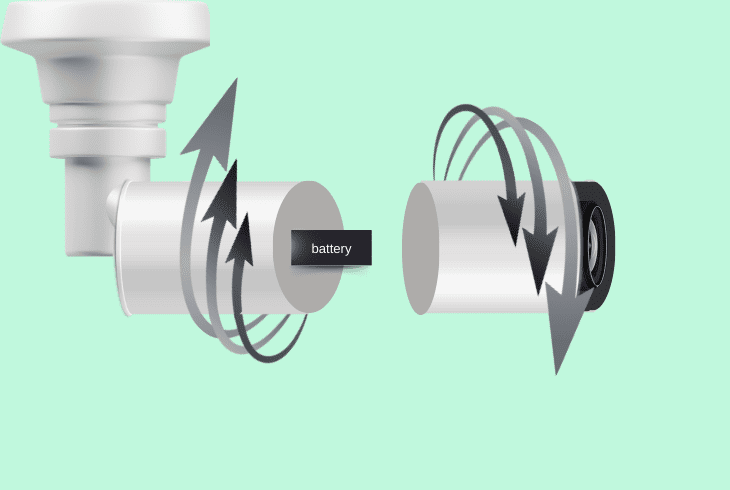
The best method how to charge SimpliSafe outdoor camera reliably is to ensure that the USB cable and any power adapters are sufficiently rated.
Furthermore, you have to ensure that enough time has passed for the charging to finalize.
- Open the camera’s battery compartment by untwisting the cap.
- Remove the battery using the tab.
- Check if you are using a compatible USB power brick for charging (5V, 7.5W+, 1.5A+).
- Connect the battery to the power brick using the factory-issued charging cable.
- Keep the camera and its accessories clean and well-maintained.
- Charge the battery for up to 6 hours until all 3 LED lights illuminate.
- Once charged, replace the battery in the camera and secure the cap.
A good practice is to always fully charge your battery to 100% every time, as this can improve its longevity.
Don’t disconnect the battery from charging if just one or two LEDs are blinking.
Note: Regularly charge the SimpliSafe camera battery every 3-6 months, depending on usage.
Solution 4: Try Using A Different Camera Livestream Mode
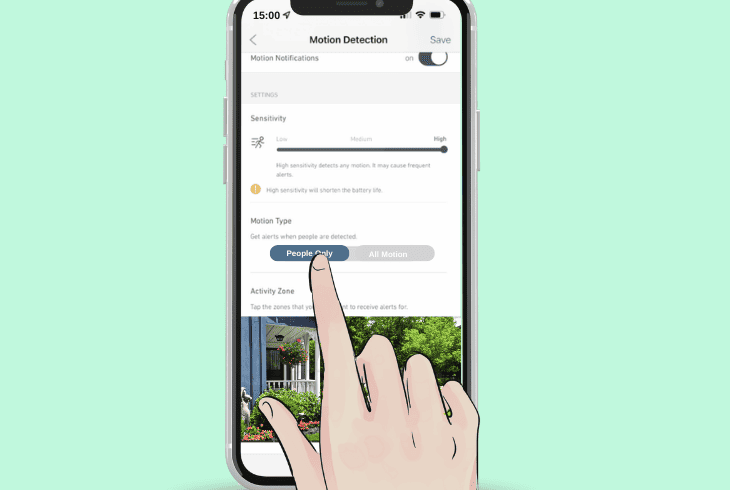
If your camera’s battery is holding a charge, but you notice that it’s depleting too rapidly, it might be because your camera mode is causing issues.
A clever workaround to boosting battery life is to set it to activate only with certain activity detection.
Here is how to properly calibrate your SimpliSafe camera for better battery life:
- Have your phone or tablet connected to a steady WiFi network.
- Double-check to ensure your outdoor camera is paired with your SimpliSafe app.
- Through the SimpliSafe app, set the camera activation mode to “People Only” mode.
- This will preserve power by only activating when motion sensors are triggered.
- Calibrate and use the “Activity Zone” feature to exclude unwanted camera activations.
Afterward, check your camera battery after regular use to confirm if the charge lasts longer.
Always use the charging cable that comes with your SimpliSafe camera to avoid damaging your battery, as not all cables have the same charging capability.
Tip: Gently clean the charging ports on your camera using compressed air and a small brush.
Solution 5: Check The Power Source and Cable
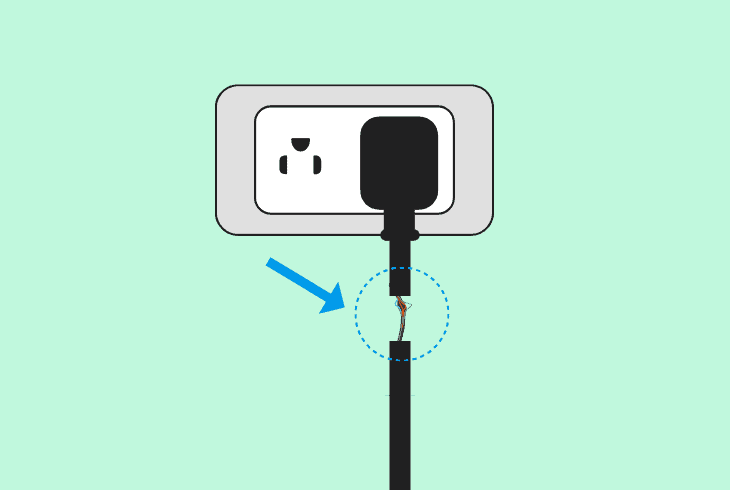
If your SimpliSafe camera doesn’t charge the way it should, it could be because your power source or power delivery is faulty.
Here are some guidelines to ensure your SimpliSafe has sufficient power when charging:
- Verify that the power outlet is functional by plugging in a different device known to work.
- Try testing your SimpliSafe camera with a different power strip or outlet if available.
- Ensure the outdoor camera’s power cable is securely connected.
- Check for any visible damage to the power cable.
- If a power cable issue is suspected, consider getting a replacement cable for your setup.
- Regularly inspect the power setup for any loose connections.
Note: If using a power strip to charge, ensure it's not congested with other devices.
Solution 6: Update Your SimpliSafe app
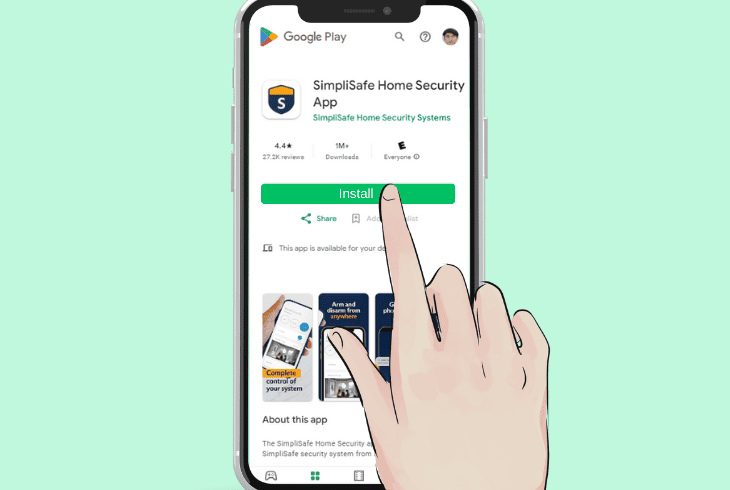
An outdated SimpliSafe app can cause your battery to not display its level properly, leading you to suspect a hardware fault.
To ensure this doesn’t happen, you must always have it updated.
Here is how to update your SimpliSafe app firmware:
- Ensure your phone or tablet where the app is installed has access to stable internet.
- Go to the Google Play Store or App Store and check for SimpliSafe updates.
- Install any pending SimpliSafe updates and restart your app again.
- Once the update is finished, log in with your credentials and see if the camera appears.
- Regularly monitor the charging process and battery status.
Note: Ensure your WiFi router is close enough to your outdoor camera for a better video feed.
Solution 7: Reset Your Wi-Fi And Camera
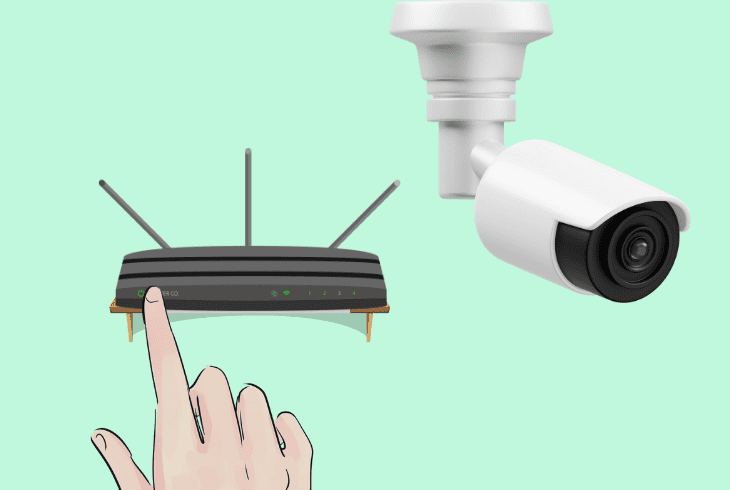
If you tried all other steps but still can’t get your SimpliSafe to work, it might be due to issues with your network.
This can cause the app to get incorrect battery readings or other software issues.
Here are the steps on how to power cycle your SimpliSafe camera and WiFi router:
- Download the SimpliSafe app and enter your code for a network scan.
- If facing connectivity issues, reset your router and check your Wi-Fi credentials.
- To reset the camera, take off your battery.
- Let the camera sit for half an hour without power.
- Unplug the camera and plug it back in afterward.
- Consider changing the camera’s location to rule out signal interference issues.
If you still can’t get the battery to work, reach out to SimpliSafe support for further assistance if necessary.
Note: For setup issues, use the QR code in the SimpliSafe app for reconnection.
Quick Recap
To fix a SimpliSafe outdoor camera battery not charging, clean the charging port and update your SimpliSafe app.
Next, verify your power delivery is working and hard reset the camera.
