

If you’re wondering why Schlage Encode not working after battery change, read on!
The reason why your Schlage Encode isn’t working after a battery change could be due to improper installation or incorrect battery position.
This guide will guide you through a complete inspection of the smart lock and all possible solutions to restore the lock’s power!
If your Schlage Encode isn’t working after the battery change, inspect the positioning of the battery units, clean the compartment, and reconnect the wires. If the issue persists, restore the Schlage Encode’s firmware.
There’s much more to discuss, so let’s get started!
Why is My Schlage Encode Lock Not Working After Battery Change?

Schlage Encode is designed for easy user access, so anyone with little to no knowledge about the smart keypad can manually replace the batteries.
However, inserting the batteries improperly and exhausting or mixed batteries could prevent the keypad from functioning, so it’s essential to check.
Here are all the potential causes leading to a Schlage Encode malfunction:
Oppositely inserted batteries will not provide any electricity until the battery’s flat end establishes contact with a conductor spring in the compartment.
Proceed further in the guide to learn more!
Schlage Encode Not Working After Battery Change – Fixed
Tip: It’s straightforward to solve the issue as long as you follow the guide chronologically!
1. Check the Battery Installation

Schlage Encode might fail to withdraw electricity from the new batteries due to improper positioning within the battery compartment.
Each battery unit must be inserted according to the compartment’s positive and negative polarity springs to function.
How to Identify Schlage Polarity Poles?
After removing the rear cover from the lock, immediately notice 4 battery beds with or without inserted battery units.
Each battery bed has a spring that must connect with the flat end of the battery.
After each battery spring is pushed down, negative to positive contact is established.
If the battery remains inserted improperly, the voltage of the unit will not be accessed by the compartment therefore, the Schlage Encode will not function until further notice.
Note: The batteries should not be moved easily if appropriately inserted in the compartment!
2. Inspect Schlage’s Battery Level

You can check the remaining battery life of the Encode lock’s inserted batteries by visiting the “Information” section within the Schlage Home app.
All you have to do is install the app, sign in to your Schlage account, and verify that the keypad is added securely to your user account.
Here’s how to check the keypad’s life through the Schlage Home app:
- Open the “Schlage Home” mobile app on your phone.
- Select the lock that you want to check the battery on.
- After that, click on the “Settings” icon on the screen.
- Next, select “Information” and check “Battery Level.”
Note: If the newly inserted battery is below 100%, replace the batteries!
3. Remove Low-Quality/Mixed Batteries

Low-quality or mixed batteries can provide inconsistent amounts of electrical charge for your lock.
This could lead to interrupted keypad functionality, unusual power behavior, and sudden reboots of the Schlage Encode.
If you’ve inserted batteries into the lock that were already used or are not entirely compatible with the compartment, you must insert a fresh set of compatible units.
What Batteries Does Schlage Encode Use?
All Schlage Encode keypads use 4 double-A batteries for standard functionality.
The keypad will not function with less than 4 batteries, so you must make sure that each battery bed within the compartment has a battery of its own.
4. Inspect for Disconnected Wires
Besides backup batteries, the Schlage Encode uses wiring secured with the circuit breaker in your home.
In a power outage, the backup batteries are set to activate automatically, allowing the keypad to continue functioning even if the wiring has failed to deliver the required voltage.

Follow these instructions to check if the keypad’s wires sustained damage:
- Remove the battery cover of the battery compartment.
- Next, deactivate the power supply at the circuit breaker.
- Next, locate the wire connected to the connector plate.
- Reconnect the wire by fully snapping it to the connector.
- Detach the smart lock from the wall mounting bracket.
- Remove the back cover and unscrew the bolts to access.
- Re-knot all the wires with the respective power terminal.
- Finally, test the Schlage Encode lock’s power functionality.
By a standard, keypads use a ground and current wire to function.
Therefore, don’t forget to deactivate the A/C switch at the breaker, powering the keypad to avoid potential A/C injury.
Note: In case of a damaged wire, check your warranty and contact Schlage customer service!
5. Update the Smart Lock’s Firmware
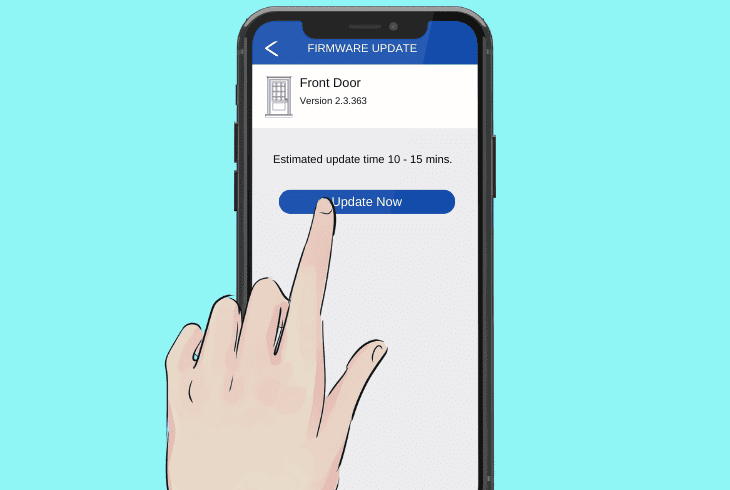
It could be possible that after inserting the new batteries, the keypad’s firmware sustained an “OS Rollback.”
This common issue happens whenever the hardware gets instantly drained out and an alternative power source is used to power the internal components.
Fortunately, you do not require direct access to the keypad’s menu, as you can allow the keypad to upload the latest firmware solely through the Schlage Home app.
Here’s how to update the Schlage Encode smart lock’s firmware:
- Access the “Schlage Home” app on a mobile device.
- Then, log in or sign up to access the app’s features.
- Select the name and location of the Schlage Encode.
- Choose the lock that you want to perform an update on.
- Wait for the lock to connect and tap “Firmware Update.”
- Follow the on-screen instructions and finish the process.
Once the procedure begins, the lock automatically detects the most recent firmware updates if connected to a stable, secure Wi-Fi network.
You can manage your smart lock’s connections, including devices and network, through the Schlage Home app.
Tip: You can also access updates using the “Allegion ENGAGE” app!
6. Clean the Schlage Encode Lock

Dirt, dust, and debris can intercept with the connection of the batteries and the electrical poles of the Schlage Encode’s compartment.
Hence, the next step is to clean the compartment of the keypad and remove all debris and dust accumulation, preventing proper battery contact.
Follow these instructions to clean the battery compartment of the lock:
- Access the battery compartment of the Schlage lock.
- Eject all 4 x inserted batteries to expose the terminals.
- Optional: Clean with a microfiber cloth and rubbing alcohol.
- Blow out all the accumulated dust using compressed air.
- Fully dry up the compartment and collect any remaining dust.
- Finally, reinsert each lock’s batteries into a proper position.
After verifying that the compartment is free of dust and obstructions, do the same inspection of each battery unit.
The compartment’s conductor poles could also be blocked by obstructions on the battery units, so verify everything is intact.
Tip: You can also use a non-abrasive cloth with soft chemicals for damage-free cleaning!
7. Factory Reset Your Smart Lock

If all your attempted solutions have not affected the Schlage Encode, you should proceed with a factory reset.
The keypad can be reset entirely without interacting with the digital menu, all you have to do is hold the Reset button continuously.
The factory reset will erase all software and cache files of the lock, and none of the uninstalled data can be restored.
Then, you will be prompted to initialize your Schlage Encode from scratch.
Here’s how to perform a factory reset on the Schlage Encode efficiently:
- Remove the batteries from the battery compartment of the lock.
- Press and hold the “Lock” button while re-inserting the batteries.
- Locate the Schlage Button on the faceplate of the smart keypad.
- Hold the button for 30 seconds until all LED lights flash 3 times.
- Release the button once the keypad’s LED lights flash in unison.
Note: If the lock’s LED lights do not flash, re-do the steps again!
Quick Recap:
To fix when the Schlage Encode not working after battery change, check if the batteries are inserted correctly and if they are damaged.
Also, inspect the lock for disconnected wires, update the firmware, and clean the device battery beds.
Follow us for more!
