

Want to know how to mirror iPhone to Toshiba Fire TV properly? We’ll teach you.
Screen mirroring duplicates the display of your device onto another screen.
iPhones utilize AirPlay technology, while Toshiba Fire TVs employ Miracast, a different screen mirroring protocol.
To mirror your iPhone to your Toshiba Fire TV, you need to connect both devices to one WiFi network. You’ll then need to activate Screen Mirroring on your iPhone and select your Toshiba TV from the list.
Okay, let’s now discuss the actual steps.
Surefire Steps How to Mirror iPhone to Toshiba Fire TV
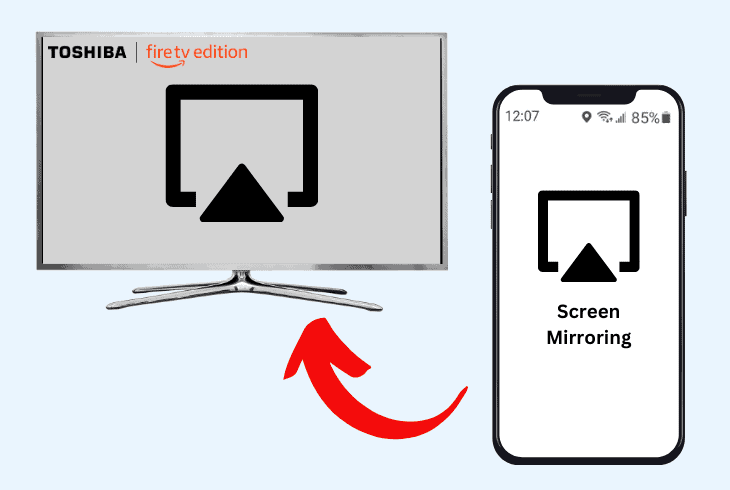
Before we show you how to mirror your iPhone to your Toshiba Fire TV, we’ll explain how the screen mirroring technology works.
Screen Mirroring Technology – How Does it Work
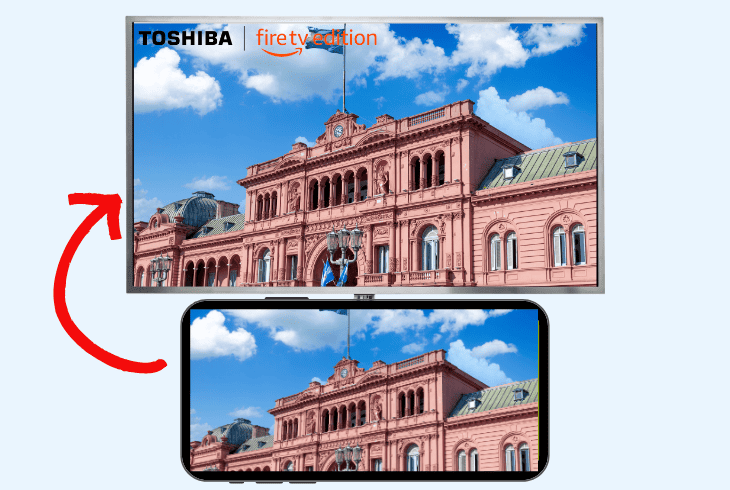
Screen mirroring involves establishing a wireless connection between two devices, where one (iPhone) sends its entire screen to the other (Toshiba Fire TV) using WiFi Direct.
It’s different from casting, which only shares specific media.
#1: Check Your Phone’s Compatibility

The first thing you should do is make sure your iPhone is compatible with AirPlay. AirPlay is available on Apple devices running iOS 4.2 or later.
Some older models do not support it, which means they don’t have screen mirroring options in their settings.
To check if your phone supports AirPlay and screen mirroring, follow these steps:
- Swipe down from the top right corner of your screen to open the Control Center.
- Look for the Screen Mirroring option (a rectangle with a triangle at the bottom).
- If you see it, tap on it and proceed to the next section.
- Your iPhone does not support screen mirroring if you don’t see it.
Note: Ensure the app or content you want to share supports AirPlay too.
#2: Ensure WiFi Connectivity on All Devices

Next, ensure your phone and TV are on the same WiFi. WiFi connectivity on all devices is necessary for the screen mirroring feature to work properly.
To connect your iPhone to your WiFi network:
- Go to Settings.
- Select WiFi.
- Turn on the WiFi if it’s not already on.
- Select the WiFi network you want to join.
- Enter your password if required.
To connect your Toshiba Fire TV to your WiFi network:
- Press the Home button on your remote control.
- Go to Settings.
- Select Network on your TV.
- Select WiFi.
- Choose the same network that your iPhone is connected to.
- Enter the password if required and confirm.
Tip: Double-check the WiFi network name and password to ensure they are entered correctly.
#3: Activating Screen Mirroring

Once both devices are on the same network, activate screen mirroring on your iPhone.
To do this, follow these steps:
- Swipe down from the top right corner of your screen to open the Control Center.
- Tap on the Screen Mirroring icon.
- Wait for a few seconds while your phone scans for available devices.
- You should see your Toshiba Fire TV listed as an option.
- If you don’t see it, proceed to the next section.
#4: Discovering Your Toshiba Fire TV

If you don’t see your Toshiba Fire TV on the list of available devices, your device is not ready to receive AirPlay signals.
First, download AirScreen on your TV to enable it to act as an AirPlay receiver.
Follow these steps to do this:
- Press the Home button on your remote control.
- Go to Apps.
- Select Categories.
- Click Utilities on your TV.
- Look for AirScreen and select it.
- Click on Download and wait for it to install.
- Open AirScreen.
- Click on Start Now.
Tip: During installation, grant the necessary permissions for AirScreen to access your device’s network and other required features.
Keep the app updated to the latest version to benefit from improvements, new features, and bug fixes.
#5: Initiating the Mirroring Process

The next step on how to screen mirror iPhone to Toshiba Fire TV is initiating the mirroring process from your iPhone.
Here are the steps to do this:
- Swipe down from the top right corner of your phone’s screen to open Control Center.
- Tap on the Screen Mirroring icon.
- Your Toshiba Fire TV should be listed as an option with the AirScreen logo next to it.
- Tap on the AirScreen logo.
- Wait for the connection to be established.
- You should see a message on your TV saying your iPhone is connected via AirPlay.
Note: If prompted, enter the provided code on your TV screen into your iPhone to establish the connection.
#6: Watching Content from Your iPhone on Your TV

Now that you have connected your TV via screen mirroring, you’ll be able to watch your favorite content on the big screen.
Whatever it is that you do on your phone, it will be reflected on your TV in real time.
Here are some of the things you can do when your phone is linked to your TV:
- Watch videos and photos from the Gallery app.
- Launch streaming apps like Netflix, Hulu, HBO Max, and more.
- Watch your favorite content from these apps.
- Open games and play them on your phone while mirrored on your TV.
Note: To control, you’ll still rely on your phone rather than your TV’s remote.
Whenever you’re screen mirroring, the quality and resolution of the content shown on your TV will depend on the speed of your WiFi connection.
Make sure that your router, iPhone, and TV are near each other to get the best signal strength.
#7: Ending Your Screen Mirroring Session

When you finish screen mirroring, disconnect your iPhone from your Toshiba Fire TV.
This way, you’ll have access to your phone without its screen showing on your TV.
To end your screen mirroring session, follow these steps:
- Swipe down from the top right to open Control Center.
- Tap on the Screen Mirroring icon.
- Select the Stop Mirroring option.
- Tap on it again to confirm.
- You will see a message on your TV that says your iPhone is disconnected.
During your sessions, there are instances when you’ll come across issues that will prevent you from enjoying watching the content found on your iPhone on your TV.
In these cases, you want to fix them quickly by following the troubleshooting steps below:
Troubleshooting Common Issues

Sometimes, during your attempts to mirror your iPhone to your Toshiba Fire TV, you will run into some problems.
You must know how to fix them so you continue to enjoy using the screen mirroring feature of your devices.
Screen Mirroring is Stuck or Laggy
If you’re experiencing display issues like it gets stuck, lags, or stutters, it’s likely caused by a weak or unstable WiFi.
Interference from other devices is also some culprits that you need to watch out for.
To fix this, here’s what you need to do:
- Move your router closer to your TV and iPhone.
- Power cycle your router and TV.
- Turn off or disconnect other devices that use WiFi or Bluetooth.
Screen Mirroring Quality is Poor or Distorted

Your screen mirroring sessions can also appear pixelated and distorted at times.
Whenever this happens, it’s caused by a resolution or aspect ratio mismatch between your TV and iPhone.
To fix this, you need to adjust these settings on your TV. Here’s how you do this:
Adjust Aspect Ratio:
- Press the Home button on your remote.
- Go to Settings.
- Select Display and Sounds.
- Choose the Picture option.
- Go to Aspect Ratio.
- Select the Auto option.
- If that doesn’t work, toggle on each setting to find out which works.
Adjust Resolutions:
- Press the Home button on your Remote.
- Go to Settings, then Display and Sounds.
- Choose Picture.
- Select Resolution.
- Choose a higher resolution to match your iPhone.
Note: After changing your settings, we recommend restarting your Toshiba TV for the new settings to take effect.
If you’re having difficulty mirroring your iPhone to your Toshiba Fire TV, contact Toshiba Support to get help configuring your TV properly.
Conclusion
Now that you know how to mirror iPhone to Toshiba Fire TV, you should be able to perform this correctly.
The important thing to remember here is that your TV and iPhone must be connected to the same WiFi to detect each other.

- SimpliSafe Doorbell Not Flashing White? (Quick Fix Guide) - April 30, 2024
- SimpliSafe Keypad Out Of Range? (Proven Ways to Fix) - April 30, 2024
- Kasa Plug Change WiFi – (5 Easy-to-Follow Steps!) - April 30, 2024