
Have you tried watching your favourite show only to see Crave error code 241001? We got you!
If you get this error, it typically suggests a technical or connectivity problem, but don’t worry. There are some simple solutions to fix it.
To fix the Crave error 241001, power cycle your modem and router to reset the connection. If this doesn’t work, change your browser settings by turning off ad blockers and tracking extensions.
Okay, let’s discuss the solutions.
Crave Error Code 241001 – Proven Fixes that Resolved the Issue For Us
The error code 241001 is a common Crave error that occurs when there’s a problem with your internet connection or browser settings.
Here’s a lowdown on why it is happening:
- Internet speed is too slow or unstable to stream Crave content.
- Your browser has cookies, cache, or extensions that interfere with the DRM system.
- Your browser’s DRM settings are disabled or outdated.
- You are using a VPN, proxy, or ad blocker, blocking Crave’s access to your location and IP address.
We searched for the most helpful methods on how to resolve the issue.
But before we get into them, let’s look at some basic troubleshooting steps.
Before You Start
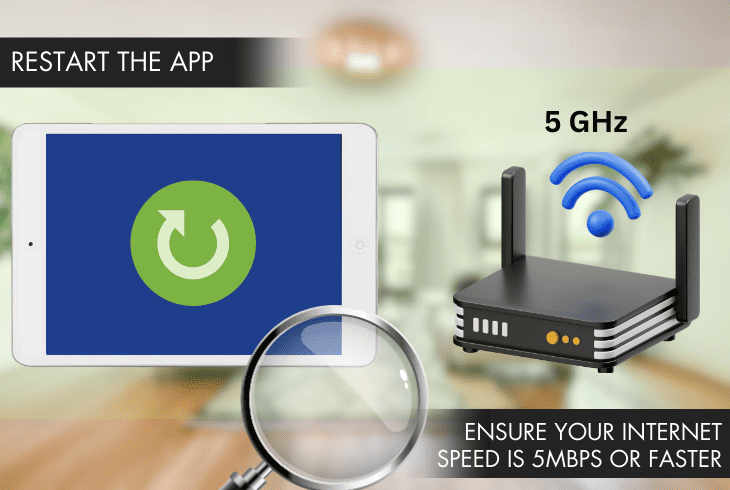
Before you attempt any of the major solutions below, make sure to run through these five basic troubleshooting steps.
Feel free to choose whichever solves your problem.
Should these fail, proceed to the solutions provided below.
1. Power Cycle Your Modem and Router
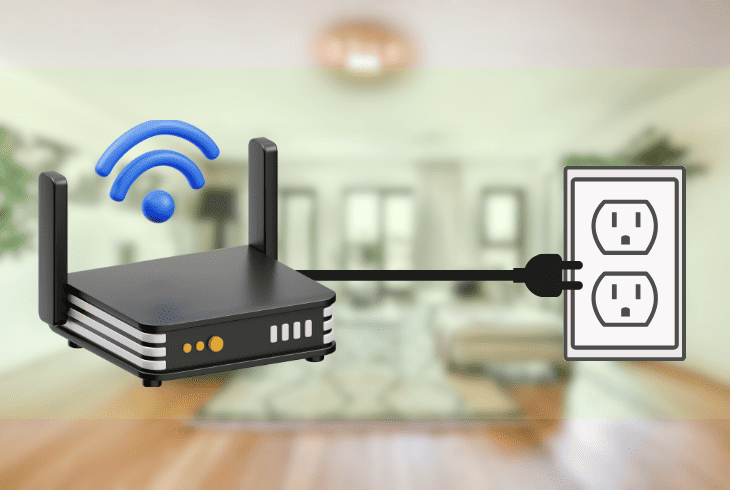
Power cycling your modem and router gives your internet connection a quick refresh.
It works like magic for the error code 241001 Crave by wiping out any network errors and glitches causing the problem.
To do this, unplug your router and modem, count to ten, and plug them back in.
Here’s a more detailed way to power cycle your modem and router:
- Turn off or unplug your modem and router from the power source.
- Wait for at least 30 seconds to let your devices power down completely.
- Plug your modem back into the power source first and wait for it to boot up.
- Plug your router back into the power source and wait for it to boot up.
- Once both devices are fully operational, stream Crave again and see if the error is gone.
Note: If your modem has a backup battery, remove it after turning off or unplugging your device.
If you’re still unable to stream Crave after power cycling your modem and router, proceed to the next solution.
2. Enable Cookies on Your Browser
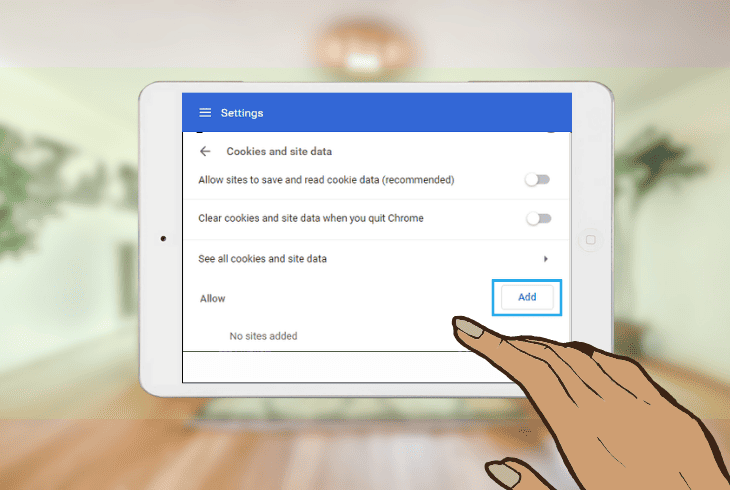
Cookies are small files that store your online activities and preferences.
Crave relies on these cookies to remember your login details, subscription status, and what you like to watch.
If they are disabled or blocked on your browser, Crave won’t be able to function properly and display the error code 241001.
To enable cookies on your browser, follow these steps:
Chrome
- Click on the three-dot menu at the top right corner.
- Select Settings.
- Under Privacy and Security, click on Site Settings.
- Click Cookies and Site Data.
- Ensure the option to Allow Cookies is enabled.
Firefox
- Click the three-line menu at the top right corner.
- Select Options.
- Under Privacy and Security, click on Cookies and Site Data.
- Ensure Delete Cookies and Site Data when Firefox is Closed is disabled.
Safari
- Click the Safari menu at the top left corner.
- Select Preferences.
- Under Privacy, ensure the option to Block All Cookies is disabled.
Note: Block third-party cookies to prevent tracking cookies from other websites and keep your online activities private.
After enabling cookies on your browser, stream Crave again and see if the error is gone. If not, continue to the next method.
3. Turn Off Ad Blockers and Tracking Extensions
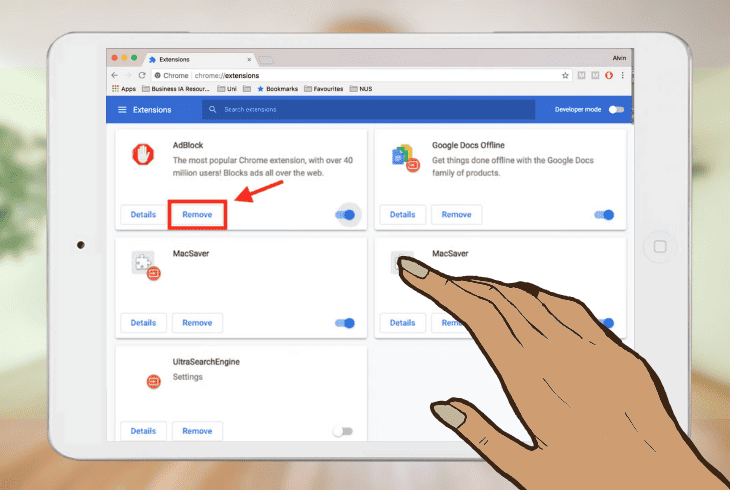
Ad blockers and tracking extensions are browser add-ons that block or limit the ads and trackers that ensure you only see what you want to see.
While they enhance your privacy and browsing experience, they also interfere with Crave’s streaming service.
See, Crave uses ads and trackers to verify your location and IP address, which are necessary to access the content on the platform.
If you have ad blockers and tracking extensions installed on your browser, turn them off or whitelist Crave.
Here’s how to do this:
Chrome
- Click the three-dot menu.
- Select More Tools.
- Click on Extensions.
- Look for extensions with the words ad blocker, tracker, or privacy in their names.
- Click the toggle switch next to each extension to turn it off.
Firefox
- Click the three-line menu.
- Select Add-ons.
- Click on Extensions.
- Look for extensions with the words ad blocker, tracker, or privacy in their names.
- Click the three-dot menu next to each extension and select Disable.
Safari
- Click the Safari menu.
- Select Preferences.
- Under Extensions, look for those with ad blocker, tracker, or privacy in their names.
- Uncheck the box next to each extension to turn it off.
Alternative: Click the extension icon next to the address bar and select the option to allow or whitelist Crave.
4. Enable Your Browser’s Digital Rights Management Settings
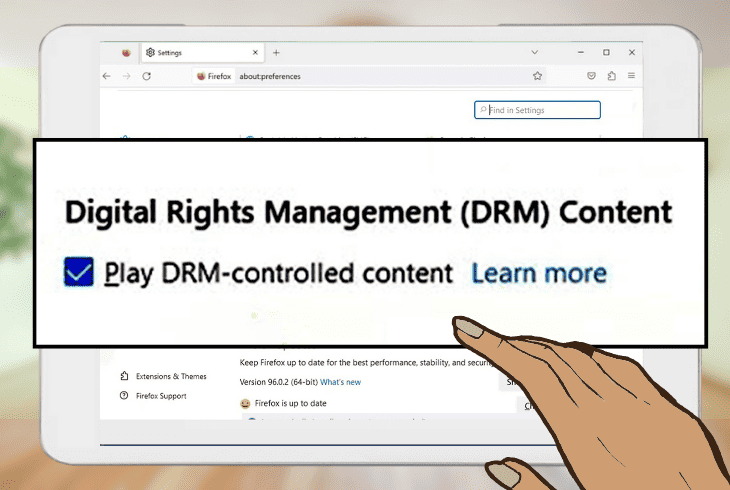
Digital Rights Management (DRM) protects the intellectual property rights of content creators and distributors.
Crave uses it to prevent unauthorized copying and sharing of its content.
To get your Crave content streaming smoothly, ensure your browser’s DRM settings are switched on.
To enable DRM settings in your browser, follow these steps:
Chrome
- Click on the three-dot menu.
- Select Settings.
- Under Privacy and Security, click Site Settings.
- Click Additional Content Settings.
- Select Protected Content.
- Ensure the option to Allow sites to play protected content is turned off.
- Click Allow identifiers for protected content to boost your playback experience.
Firefox
- Click on the three-line menu.
- Select Options.
- Under General, scroll down to the DRM Content section.
- Ensure the option to Play DRM-controlled content is turned off.
- Select Do Not Track to enhance your online privacy.
Chrome
- Click on the Safari menu.
- Select Preferences.
- Under Websites, click Auto-Play.
- Ensure the option to Allow All Auto-Play is selected for Crave.
- Click the option to Stop Media with Sound to mute the audio of the media.
If this doesn’t work, move on to the next solution.
5. Clear Your Browser’s Cache and Temporary Files
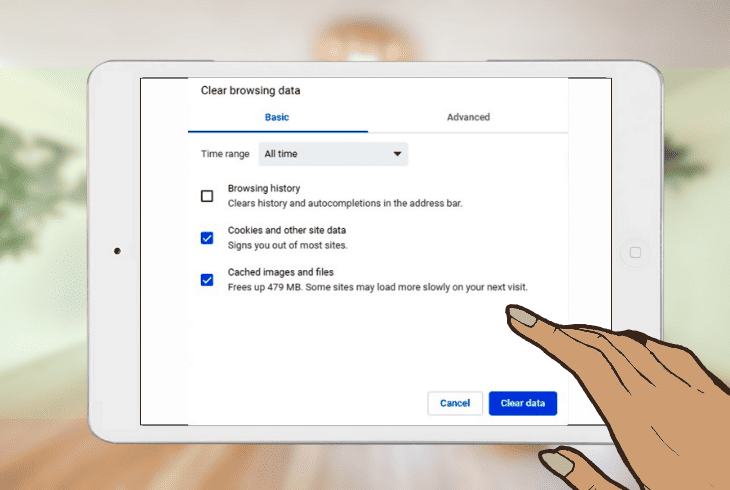
Cache and temporary files speed up your browsing experience and reduce bandwidth usage.
But, over time, they pile up, slowing down your browser and taking up storage space.
So, you get the Crave error code 241001 warning that these files are interfering with the streaming service.
To fix this, clear your browser’s cache and temporary files. Here’s how to do it:
Chrome
- Click the three-dot menu.
- Select More Tools.
- Click Clear Browsing Data.
- Go to the Basic tab.
- Ensure Clear browsing history, Clear cookies and other site data, and Clear cached images and files are checked.
- Alternative: Choose a time range from the dropdown menu or select All Time to delete everything and click Clear Data.
Firefox
- Click the three-line menu.
- Select Options.
- Under Privacy & Security, click Clear Data.
- Ensure Cookies and Site Data and Cached Web Content are checked.
- Alternative: Click Manage Data to see and delete specific sites and click Clear.
Safari
- Click the Safari menu.
- Select Preferences.
- Under Advanced, check the box to Show Develop in the menu bar.
- Click the Develop Menu and select Empty Caches.
- Alternative: Click the Safari menu and select Clear History.
After clearing your browser’s cache and temporary files, stream Crave again and see if the error is gone.
If the issue persists, proceed to the final solution.
6. Use a Private Browsing or Incognito Window to Open Crave
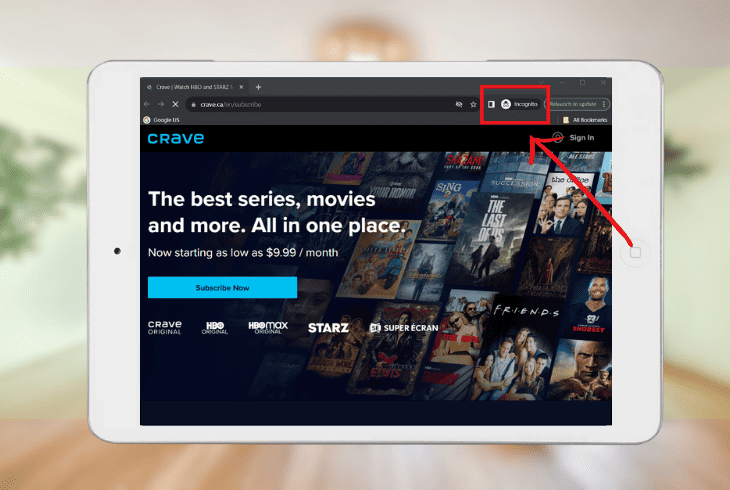
A private browsing or incognito window allows you to browse the web without saving any history, cookies, or cache on your device.
A new window with a purple or dark theme will open, where you’ll see a mask icon or a person wearing a hat and sunglasses.
This eliminates any browser-related issues affecting your streaming service. To use it, follow these steps:
Chrome
- Click the three-dot menu.
- Select New Incognito Window.
Firefox
- Click the three-line menu.
- Select New Private Window.
Safari
- Click the File menu.
- Select New Private Window.
Alternative: Use the keyboard shortcut Ctrl+Shift+N (Windows) or Command+Shift+N (Mac) to open a new private or incognito window.
Quick Recap
The Crave error code 241001 usually signals a technical or connection glitch. Start with a power cycle for your modem and router to fix this.
If this doesn’t work, turn off ad blockers and tracking extensions to allow the streaming platform to verify your location and IP address.
For additional fixes on other Crave error codes, visit our blog!