

Is your Blink floodlight camera not working? Consider it taken care of!
Blink floodlight cameras provide enhanced security for your property, but sometimes they don’t work properly.
Frequently, the error indicates power supply issues and network connectivity problems.
To fix your Blink floodlight camera, ensure it’s plugged into a working outlet. In the case that it’s battery-powered, install fresh batteries so they continue to work flawlessly.
Let us now move forward and address the solutions!
Blink Floodlight Camera Not Working – 10 Proven Methods to Fix

The best way to fix your Blink camera floodlight not working depends on your specific problem.
But, a general rule of thumb is to start with the simplest solution and then move your way up into more complex ones.
#1: Check the Power Supply of Your Floodlight Camera
The first thing you should do is check the power supply of your Blink floodlight camera.
If your camera is not getting enough power, it will not work properly.
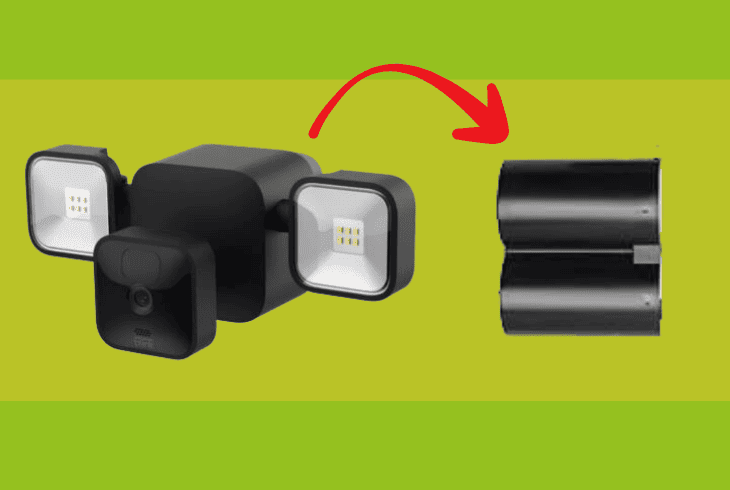
To check the power supply of your Blink floodlight camera, do the following:
- Ensure the micro-USB cable is properly inserted into the outdoor camera.
- Check for loose or damaged cords.
- Ensure the battery cover is properly positioned on the unit.
- Remove the battery pull tabs.
If you find any issues with the above components, fix or replace them as needed.
Then, test your camera again and see if it works.
#2: Verify the Connection to the Blink Sync Module

Next, verify the connection to the Blink Sync Module, which connects your camera to your WiFi network and allows you to control it via the app.
Your Blink floodlight camera will not work properly if it is not connected to the sync module.
To verify the connection, do the following:
- Plug in and power on your Sync Module.
- Position your Sync Module within 100 feet of your camera.
- Connect your Sync Module to the same WiFi network as your phone.
- Add your Blink floodlight camera to the same system as your Sync Module.
Note: Ensure you have a stable connection for your Blink cameras.
#3: Check the Battery Status and Replace Them

Another thing you should check is the battery status of your Blink floodlight camera.
It runs on two AA lithium batteries that last up to two years, depending on usage and settings. If your batteries are low or dead, replace them.
To check the battery status, follow these steps:
- Open the Blink app on your phone.
- Tap on the Camera icon on your home screen.
- Tap on the Settings icon in the upper right corner.
- Click Device Health.
- Check the battery level indicator.
To replace the batteries with new ones, follow these steps:
- Remove the back cover of the camera by sliding it down.
- Remove the old batteries and dispose of them properly.
- Insert two new AA lithium batteries in the correct orientation.
- Replace the back cover of your camera by sliding it up.
- Test your camera and see if it works.
Tip: Regularly check the battery status of your Blink floodlight camera and promptly replace it when low to maintain consistent camera functionality and security coverage.
#4: Power Cycle Your Camera and Sync Module
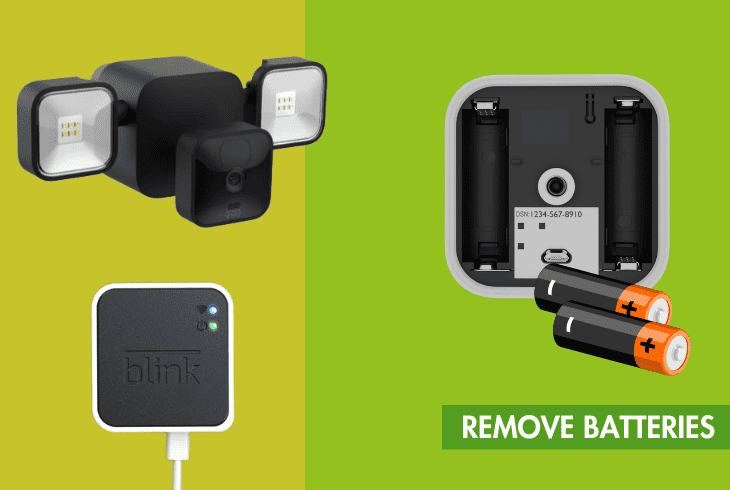
A simple power cycle fixes many issues with your Blink floodlight camera and sync module.
By turning your devices off and on, you are resetting them and clearing bugs and glitches.
To power cycle your Blink camera, follow these steps:
- Slide down the back cover of your camera.
- Remove one of the batteries.
- Wait for 10 seconds.
- Reinsert the battery in the correct orientation.
- Slide up the back cover of your camera.
To power cycle your sync module, follow these steps:
- Unplug the power adapter from the power outlet.
- Wait for 10 seconds.
- Replug the power adapter into the wall outlet.
Tip: Perform a test motion detection and monitor the live feed to ensure it functions properly.
#5: Verify It’s Not an Issue with the Blink App

The Blink app is what you use to control and monitor your camera and floodlights.
If there is a glitch or bug in the app, it will affect the performance of your devices.
To verify it’s not an issue with the Blink app, you need to:
- Force close the app and reopen it.
- Update the app to the latest version.
- Uninstall and reinstall the app.
- Clear the app cache and data.
After checking, you want to test your Blink floodlight camera and see if it works.
#6: Remove Your Camera’s Saved Schedule
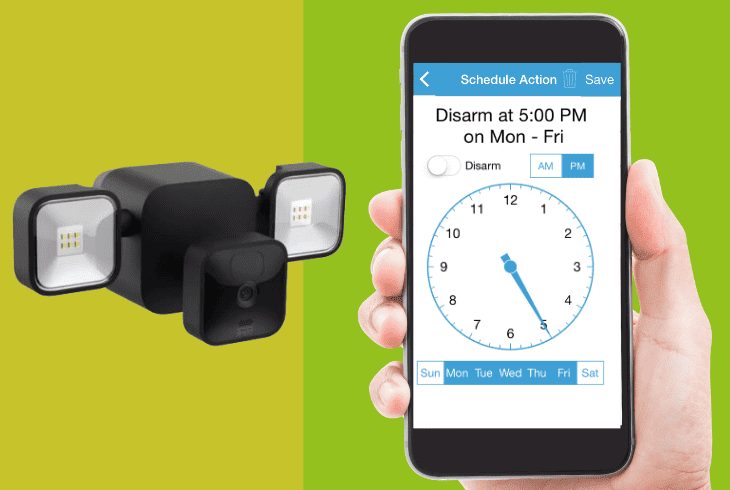
The Blink app allows you to create a schedule for your camera and floodlights.
However, sometimes, this interferes with your manual commands or settings.
To remove your camera’s saved schedule, follow these steps:
- Open the Blink app on your phone.
- Tap on the System icon on the home screen.
- Select Schedules.
- Tap Edit.
- Choose Delete All.
- Tap on Done.
Note: Trigger a test event like walking in front of the camera to activate its motion sensor. Your camera should capture the event, record the footage, and send alerts to your mobile device.
#7: Activate Geofencing on the App

Geofencing uses your phone’s location to determine when you are home or away.
However, sometimes, it is not working properly, causing issues with your Blink floodlight camera.
To activate geofencing on the app, follow these steps:
- Open the Blink app on your phone.
- Tap on Settings.
- Select Geofencing.
- Toggle on Enable Geofencing.
- Choose Home or Away as your default mode.
- Adjust the radius of your geofence area as necessary.
Note: This feature also conserves battery life and minimizes unnecessary alerts.
#8: Adjust the Motion Sensitivity and Activity Zone
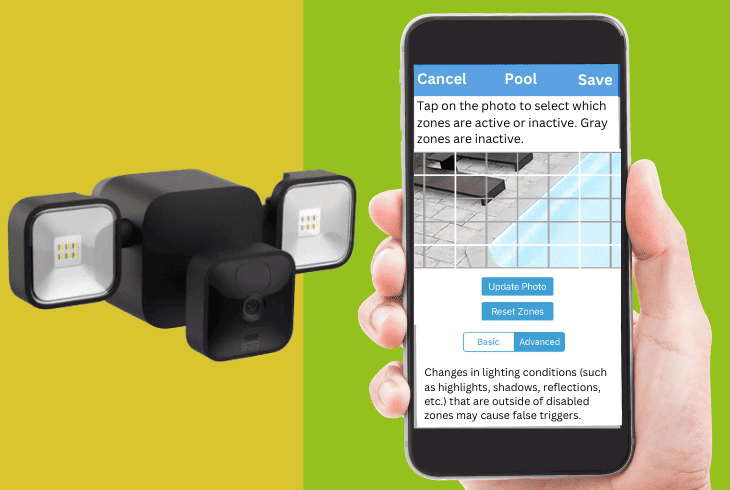
If the motion sensitivity and activity zone are not set properly, your Blink floodlight camera will not work as expected.
Motion sensitivity adjusts how responsive your camera is to motion, while activity zone lets you focus on a specific area for motion detection.
To adjust the motion sensitivity and activity zone, follow these steps:
- Open the Blink app on your phone.
- Tap on the Camera icon on the home screen.
- Tap on the Settings icon in the upper right corner.
- Tap Motion Detection.
- Slide the Motion Sensitivity bar to adjust it.
- Select Activity Zones.
- Tap on Add Zone.
- Drag the corners of the blue box to select the area you want to monitor.
- Tap Save.
Then, test your Blink floodlight camera and see if it works.
#9: Update the Firmware of Your Camera and Sync Module

Outdated or corrupted firmware is another reason your Blink floodlight camera is not working.
If there’s an update available, install it as soon as possible to fix any bugs and improve the performance and security of your devices.
To update the firmware of your camera and sync module, follow these steps:
- Open the Blink app on your phone.
- Tap on Settings.
- Select Firmware Update.
- Tap on Check for Updates.
- If an update is available, tap on Update Now.
- Wait for the update to complete.
Ensure a stable internet connection during the update process to avoid interruptions.
#10: Reset the Blink Floodlight Camera and Sync Module

As a last resort, reset your Blink floodlight camera and sync module to fix any major issues or errors.
Remember that you will lose all your customizations and preferences and must set up your devices again from scratch.
To reset your Blink camera, do this:
- Slide down the back cover of your camera.
- Press and hold the Reset button for 10 seconds.
- Release the Reset button when you see a blue LED flash.
- Slide up the back cover of your camera.
To reset your Sync Module, do this:
- Unplug the power adapter from the wall outlet.
- Press and hold the Reset button for 10 seconds.
- Release the Reset button when you see a red LED flash.
- Replug the power adapter to the wall outlet.
Then, follow the instructions on the app to set up your devices again.
Recap
Typically, Blink floodlight camera not working issues stem from problems with the power supply and network connectivity.
Ensure a proper power source by checking your outlet connection and battery status.
Then, verify the connection to your sync module.
