
Are you getting the Crave error code 246008 and can’t watch your favourite show? We got you!
If you also experience this, it’s usually due to a problem with your browser or device settings. But don’t worry, we’ve searched everywhere to find you the best steps.
To fix the Crave error code 246008, disable the ad blocker extensions that are installed on your browser. If that doesn’t work, change your DNS settings to use a different connection.
Alright, let’s get into the specifics of the solutions.
Crave Error Code 246008 – Best Methods to Fix It
The Crave error code 246008 often indicates a problem with your network connection, browser settings, or device settings.
Some of the possible causes are:
In this article, we’ll explain why the error pops up and how to solve it with six simple steps.
We’ll help you get back to enjoying your favourite shows without interruptions.
So, let’s do this!
Before You Start

Before you dive into the fixes, make sure you run through these five key troubleshooting steps.
They are the groundwork to spot and tackle issues effectively.
Should these prove ineffective, proceed to the more advanced solutions below.
1. Make Sure You’re Running the Latest Version of Your Browser
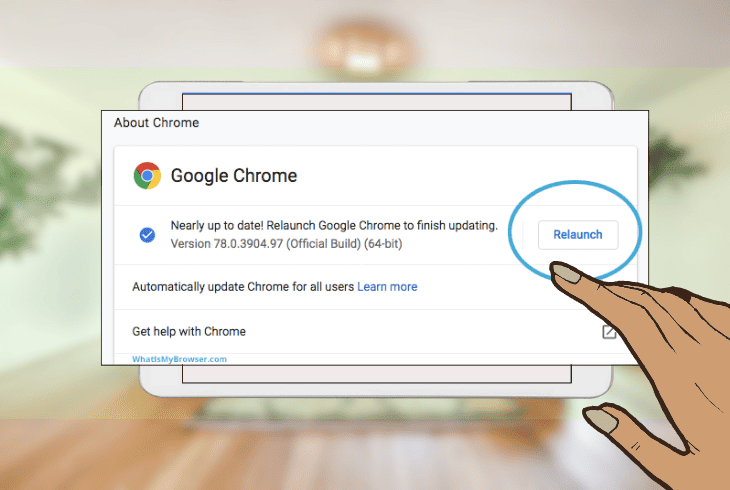
An older browser version often leads to errors due to unsupported features, incompatibility, and security issues.
If you’re stuck with the error code 246008 Crave, here’s a quick solution for you.
Update your browser to the latest version to ensure it has the latest security patches, bug fixes, and features.
Here are the steps to update some of the most common browsers:
Chrome
- Click the three-dot icon at the upper right corner.
- Select Settings.
- Click About Chrome on the left sidebar.
- Install the updates if available.
- Restart Chrome to apply the changes.
Firefox
- Click the three-bar icon at the upper right corner.
- Select Help.
- Click About Firefox.
- Install the updates if available.
- Restart Firefox to apply the changes.
Safari
- Click the Apple Menu in the upper left corner.
- Select App Store.
- Click on Updates on the left sidebar.
- Click the Update button if there’s an update for Safari.
- Restart Safari to apply the changes.
If your device runs the latest browser version, but the Crave error persists, continue to the next solution.
2. Clear the App Cache on Your Device
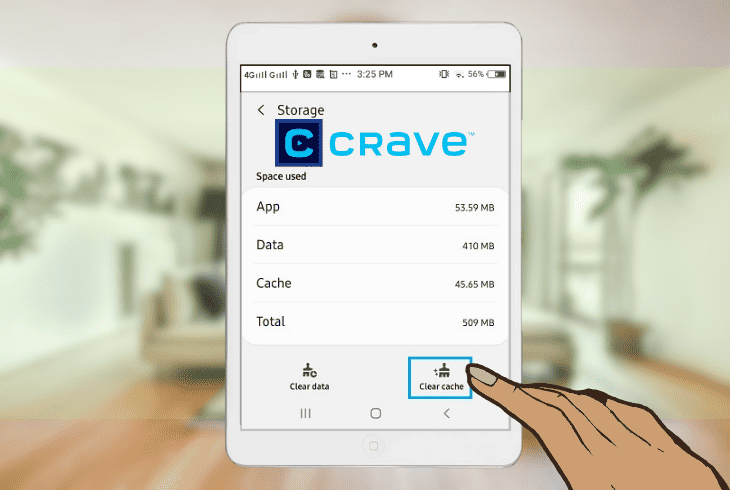
Another solution to the error code 246008 is clearing the app cache on your device. The app cache stores temporary data and files from the apps you use.
Sometimes, it gets corrupted or outdated, causing glitches and errors. Clearing it helps refresh the app and fix the issue.
Here are the steps to clear the app cache on various devices:
iPhone
- Go to Settings.
- Tap on General.
- Select iPhone Storage.
- Scroll down and tap Crave.
- Tap on Offload App and confirm.
- Go to the App Store and reinstall the app.
Android
- Go to Settings.
- Tap on Apps.
- Select Crave.
- Tap Storage.
- Tap on Clear Cache.
Note: Clearing the cache won’t delete your app data but will log you out of the Crave app. Re-enter your login credentials if necessary.
3. Disable Ad Blocker Extensions on Your Browser
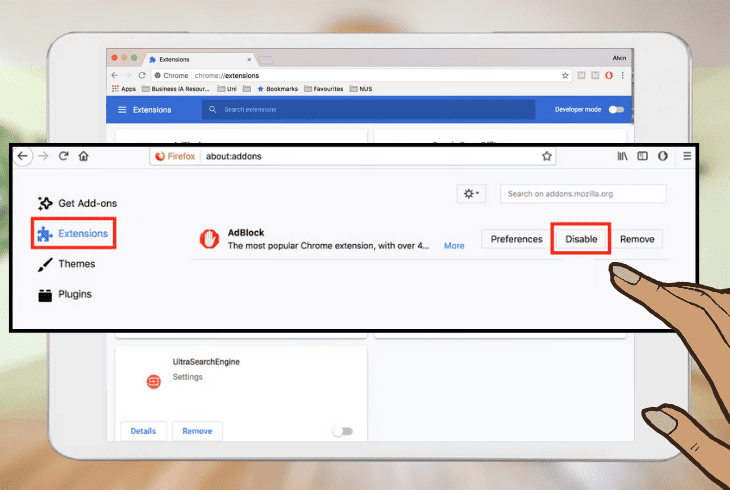
If you’ve got an ad blocker extension on your browser, it’s a possible culprit for your Crave streaming problem.
Ad blockers do their job stopping ads, but sometimes, they go overboard and block some of the scripts and elements Crave needs to work properly.
Turn it off to say goodbye to Crave error code “246008”.
Follow these steps based on your browser:
Chrome
- Click the three-dot icon at the upper right corner.
- Select More Tools.
- Click on Extensions.
- Find the ad blocker you’re using.
- Toggle the switch to turn it off.
- Alternative: Click the Remove button to uninstall it completely.
Firefox
- Click the three-bar icon at the upper right corner.
- Select Add-ons.
- Click on Extension on the left sidebar.
- Find the ad blocker you’re using.
- Toggle the button to turn it off.
- Alternative: Click the three-dot icon and select Remove to uninstall it completely.
Note: After turning off the ad blocker extensions, refresh or reload the pages on your browser to apply the changes.
4. Change Your DNS Settings
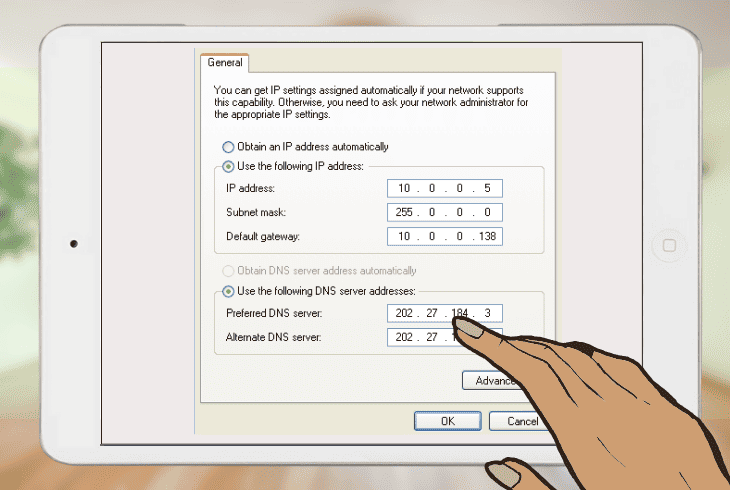
Change your DNS settings if you’re still tackling the error code 246008. DNS translates web names into IP addresses.
Your default DNS might be slow, overloaded, or blocked by your ISP, affecting your access to Crave, so you need to boost it by switching to a different server.
Here are the steps to change your DNS settings on various devices:
iPhone
- Go to Settings.
- Tap on WiFi.
- Tap the i icon next to your WiFi network.
- Tap Configure DNS.
- Select Manual.
- Tap Add Server.
- Enter 8.8.8.8 or 8.8.4.4.
- Tap Save to apply the changes.
Android
- Go to Settings.
- Select Network & Internet.
- Tap on WiFi.
- Tap your WiFi Network and select Modify Network.
- Tap Advanced Options and change the IP Settings to Static.
- Scroll down and enter 8.8.8.8 or 8.8.4.4 in the DNS1 and DNS2 fields.
- Tap Save to apply the changes.
PC
- Go to Control Panel.
- Click on Network and Internet.
- Choose the Network and Sharing Center option.
- Click the Change Adapter Settings menu on the left sidebar.
- Right-click your network connection and select Properties.
- Double-click Internet Protocol Version 4 (TCP/IPv4).
- Select Use the following DNS server addresses.
- Enter 8.8.8.8 or 8.8.4.4 in the Preferred DNS Server field.
- Click OK to make the changes.
Note: We recommend that you don’t use your ISP's default DNS as they’re outdated and will likely cause connection issues with apps like Crave.
5. Use a VPN Service
If the above solutions don’t work, use a VPN or Virtual Private Network.
A VPN encrypts your traffic and sends it through a server in another spot in a different location, helping you sneak past geo-restrictions, firewalls, or censorship that prevent you from accessing Crave.
To use a VPN service, follow these steps:
- Choose a VPN service that suits your needs or budget.
- Download and install the VPN on your device.
- Launch the VPN App and sign in to your account.
- Select a server location that matches your Crave subscription.
- Connect to the VPN server and open your browser or app.
- Go to the Crave website or app and log in with your account.
You should be able to stream Crave content without any problems.
Note: Our top pick for VPN service is AtlasVPN. It is the go-to choice for its seamless blend of fast internet speeds and unbeatable online privacy and security features.
6. Reset Your Device’s Network Settings
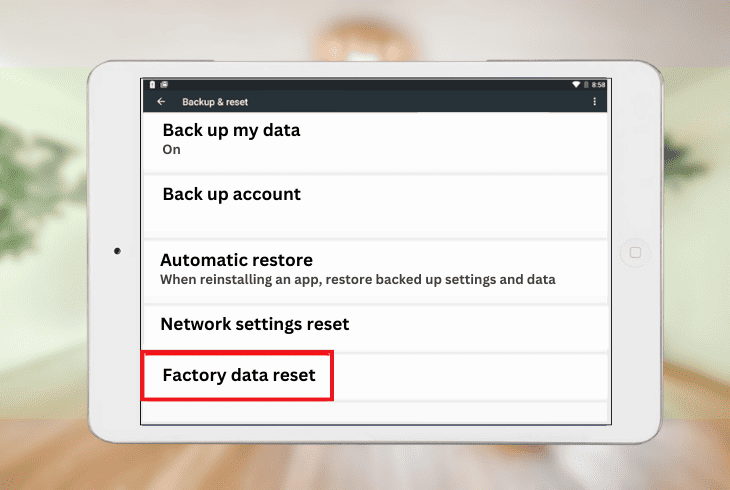
If you’re still battling a 246008 Crave error code, here’s a last-ditch move: reset your device’s network settings.
This will restore your device’s network configuration to its factory default, fixing network-related issues that cause the error.
However, this will also erase your saved passwords, Bluetooth devices, and VPN settings.
iPhone
- Go to Settings.
- Tap on General.
- Select Reset.
- Tap Reset Network Settings and confirm.
Android
- Go to Settings.
- Tap on System.
- Select Reset Options.
- Tap Reset WiFi, Mobile & Bluetooth and confirm.
PC
- Go to Settings.
- Click on Network and Internet.
- Select Status.
- Click Network Reset at the bottom.
- Click on Reset Now and confirm.
Note: Doing these will reboot your device and reset its network settings, so it helps to have a backup of your saved passwords, Bluetooth devices, and VPN settings to restore them quickly after the reset.
Quick RecapThe Crave error code 246008 has been bothering some of us.
If it’s a browser or device settings issue, we’ve got you back with the best steps.
First, turn off your ad blocker extensions. If there’s no luck, change the DNS settings to a different server.
Dive deeper into Crave error codes on our blog!

- SimpliSafe Doorbell Not Flashing White? (Quick Fix Guide) - April 30, 2024
- SimpliSafe Keypad Out Of Range? (Proven Ways to Fix) - April 30, 2024
- Kasa Plug Change WiFi – (5 Easy-to-Follow Steps!) - April 30, 2024