
White Rodgers thermostat display not working can be quite worrisome, as you might assume that your entire heating/cooling system is malfunctioning.
In most cases, however, the cause is just within the thermostat LCD panel and not more severe.
To fix your White Rodgers thermostat display not working, start by checking your panel’s brightness levels and replacing its batteries. Next, power cycle the thermostat to reset it.
Now let’s first see what causes your White Rodgers display not to work.
Why Is My White Rodgers Thermostat Display Not Working?
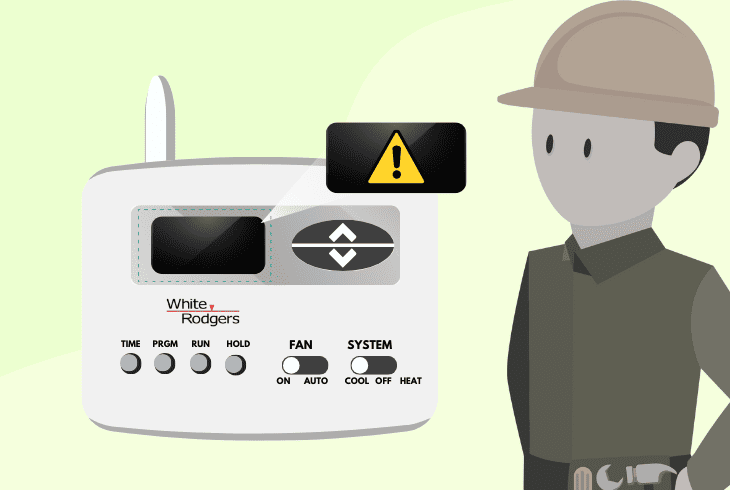
You might experience that your White Rodgers thermostat display is stuck and not changing or outright has no text or indicators.
In either scenario, the underlying cause is likely either due to incorrect settings or issues with power delivery.
Here is a list of the most common causes for White Rodgers thermostat displays not to work:
Now that you have seen the most common reasons why your White Rodgers display won’t properly work let’s take some troubleshooting steps to fix it.
How to Fix White Rodgers Thermostat Display Not Working
Tip: Always wear protective equipment when handling exposed wires on your White Rodgers.
Solution #1: Check LCD Panel Illumination
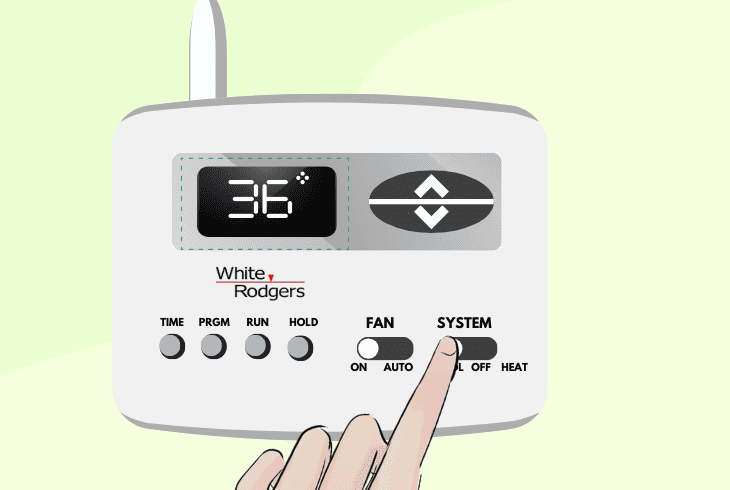
White Rodgers thermostat nothing on display not working can sometimes be due to incorrect or too low backlight illumination on the panel.
This can make your thermostat look like it’s not working when, in fact, it’s just not legible in daylight or otherwise.
Here are the proper steps to check your White Rodgers LCD panel settings:
- Go to your White Rodgers thermostat’s main panel.
- Note that you can also try the steps below if your display is not working.
- Locate the HEAT lever and shift or slide the SYSTEM switch into the HEAT setting.
- Simultaneously press both the upward and downward buttons for two seconds.
- Wait for the display to start alternating between “-L” and “FF” (indicating it’s off).
- Press either the up or down button to change the “FF” reading to “ON.”
- Switch the SYSTEM setting to OFF to exit this configuration mode and apply changes.
The steps above should now turn on the backlight for your thermostat panel.
If you notice that there is still no image on it, then proceed with the steps below.
Note: Ensure that your White Rodgers is not set to programming mode when changing the LCD brightness setting.
Solution #2: Power Cycle the Thermostat
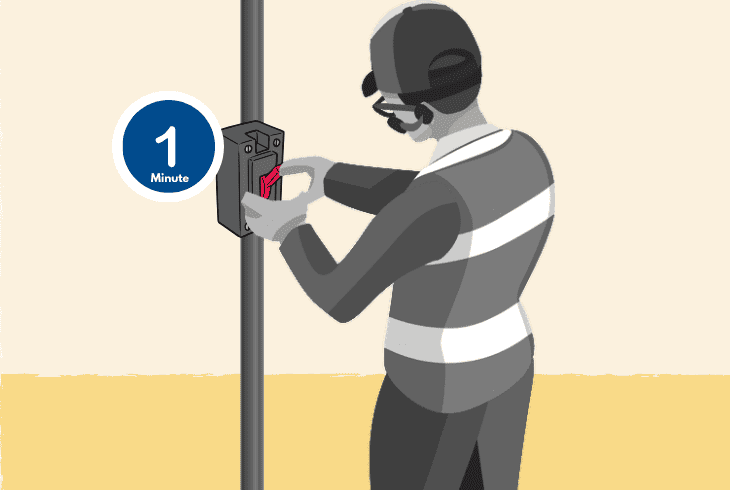
One of the better universal fixes for issues with your White Rodgers thermostat is to power cycle it, thus removing any static electricity build-up.
These trace amounts of electricity that linger on the circuit board can cause the display not to work.
Here are some general ways to power cycle your White Rodgers that work on all models:
- Shut off the circuit breaker connected to your White Rodgers thermostat.
- Leave the power off for about 1 minute to let the static charge dissipate safely.
- Restore the power at the circuit breaker to turn on the thermostat.
- Check if the thermostat’s display has come back on.
- Gently remove the thermostat from its mounting plate if the display is still not working.
- Carefully reattach the thermostat to the mounting plate.
- Power on the thermostat and check if the display is working now.
Note: Ensure that your thermostat is not set to ‘Security’ mode after power cycling it.
Solution #3: Check And Replace Your Thermostat Panel Batteries
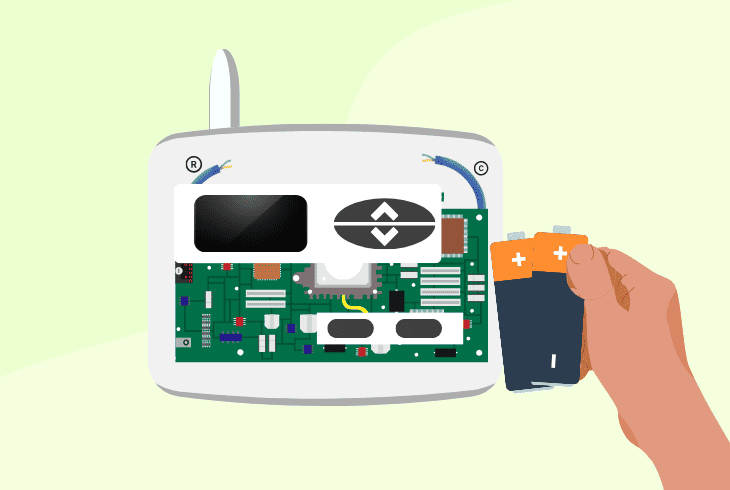
Most White Rodgers thermostats have a main or backup power source in the form of removable batteries.
One of the most apparent causes of the display not working is if it’s not receiving sufficient power to light up.
Here are the steps to check and replace your White Rodgers display batteries if needed:
- Open the battery compartment of your White Rodgers thermostat.
- Carefully remove the old batteries and dispose of them safely by recycling them.
- Make sure you have the correct replacement batteries, usually AA or AAA.
- Insert the new batteries, ensuring they are correctly oriented – look closely at the ‘+’ and ‘-’ symbols on the panel and align them.
- Securely close the battery compartment and ensure it’s snapped in position.
- Wait a few moments for the thermostat to initialize.
- Check if the display is functioning after the battery replacement.
Note: On some models, the auxiliary battery power unit is housed in a small compartment wrapped in dark-colored plastic.
Solution #4: Reset the Thermostat
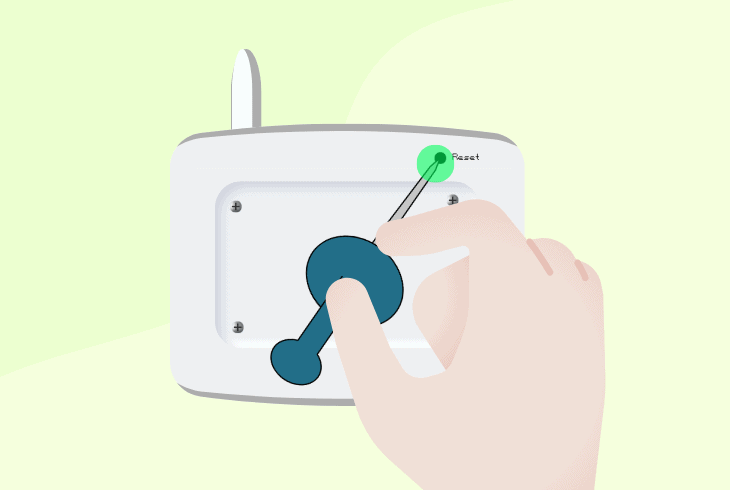
A surefire way to clear many software issues and glitches on your White Rodgers thermostat is to perform a hard or factory reset.
This will erase any stored settings that might prevent the screen from working, as well as remove many runtime errors.
Here are some general steps to factory reset your White Rodgers thermostat:
- Locate the reset button on your White Rodgers thermostat.
- Gently press the reset button using a paperclip or a similar object.
- If you are unsure or can’t find the reset button, check your White Rodgers manual.
- Allow the thermostat a few moments to restart.
- Reprogram your settings if necessary after the reset.
- Test different heat or mode settings to ensure the thermostat is functioning properly.
- Inspect the display to see if it is now operational.
After the reset, it’s vital that you properly calibrate your thermostat clock and connect it to WiFi if your device supports it.
This will allow you to use the scheduling function, which otherwise won’t work.
Note: On some models, if the clock is adjusted to Saturday and set at 12:00, it indicates that the hard reset was successful.
Solution #5: Check the White Rodgers Wiring Connections
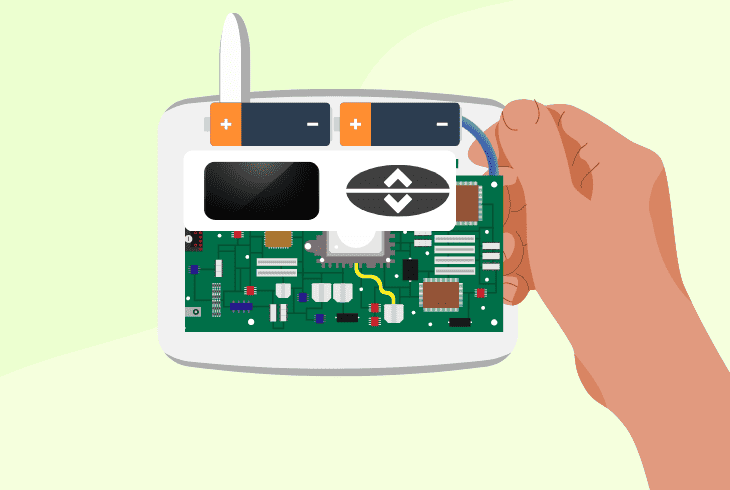
When your White Rodgers was first installed, it’s possible that some wires were not properly aligned or fully tightened.
Over time, if some internal cable comes undone, it can result in the display malfunctioning or not powering on at all.
Here are the steps to check your White Rodgers wiring connections for issues:
- Ensure the power to the thermostat is turned off.
- Gently remove the faceplate of your White Rodgers thermostat.
- Look for any loose or disconnected wires inside.
- Tighten any loose connections and reconnect any disconnected wires.
- Put the faceplate back on the thermostat.
- Double-check the reference in the manual for where each wire should be connected to.
- Turn the power back on after securing the wiring.
- Check if the display issues are resolved with the reconnected wiring.
You should never handle live wires; always power down the thermostat from the circuit breaker for safety.
Note: Your Thermostat will turn off if its set point gets adjusted to below 37 degrees Fahrenheit.
Solution #6: Check Your White Rodgers Temperature Settings
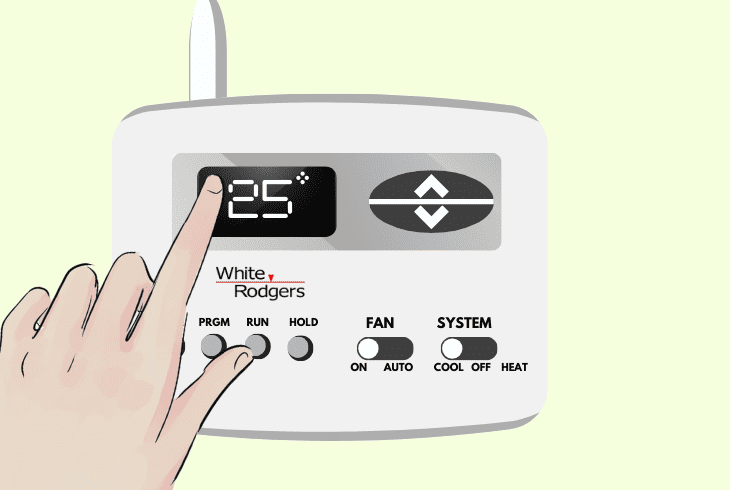
Some White Rodgers thermostats will not power on if their temperature reference or activation point is incorrectly configured.
Although you should be able to access and see the settings, sometimes the display won’t work if the temperature threshold is not met.
Here is how to check your White Rodgers temperature settings:
- Navigate to your White Rodgers temperature settings or temperature change mode.
- Ensure that the set temperature is appropriate for the current season and conditions.
- Never put the cooling mode on if the temperature outside is already low.
- If you are running a program, check its calibration.
- Verify if the scheduled temperatures match the current room temperature.
- Try changing the White Rodgers temperature settings in very small increments.
- If the HEAT or Flame icon gets activated, it indicates proper operation.
Note: Be sure to always save any new configuration settings and apply them instead of just closing your thermostat cover.
Solution #7: Verify Your Power Source and Terminals
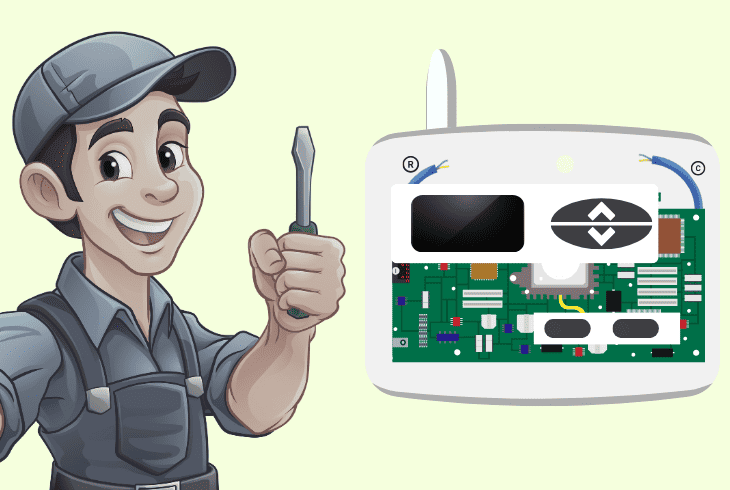
If you have replaced your thermostat’s batteries and performed all of the steps above, yet the display still won’t work, it’s likely a power-related issue.
In this case, you have to check and inspect both the terminals and the power input for issues.
Here is how to ensure your White Rodgers thermostat power source is properly configured:
- Confirm whether your White Rodgers is battery-operated or hardwired.
- In case it’s hardwired, open the thermostat by removing the front cover.
- Check the power input wires with a multimeter to see if they are working.
- If the terminal wires are loose, tighten their connectors.
- If there is no power after these steps, check your home power system for issues.
Note: If your thermostat still doesn't work after these steps, consider contacting an electrician or HVAC technician for further help.
Quick Recap
To fix the White Rodgers thermostat display not working, start by replacing the batteries and then hard reset your thermostat.
If the issue persists, check the wiring and connections.
