

The Reolink live viewing failed out of nowhere? We will check all the solutions available!
Reolink offers a neat security system that allows you to check live footage both on your phone and monitor.
But sometimes the live viewing fails and you do not know what is happening precisely.
If your Reolink’s live view feature is not working you must check all of the video-related settings but also some features on your router. If nothing of that works, you must proceed to look for updates or reset the camera!
Why is the live view failing? See below and find the solutions!
Reolink Live Viewing Failed – Check 8 Easy Fixes!
Solution #1: Tweak The Streaming Settings (On The App)
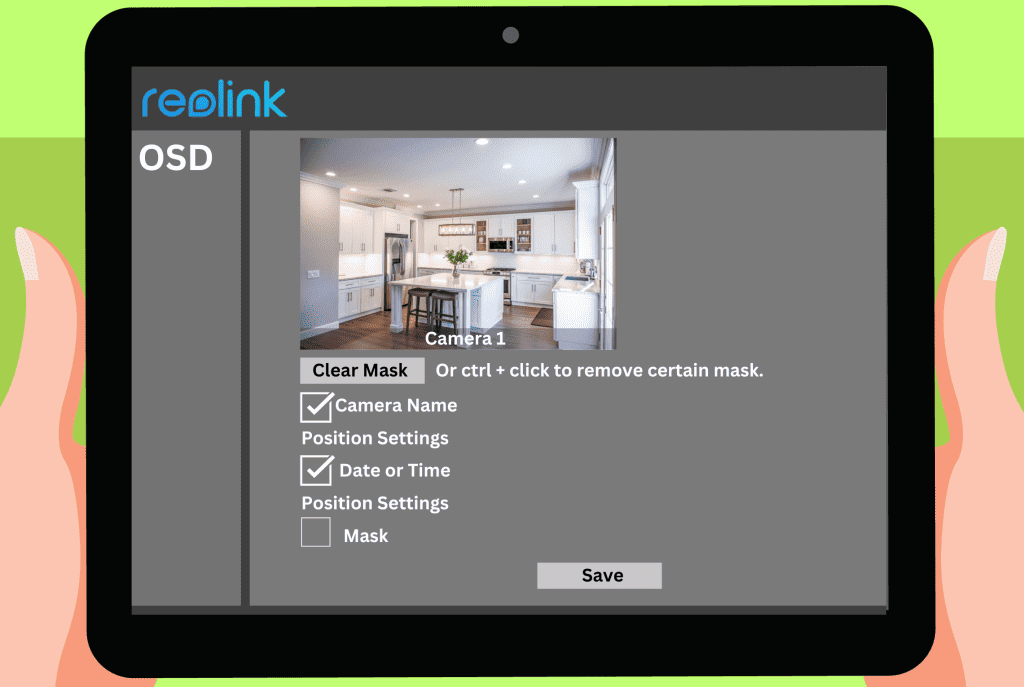
Has the live viewing failed on your Reolink? Streaming steadily and with quality requires some settings that you might have forgotten to adjust.
So the first step in this troubleshooting guide is to go to the app and check some of the streaming-related options.
We will quickly find out what’s out of place.
- Open the Reolink app on your phone.
- Go to the Live Viewing.
- Tap the stream type icon.
- Switch between Clear and Fluent to check which one is handled better by your connection.
Weak connections usually work better with the Fluent stream type.
Change The Bitrate
A different way of ensuring that you can watch the Reolink Live View on your network is changing the bitrate on the app’s settings.
Here is how you can do it:
- Go to the Device Settings.
- Tap on Display.
- Then click on Quality.
- Select Clear or Fluent.
- Now select the resolution, frame rate, and bitrate that you wish to apply.
Solution #2: Test The Connection

Another issue that can cause your Live Viewing to fail is the weak connection on your house.
If you have already tried Solution #1 and nothing has changed, that might be the case.
So it is necessary to discover if your connection is required for the task.
Do the following:
- Open the Google site on a browser.
- Type “Speed Test.”
- Open the Google speed test.
- Check the upload and download speeds of your connection.
Nowadays, at least 20MB/s is required for intensive video streaming.
Your ISP probably should deliver at least that much. If the Google speed test shows less than that, restart your router and try again.
If the result is still bad, get in touch with the ISP.
Ways To Improve The Connection

Suppose your upload and download speeds are fine. Still, the Reolink Live View is failing.
Here are some things you can do to counter that:
- Bring your Wi-Fi Reolink cameras closer to the router.
- Check if there are many smart devices connected to the same router and disconnect some of them, then test the results.
- Move some smart devices away from the Reolink camera’s range.
- If you have a POE Reolink camera, you might want to check if its cable is too long. Reolink recommends using shorter cables.
- POE Reolink users need to use CAT5e cables or better.
Solution #3: Change Settings On The PC Client

Are you having trouble accessing the Reolink live view in the PC client? Then some changes must be applied to its configurations.
Perhaps you don’t have the right permissions, the software is outdated, or the video options are not optimal.
Run As Administrator
The first adjustment you are going to make in the PC client is running it as admin. If the software is open, close it.
Then do this:
- Right-click the Reolink software icon.
- Select “Run as admin.”
- Confirm when prompted.
- Wait for the software to open.
- Check the live view again.
Switch The Display Window

A different solution involves the sort of display window that’s been configured in the client.
Here is the optimal setting:
- Open the display window settings.
- Change it to the “multi-window display” option.
- Locate the “turn to page” button.
- Click on it.
Then, check if that makes any changes.
Update The Client
A further reason that prevents you from checking the live view correctly is the outdated firmware of the PC client.
You should check for an update whenever that happens:
- Locate the PC client’s settings.
- Check the version.
- Click on “Look for updates” if available.
Solution #4: Manage The Router’s Ports And Firewall

Your router is possibly blocking the Reolink live view through the ports or firewall.
According to Reolink, you need to enable the UDP port 65535 if it is disabled.
That requires no great technical expertise and you can do it in a few seconds:
- Locate your router’s IP address (usually on its label).
- Enter the IP address into a browser.
- Check the settings.
- Look for “Port Forwarding.”
- Look for the option that allows you to open ports.
- Type “65535” and open that port.
After that, save the settings and restart the router if necessary. Then check if any changes are visible in the Reolink live view.
Check The Firewall
While you are logged into the router’s settings, look for its firewall configurations.
Do you locate an option called “remote access”? If it is blocked, unblock it and see the results.
Solution #5: Add The Camera Again Through UID/QR Code

According to Reolink, the method you have used to add the camera to the app can have different effects.
It is common for users to add the camera using IP in LAN, and then the live view fails frequently.
Getting rid of that will require you to re-add the camera via the UID or QR code.
Here is how:
- Locate the camera on the app or PC client..
- Check its settings.
- Click on “Share Camera.”
- Once the QR code shows up, save it.
- Go back to the device settings.
- Remove the camera from the system.
Now you will need to add the camera again:
- Open the Reolink app.
- Click on the “+” button.
- Scan the QR code.
- It is done.
After that, check if the live view works. You might need to change some configurations again according to the three first solutions in this guide.
Solution #6: Check The Network

Some network settings are usually responsible for the issues with your devices’ connectivity.
In this section, we will talk about the frequency and channel in use. Your router most likely has two networks: one is 2.4GHz and the other is 5GHz.
So do the following:
- Go to your phone’s Wi-Fi settings.
- Check which Wi-Fi frequency you are connected to.
- Change to 2.4GHz if necessary.
Smart devices such as security cameras usually work only with 2.4GHz because that frequency has a wider range.
Check For Overcrowded Channel
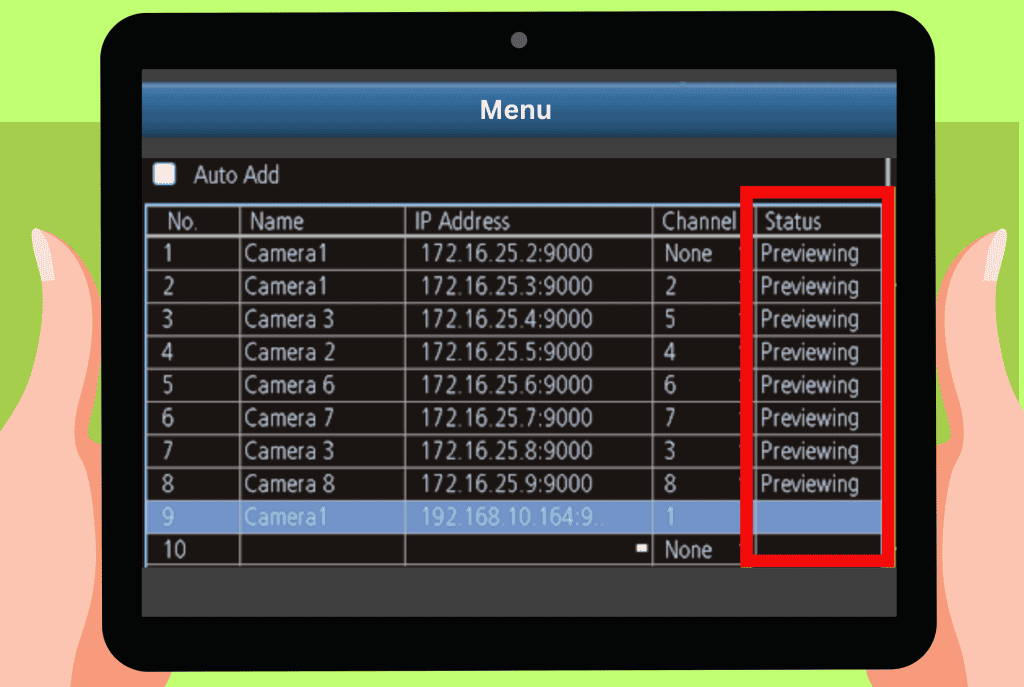
Another issue that happens on Wi-Fi systems is a channel getting overcrowded if many routers in the area are using the same one.
Each frequency has an amount of channels, and routers using the same channel will cause interference with each other.
Here is how to find out if that’s the case:
- Run NetSpot software on your computer.
- Scan the area.
- Note down the most used channels.
Is your router using the same channel as nearby routers? Then it is time to head to the router’s settings and select an unused channel.
Here:
- Open your web browser.
- Type your router’s IP.
- Find the “Wireless settings.”
- Click on “Channels” for the 2.4GHz frequency.
- Select a free channel.
Solution #7: Update The Firmware

The lack of firmware compatibility can be a real cause of the live view failure. That’s because the lack of updates makes the camera unable to communicate with the Reolink servers correctly.
Thus, the live stream is not transmitted at all. So do the following:
- Open the Reolink app or PC client.
- Look for the connected devices.
- Open the settings of the defective camera.
- Locate the version.
- Click on “Check for updates”.
If an update is available, download it right away. Wait for the installation to succeed and then check if anything changes on the live view.
Solution #8: Reset The Camera

Finally, the problem on your camera might be hardware- or software-related in a way that requires you to hard reset it.
The process will erase all the data from the camera, meaning you must reconfigure the camera later on the app/PC Client.
These are the steps to reset your Reolink camera:
- Locate the reset button of your camera.
- Insert a pin if the reset button is a pinhole.
- Press for 10 seconds.
- Release.
Some cameras will prompt when the reset is successful. Others won’t. The way to know for sure is to check if the camera still shows up in the app.
Quick Recap
Thus if you have this situation: the Reolink live viewing failed. In that case, the recommended is to check if the settings for the live view are optimal.
Some users don’t know that a lot of stuff can be changed to adapt the app to your current network.
Do you want extra help with Reolink? The blog is filled with articles on that!